Plan across teams with a programme
A programme plans work that several teams deliver together. It holds initiatives, the outcomes the teams work toward, such as Self-serve checkout. Each team keeps its own project, board, backlog and sprints; its epics can belong to one of the programme's initiatives. This tutorial creates a programme, adds the teams, creates initiatives, gives the teams' epics their initiative, and then follows the work on the roadmap, the timeline, the dependencies and the reports.
Who it's for: programme leads, and the leads of the teams that work toward a programme.
Before you start
- Team projects with epics in them. See Set up your first project.
- An organisation member or admin account: guests can't create projects. Whoever creates the programme is its admin.
- To add a team to a programme, you need to be an admin of the programme and be able to browse the team's project.
flowchart LR
  A[Create the<br/>programme] --> B[Add the<br/>team projects]
  B --> C[Create<br/>initiatives]
  C --> D[Give team epics<br/>their initiative]
  D --> E[Follow the roadmap,<br/>timeline and<br/>dependencies]
1. Create a programme
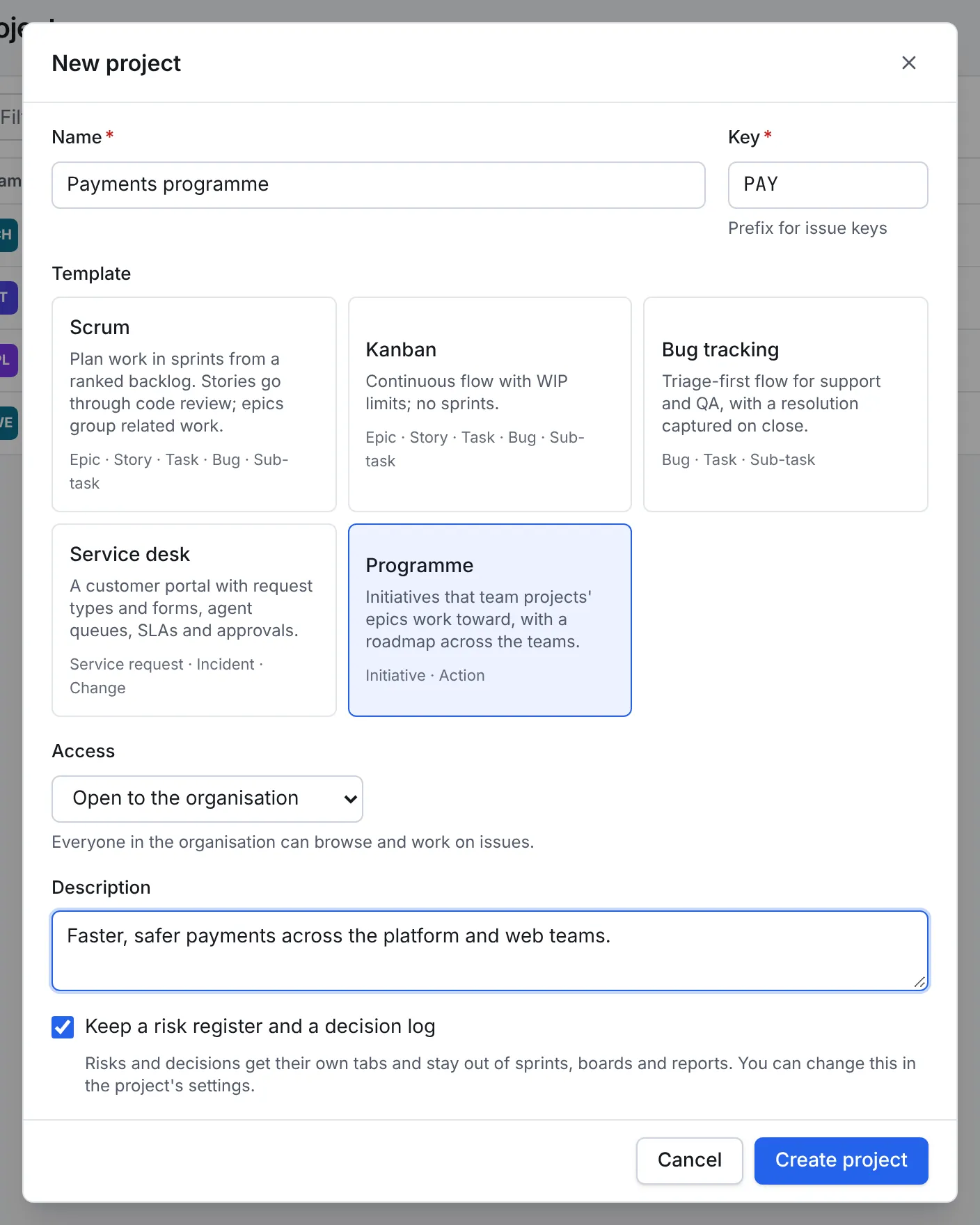
- Open Projects and select New project.
- Give it a Name and Key, such as Payments programme and PAY.
- Choose the Programme template. It comes with an Initiative issue type (above epics), an Action type for the programme's own tasks, and risks and decisions for programme-level risks.
- Select Create project.
A programme opens on its Roadmap. Its tabs are Roadmap, Timeline, Dependencies, Board (the programme's actions), Issues, Risks, Decisions and Reports.
2. Add the teams
Open the programme's Settings → Teams, choose a project under Add a team project and select Add team. Repeat for each team.
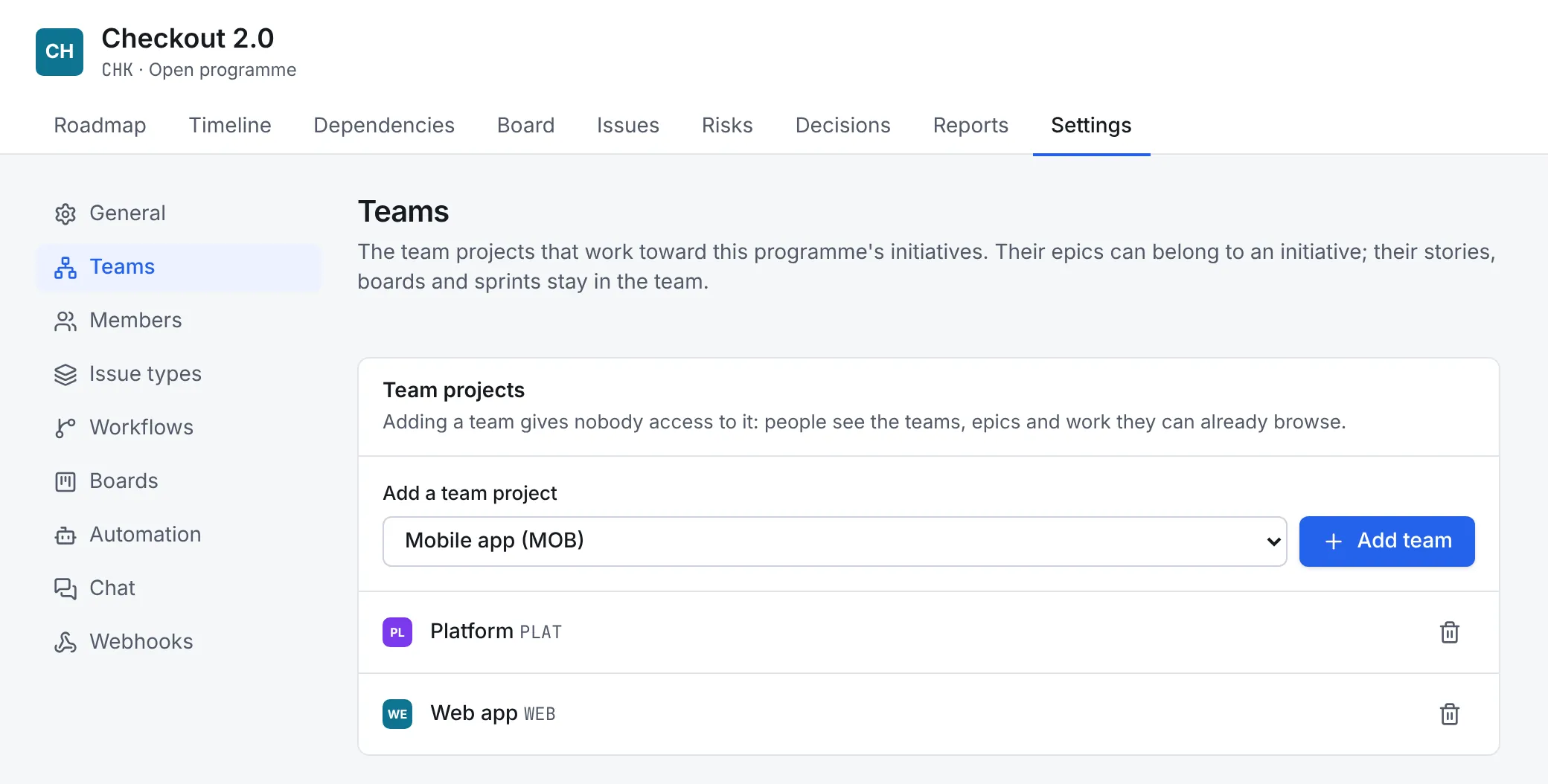
Adding a team gives nobody access
Everything a programme shows is limited to what each person can already browse. Someone who can't browse a team sees it counted ("1 team you can't browse is left out"), never named, and none of its epics or work. Someone who can browse a team but not the programme sees its epics without their initiative ("An initiative you can't see").
Taking a team out of a programme (the bin icon) unlinks its epics from the programme's initiatives. The epics and their work stay in the team, and each epic's history says what happened.
3. Create initiatives
On the Roadmap, select New initiative. Give it a summary and, if you have one, a due date: the roadmap compares it with when the teams' work is likely to finish.
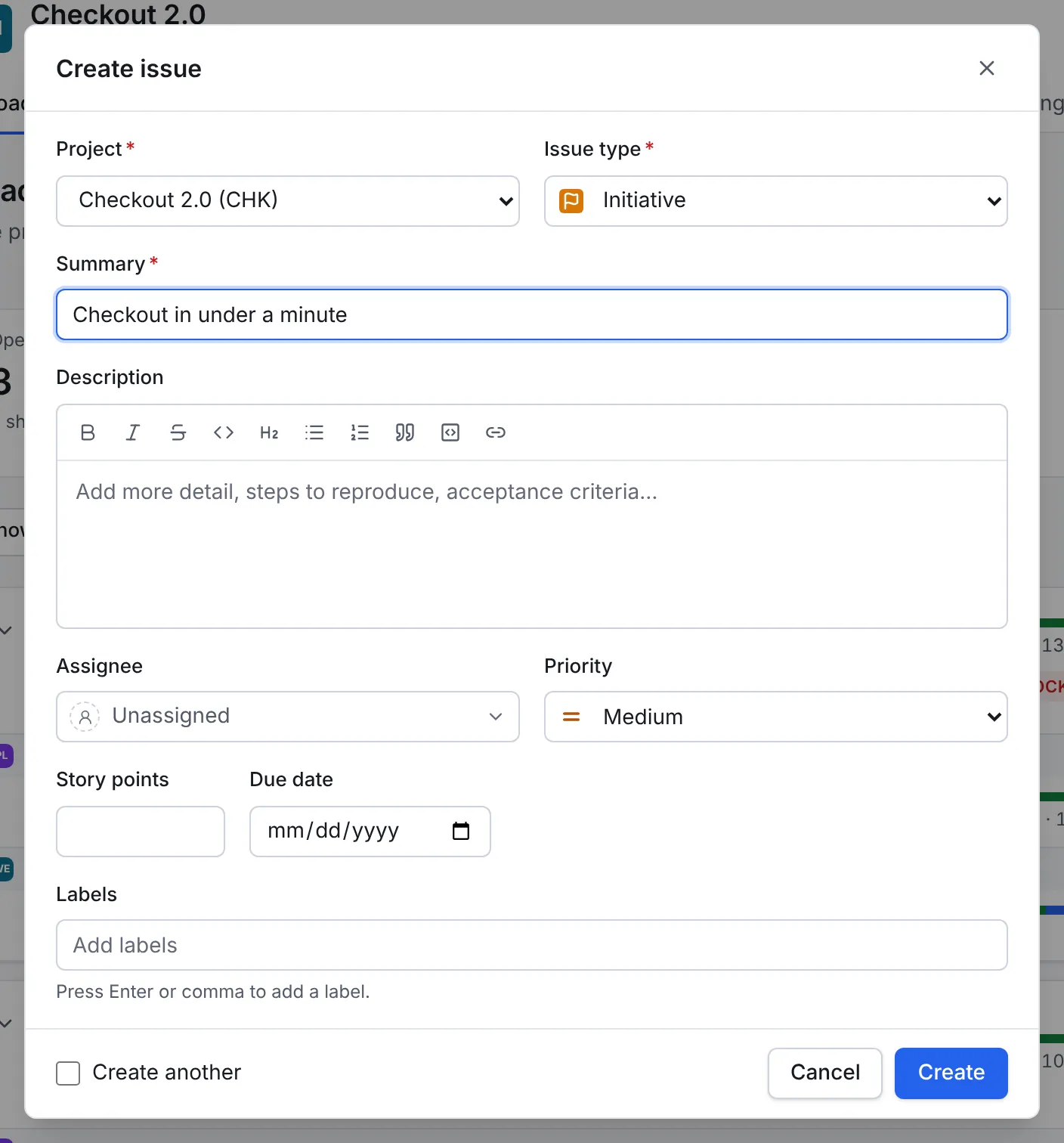
Initiatives move from Proposed to In Progress to Done with the status button, like any issue.
4. Give the teams' epics their initiative
An epic in a team project can belong to one of the programme's initiatives. There are three ways to set it:
- On the epic: the Initiative field in its details lists the initiatives of the programmes its project belongs to.
- When creating an epic in a team project: the create dialog has an Initiative picker.
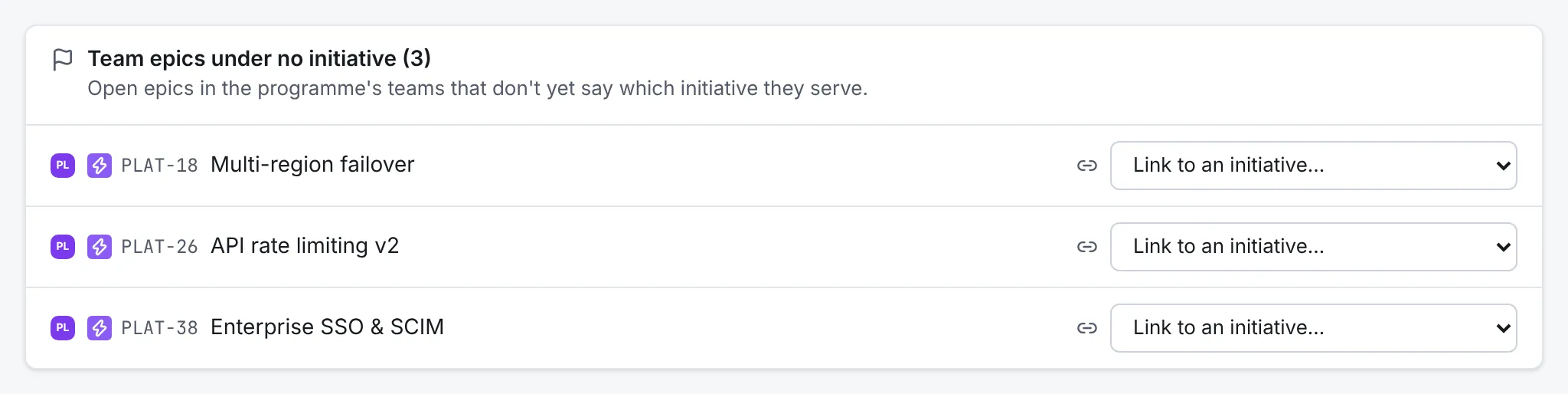
- From the roadmap: the list of team epics under no initiative has a Link to an initiative picker beside each epic.
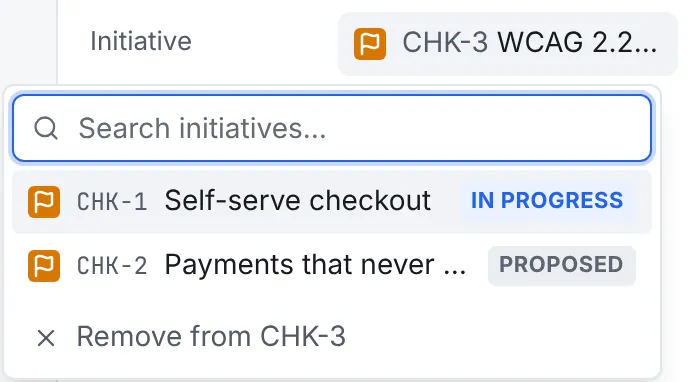
The epic stays in its team, with its stories, board and sprints. Moving it to another initiative, even in another programme, is the same field.
5. Read the roadmap
The Roadmap lists the open initiatives in rank order (Show done adds those finished in the last 90 days). Above them are the number of open initiatives, epics, late epics and epics blocked by another team.
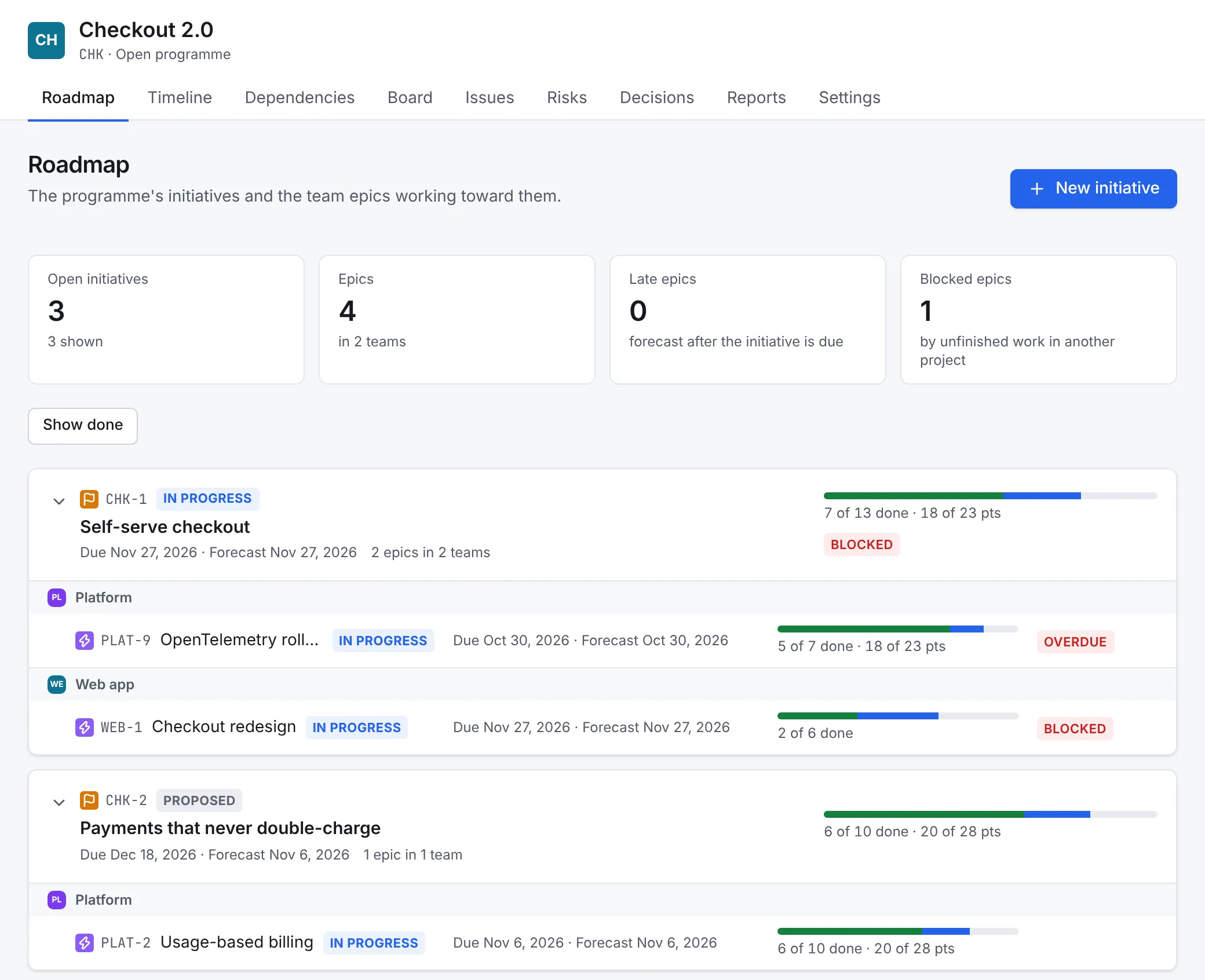
For each initiative and each of its epics:
- Progress counts the issues under the epics, by status, with story points.
- Forecast is the latest due date of the epic and the issues under it; an initiative's forecast is the latest of its epics'. It shows in red when it's after the due date.
-
Flags say what needs attention:
Flag Means Late The epic's forecast is after the initiative's due date Overdue The due date has passed and it isn't done Unscheduled No dates, and nothing under it has a due date Blocked It, or an issue under it, waits on unfinished work in another project Hover a flag to see why, such as which issues are doing the blocking.
Below the initiatives, Team epics under no initiative lists the teams' open epics that don't yet say which initiative they serve.
6. Follow it on the timeline
The programme's Timeline nests each initiative, the team epics under it and their issues. Dates roll up: an epic without dates spans its issues, and an initiative without dates spans its epics. Then, team by team, come the epics under no initiative.
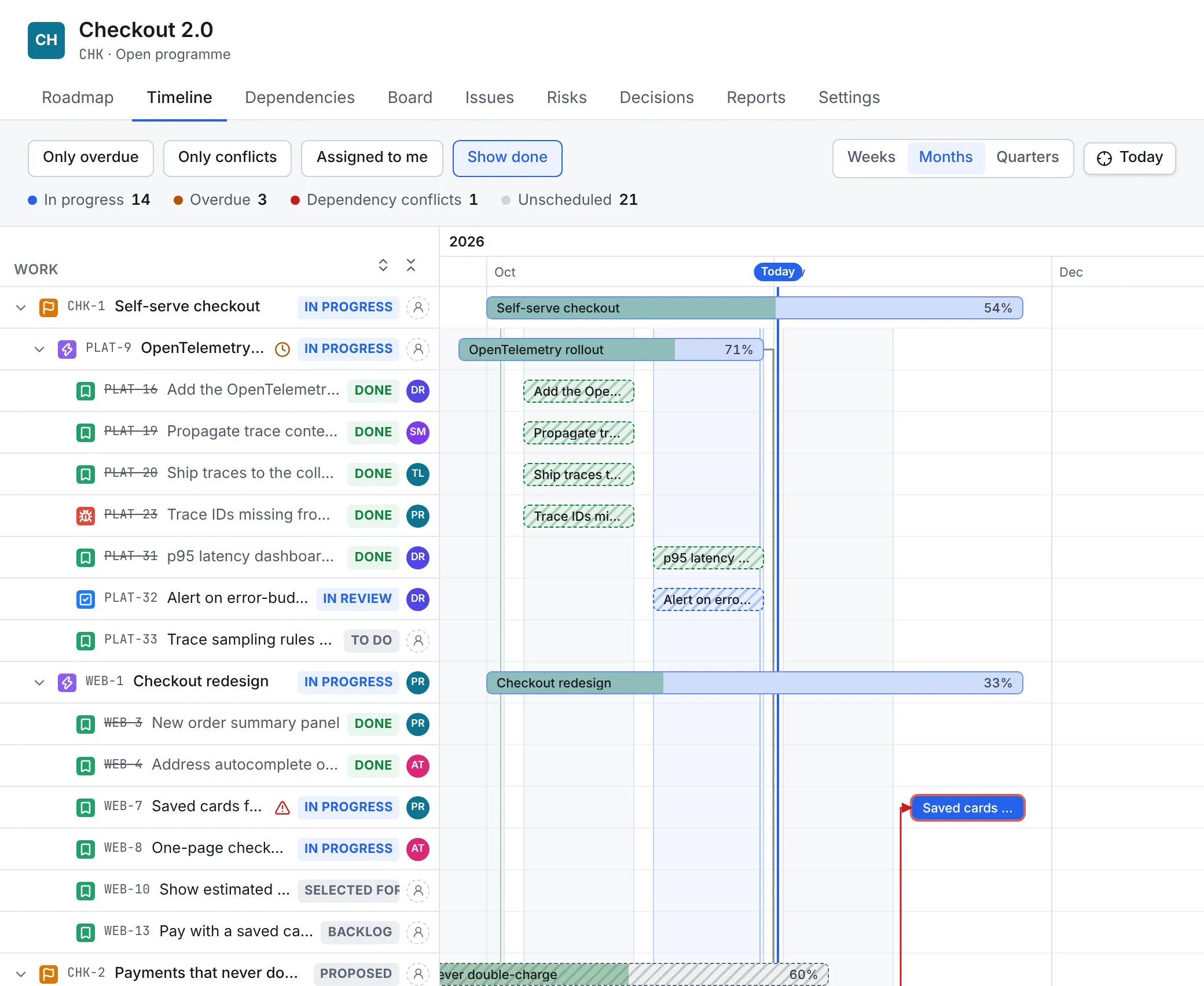
Dependency arrows work across teams, and conflicts stand out as on any timeline. An issue that waits on, or holds up, an unfinished issue the timeline doesn't show gets a warning that names it, or says it is in a project you can't browse.
7. Find the dependencies between teams
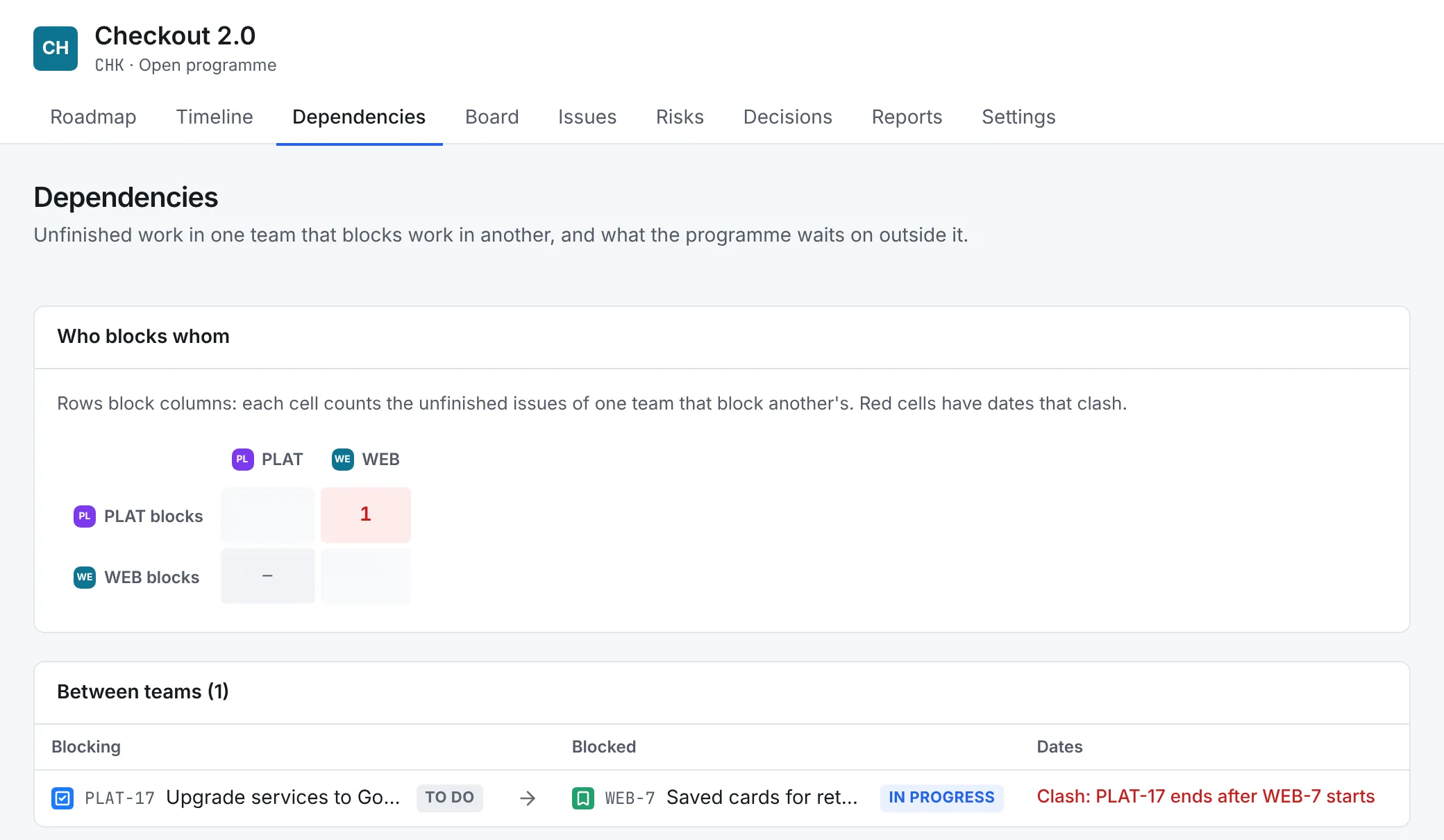
The Dependencies tab shows who waits on whom:
- Who blocks whom: a matrix of unfinished
blockslinks between the programme's projects, with the blocking teams in the rows and the blocked teams in the columns. Red cells have dates that clash. - Between teams: each link, those whose dates clash first: the blocker ends after the work it holds up starts.
- Outside the programme: what the programme's issues wait on, or hold up, elsewhere.
8. Reports
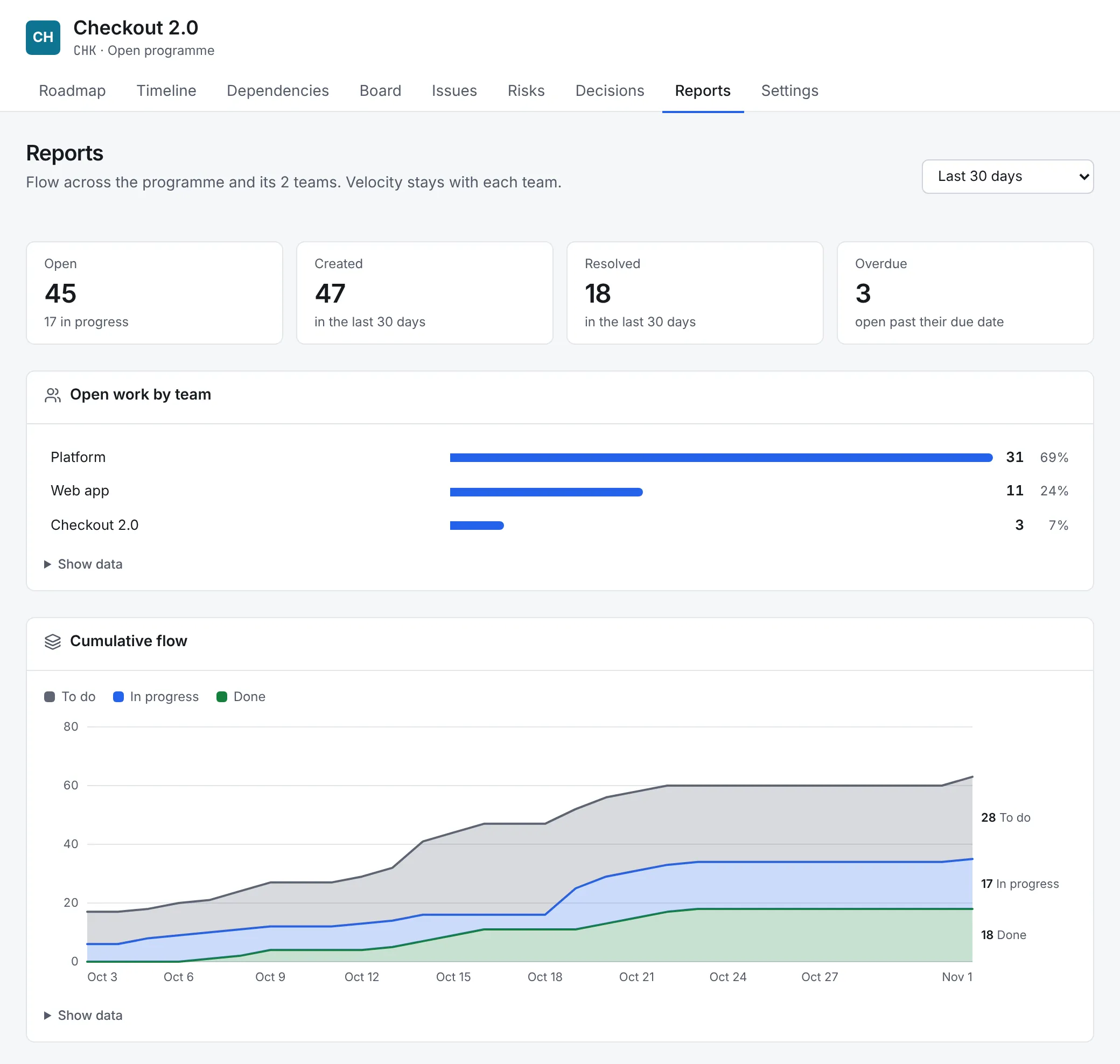
The programme's Reports cover the programme and its teams: open work by team, cumulative flow, created vs resolved, and cycle time over the window you choose. Velocity and sprint reports stay with each team, whose sprints differ.
Find a programme's work with a search
initiative = CHK-1 AND statusCategory != Done             what's left for an initiative, in every team
project in programmeProjects("CHK") AND issue in blockedIssues()
project in (PLAT, WEB) AND level = 1 AND initiative is EMPTY   team epics under no initiative
Where next
- Programmes covers the hierarchy rules, who sees what, the flags, automation and the API.
- Plan and ship a release takes each team's work to production.
- Keep a risk register and a decision log: a programme keeps its own risks and decisions too.