Set up your first project
This tutorial takes a new installation from an empty organisation to a project your team can work in: you create the project from a template, add people to Workflow, give them a role in the project and create the first issues. It takes about fifteen minutes.
Who it's for: organisation admins.
Before you start
- Workflow is installed and you can open it in a browser. See Getting started.
- You are an organisation admin. The first person to sign in becomes the admin, unless
WFM_BOOTSTRAP_ADMINSnames the admins. Without single sign-on, create the first admin on the server withwfm create-admin --email you@example.com --name "Your Name", which prints a temporary password (see Local accounts). - To invite people by email, the server needs an SMTP server (
WFM_SMTP_HOST, see Email). Without one, give people a temporary password instead.
flowchart LR
  A[Sign in as the admin] --> B[Create a project<br/>from a template]
  B --> C[Add people<br/>to Workflow]
  C --> D[Give them a role<br/>in the project]
  D --> E[Create the<br/>first issues]
Find your way around
The sidebar on the left holds Projects, Issues, Timeline, Dashboards, Timesheet, Notifications and Help centre, then a list of your projects and, at the bottom, Administration. At the top right are Create (a new issue, from any page), the theme button, your notifications and your avatar. The avatar opens the account menu: Profile and tokens, Administration and Sign out.
1. Create a project
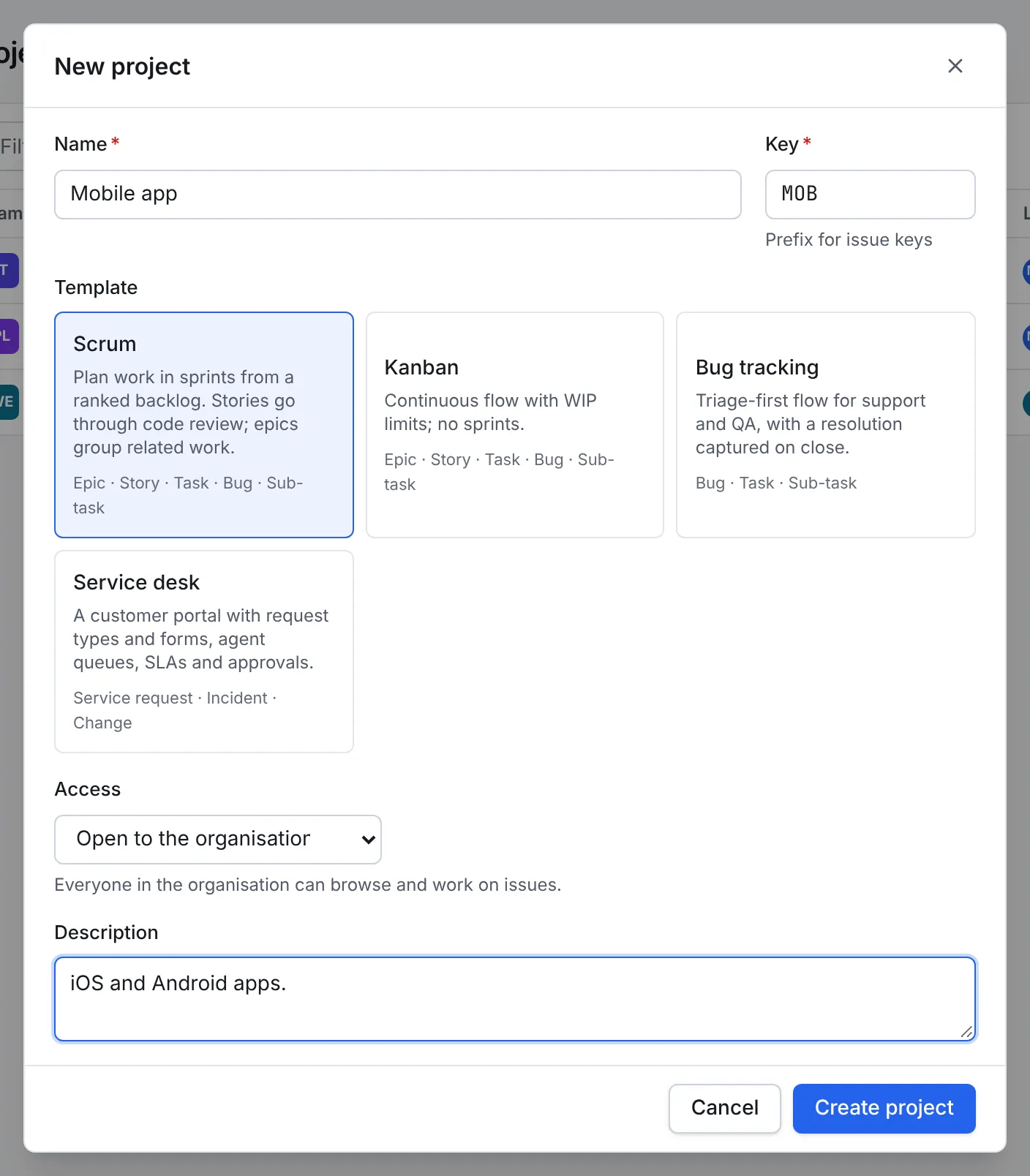
- In the sidebar, select Projects, then New project at the top right.
- Enter a Name. Workflow suggests a Key from it: the prefix of every issue key, so MOB gives MOB-1, MOB-2 and so on. Keys are 2 to 10 capital letters or digits and start with a letter. Change the suggestion now if you like, because the key is what people will type and search for.
-
Choose a Template. It decides the issue types, the workflow and the board:
Template Use it for Issue types Scrum Planning work in sprints from a ranked backlog. Stories go through code review Epic, Story, Task, Bug, Sub-task Kanban A continuous flow with WIP limits and no sprints Epic, Story, Task, Bug, Sub-task Bug tracking Support and QA: triage first, with a resolution captured on close Bug, Task, Sub-task Service desk A help centre for the people you support, with queues, SLAs and approvals (see Set up a help desk) Service request, Incident, Change -
Choose who can see it under Access. Open to the organisation lets every organisation member browse and work on its issues. Private limits it to the people you add.
- Optionally add a Description, then select Create project.
You land on the project's Board. A new Scrum board is empty until a sprint starts, and Go to backlog takes you to where you plan one. The tabs along the top are Board, Backlog, Timeline, Issues, Releases, Reports and Settings.
Everything the template set up can be changed later under Settings: the workflow, the issue types, the board's columns and the automation rules.
2. Add people to Workflow
If people sign in with single sign-on, you may not need this step: depending on who gets an account, their account is created the first time they sign in, or by SCIM or directory sync. Add people here when they use a password, or to set them up before they first sign in.
- Open Administration at the bottom of the sidebar. It opens on Users.
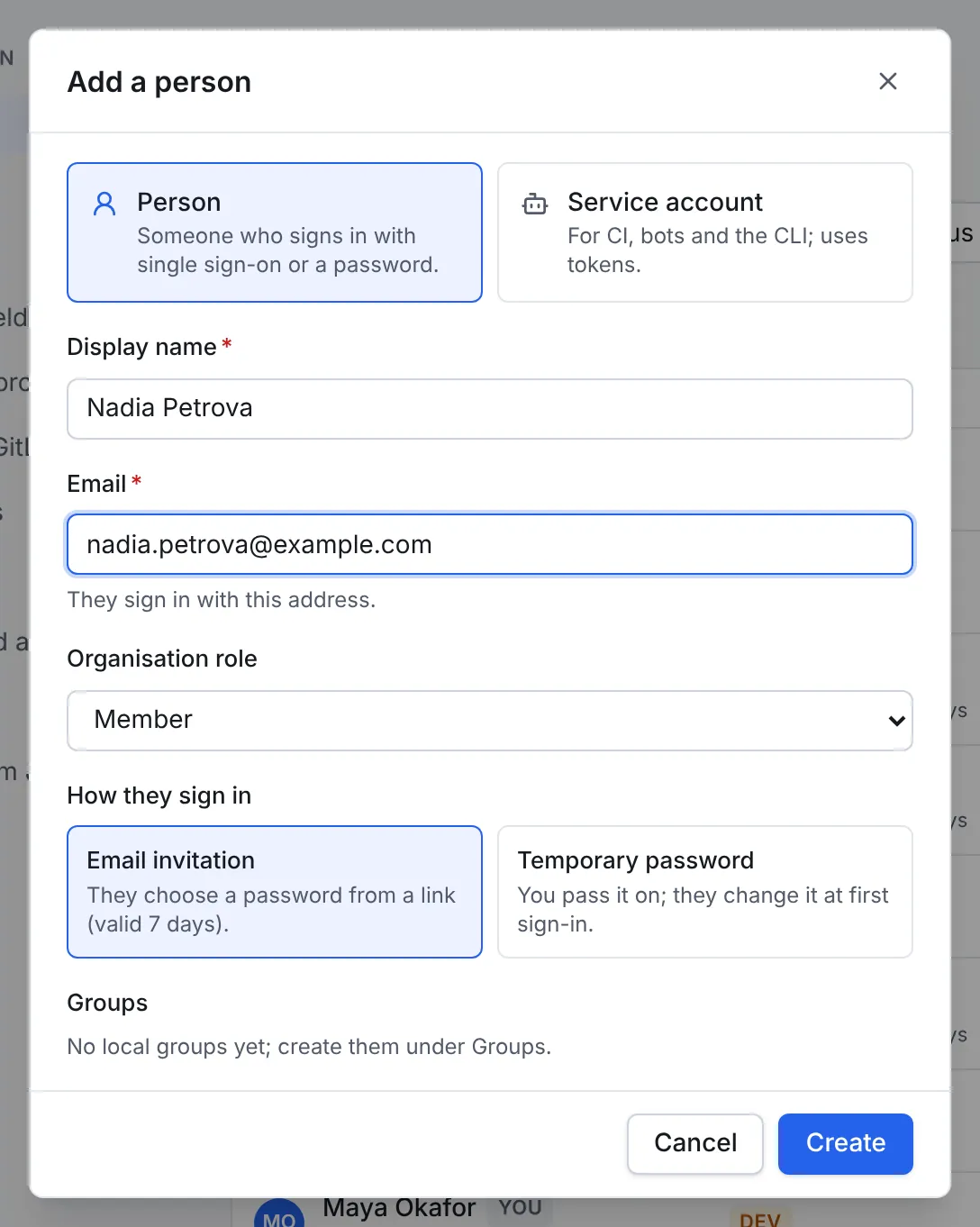
- Select Add person.
- Leave Person selected. (A Service account is for CI, bots and the CLI, which use tokens instead of signing in.)
- Enter their Display name and Email. They sign in with that address.
- Choose an Organisation role:
- Member: works in the projects open to the organisation, and in any project they're added to.
- Admin: also manages the organisation, under Administration, and has full access to every project.
- Guest: only sees the projects they're added to, even if a project is open.
- Choose how they sign in. Email invitation sends them a link to choose a password, valid for 7 days. Temporary password shows you a password to pass on, which they change when they first sign in.
- Select Create.
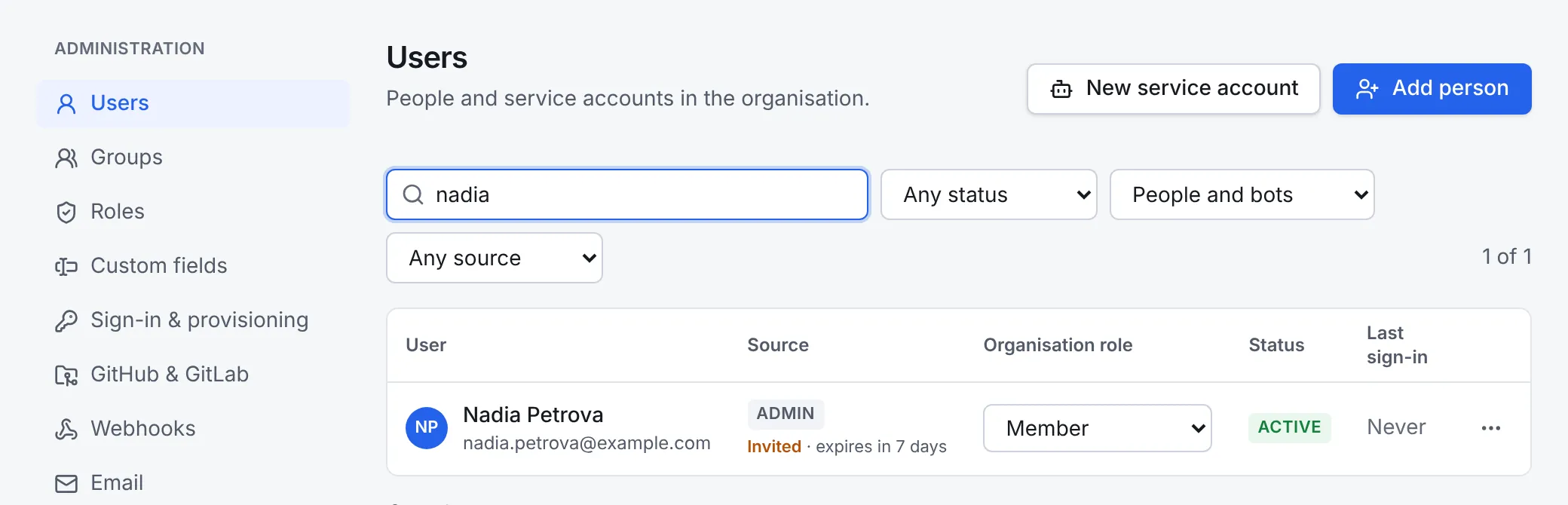
The new person appears in the list, marked Invited until they set their password. Their row's … menu can resend or revoke the invitation, or set a temporary password instead.
Invitations need email
Without an SMTP server, Workflow logs the invitation instead of sending it, even though the confirmation says it was emailed. Check Administration → Email: if it says In memory only, no email leaves the server. Use Temporary password until email is set up.
3. Give people a role in the project
In an open project, every organisation member except guests already has the project's open role, usually Member, without being listed. Add people when they need a different role, such as Administrator to manage the project or Viewer for read-only access, or when the project is private.
- In the project, open Settings, then Members.
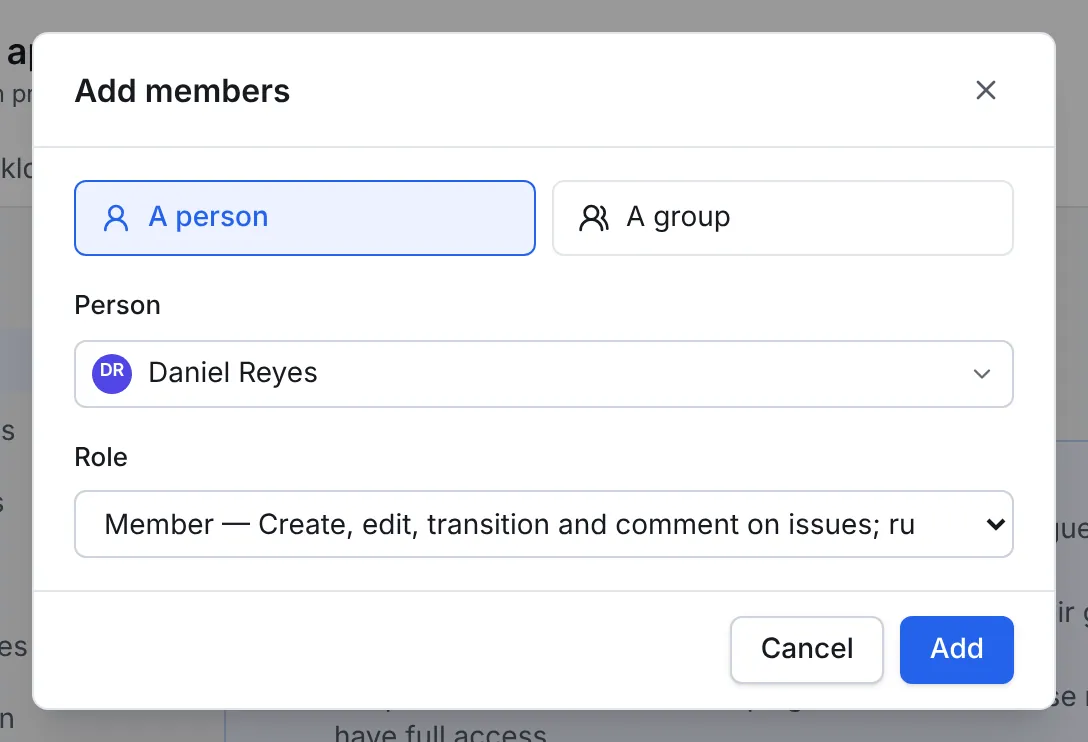
- Select Add members.
- Choose A person or A group, then find them by name.
-
Choose their Role:
Role Can Administrator Everything, including the project's settings, workflows, boards and automation Member Create, edit, move and comment on issues, and run sprints Viewer Read the project, without changing anything -
Select Add.
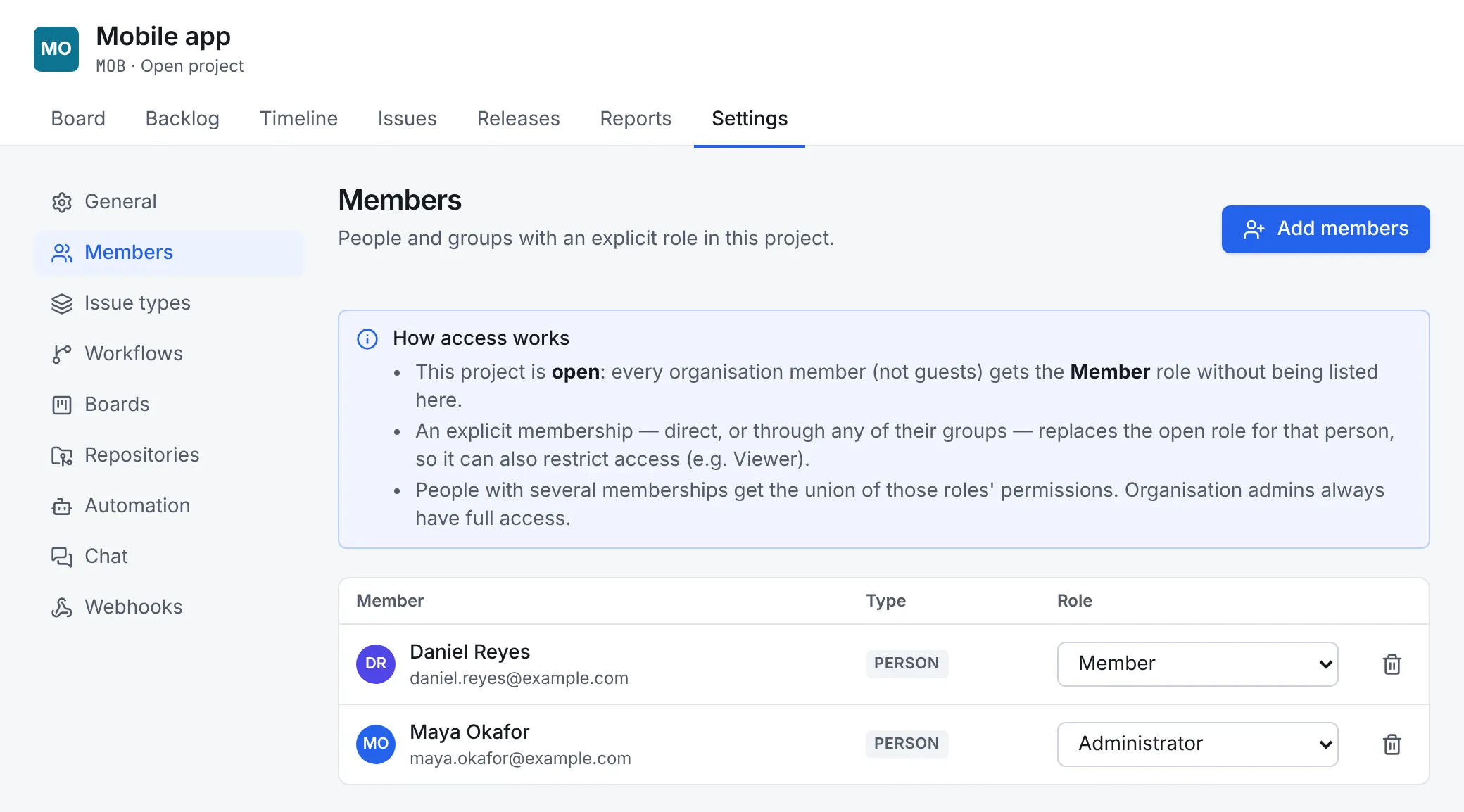
How roles combine:
- A listed membership replaces the open role, so listing someone as Viewer makes an open project read-only for them.
- Someone with several memberships, directly and through groups, gets everything those roles allow together.
- Organisation admins always have full access.
4. Create the first issues
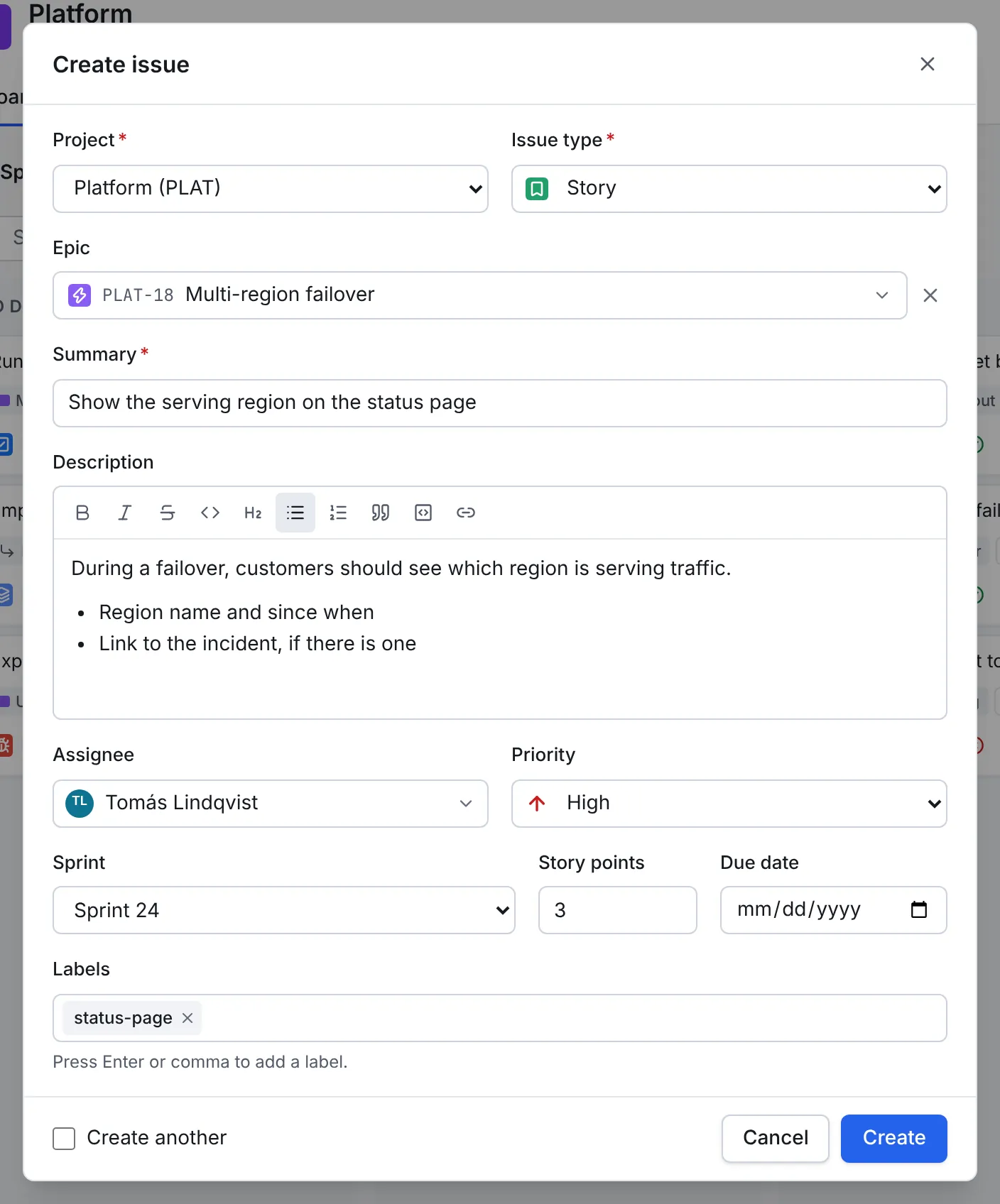
- Select Create at the top right. The dialog opens on the project you're in.
- Choose the Issue type, then write a Summary: one line saying what needs to be done.
- Fill in what you know now. All of it can change later:
- Epic groups the issue under a larger piece of work.
- Description takes formatted text, lists, code and links.
- Assignee, Priority, Sprint, Story points, Due date and Labels (press Enter after each label).
- Select Create. To add several in a row, tick Create another first and the dialog stays open.
A confirmation names the new issue's key, with Open to go to it. New issues go to the backlog unless you chose a sprint.
Bringing work from another tracker
The importer brings projects, issues, comments, attachments and history across, so you don't have to start from empty.
Next steps
- Plan and run a sprint with the issues you created.
- Connect GitHub or GitLab so branches and pull requests show on their issues.
- Connect an AI assistant to file and find issues from Claude.
- Read Roles and permissions for custom roles and every permission.