Automate routine work
Automation rules do the small, repeated jobs nobody should have to remember: label urgent bugs, move an issue when its pull request opens, close an epic when its last story is done, flag work that has gone quiet. This tutorial creates a rule from a template, adjusts it, and checks that it ran.
Who it's for: project admins.
Before you start
- The project's Administrator role.
- Rules that react to pull requests, commits or pipelines need the project connected to GitHub or GitLab.
Every rule has the same three parts:
flowchart LR
  W[When:<br/>something happens] --> I{If:<br/>the condition<br/>is true}
  I -->|yes| T[Then:<br/>the actions run,<br/>in order]
  I -->|no| S[Skipped]
  T --> R[The run is recorded<br/>under Recent runs]
S --> R- When is the trigger: an issue is created, changes status or has a field changed; a pull request opens or merges; a commit, branch or pipeline is seen; an SLA is breached; or a schedule.
- If is an optional condition, an expression such as
issue.type == "bug". Leave it empty to run every time. - Then is one or more actions, each on the issue, its parent or its children: move it, assign it, set a field, comment, add a label, notify people, post to a chat channel, call a webhook, or stretch its dates over its children's.
1. Open the project's rules
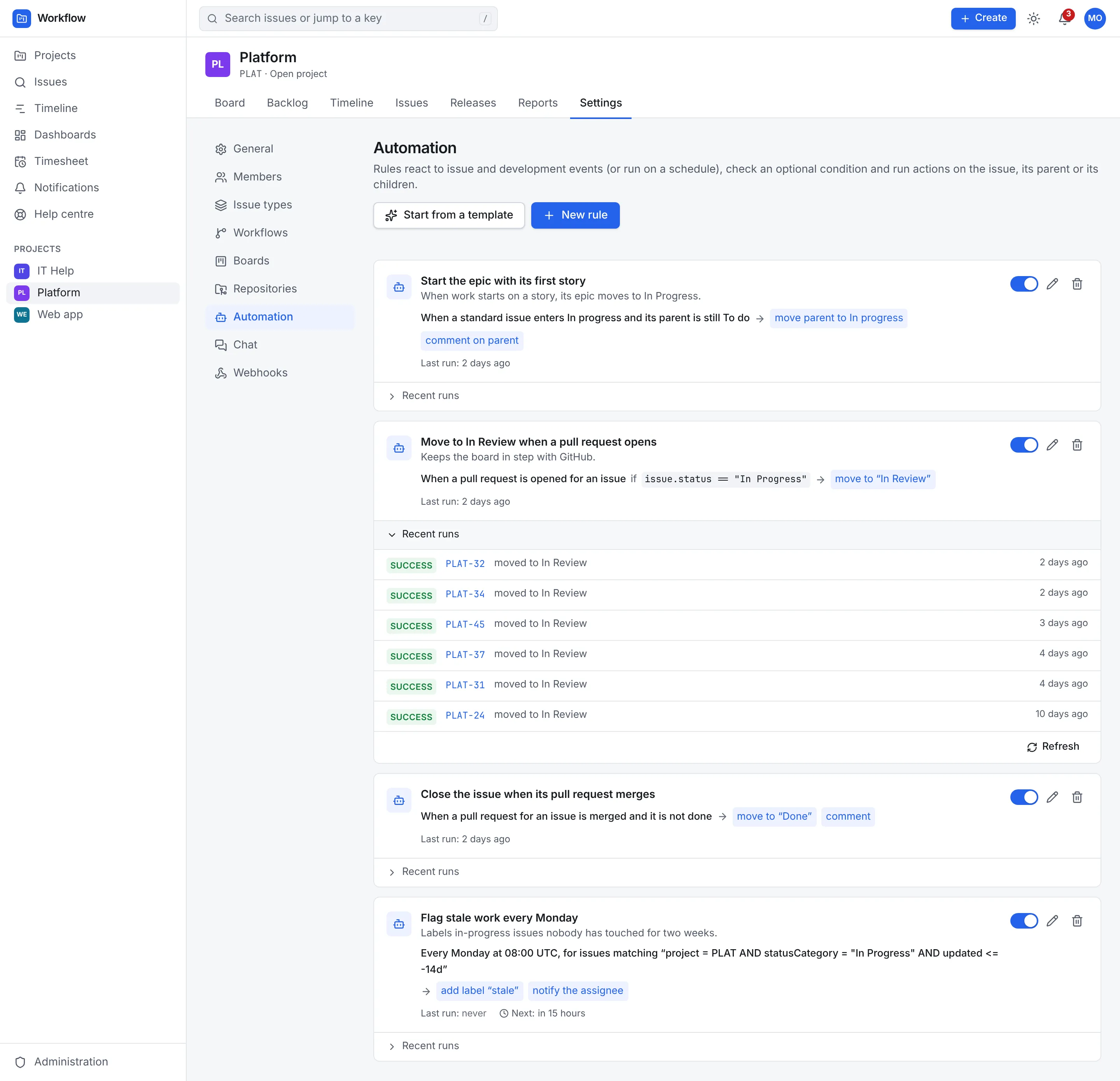
Open Settings, then Automation. Each rule shows a sentence saying what it does, when it last ran, a switch to turn it off and on, and Recent runs.
2. Start from a template
Select Start from a template. The templates come in three groups, and the ones already in use in this project are marked In use:
| Group | Templates |
|---|---|
| Pull requests and builds | Move to In Review when a pull request opens · Close issues when their pull request merges · Flag issues whose pipeline fails |
| Epics, stories and sub-tasks | Start the epic when work starts on one of its stories · Finish the parent when its last sub-task is done · Close the epic when its last story is done · Keep epic dates covering their stories |
| Triage and housekeeping | Flag stale work every Monday · Triage new urgent bugs |
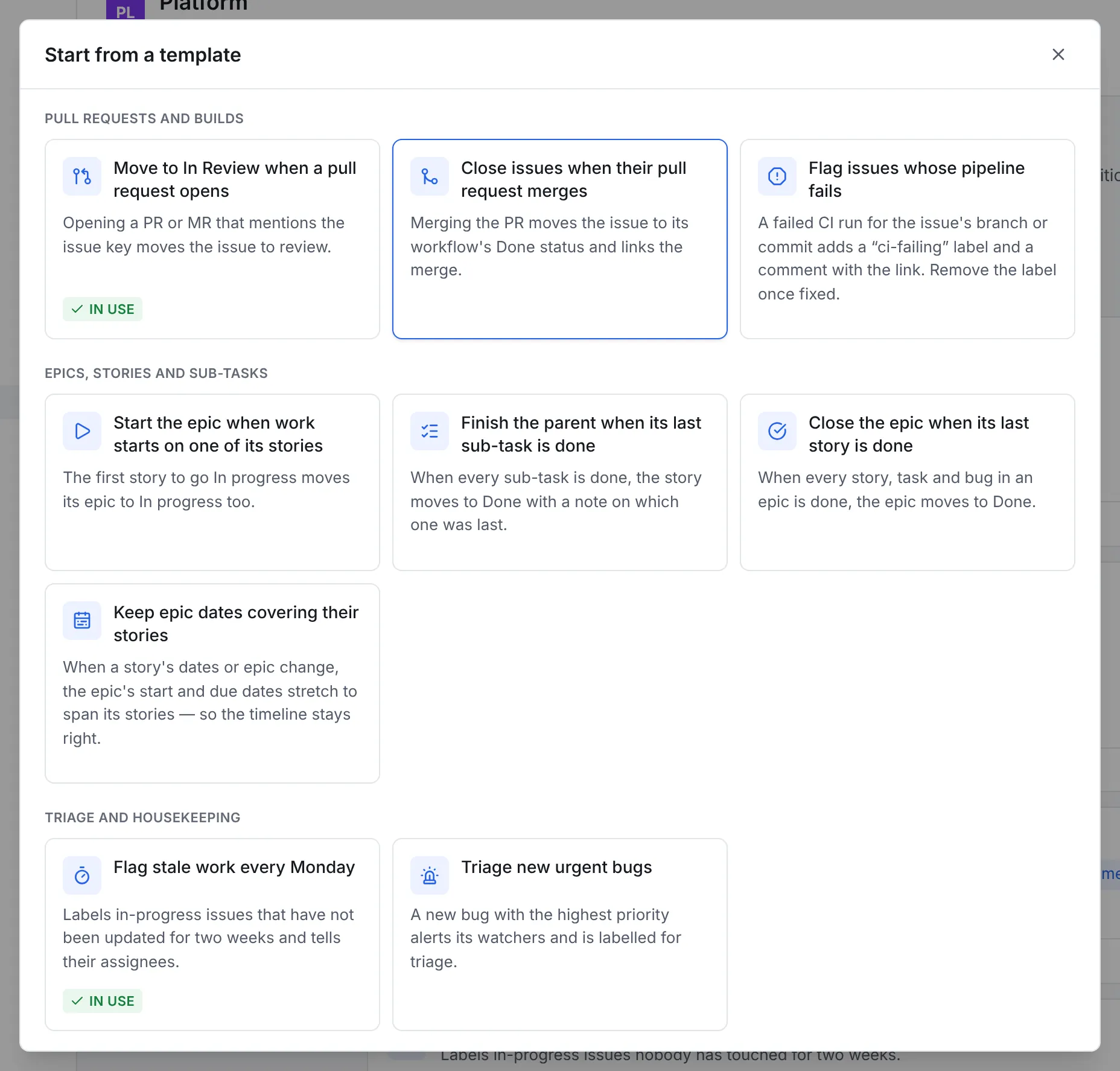
This tutorial uses Triage new urgent bugs: when a bug is created with the highest priority, it tells everyone watching it and adds the label needs-triage.
3. Adjust the rule
The template opens as a new rule, with each part filled in:
- Name and Description say what the rule is for. They appear in the rule list and in its runs.
- When: the Trigger is Issue created.
- If (optional): the condition
issue.type == "bug" && issue.priority == "highest". Change"highest"to include more, for exampleissue.priority in ["highest", "high"]. The CEL reference and examples section lists what you can use. - Then: two actions on This issue. Notify people tells Everyone watching, and Add a label adds needs-triage. Use Add an action… for more, the arrows to change the order, and × to remove one.
- Reads as spells out the whole rule in a sentence. Read it before saving: if it doesn't say what you meant, the rule won't do what you meant.
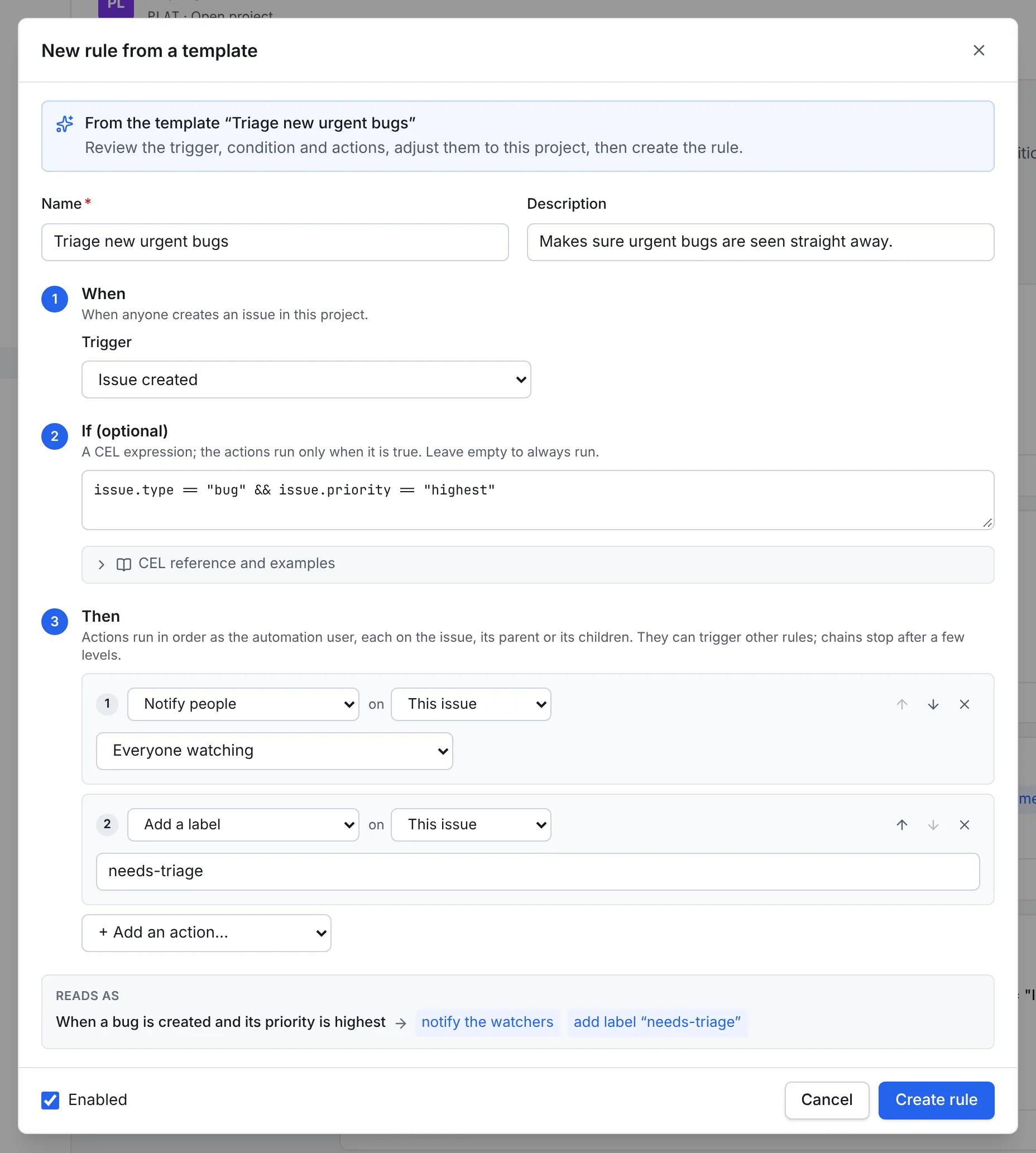
Leave Enabled ticked and select Create rule.
Comments that mention the issue
An Add a comment action can include details of the issue: {{issue.key}} and
{{issue.summary}} for the issue the action runs on, {{trigger.key}} for the one that
fired the rule, and {{event.url}} for a pull request's link. The comment box has buttons
to insert them.
4. Check that it works
- Create a bug with the priority Highest.
- Open it: within a few seconds it has the label needs-triage, and its watchers have a notification.
- Back in Settings → Automation, open the rule's Recent runs. Each run shows the issue
it ran on and its outcome:
- Success: the condition matched and the actions ran.
- Skipped: the condition didn't match, so nothing ran.
- Failed, with the reason, such as a transition that the issue's workflow doesn't allow from its current status.
To stop a rule without deleting it, turn off its switch.
Rules that work together
Actions made by one rule are events for the others. For example, Finish the parent when its last sub-task is done moves a story to Done, which can then fire Close the epic when its last story is done. A rule never triggers itself, and chains stop after a few levels, so two rules can't keep triggering each other for ever.
Actions run as the automation user, through the issue's workflow: conditions and validators still apply, and a transition whose screen requires fields is skipped, because there is nobody to fill it in.
Next steps
- Read Automation and webhooks for every trigger, action and template, with examples.
- Connect GitHub or GitLab, then use Move to In Review when a pull request opens and Close issues when their pull request merges so the board follows the code.
- Post to a team's channel with the Slack and Mattermost integration.