Connect GitHub or GitLab
Once Workflow is connected to your Git host, the work and the code point at each other. A branch,
commit or pull request that mentions an issue key such as PLAT-42 shows up on that issue and
its board card, with its review and pipeline status. Commits can comment on issues and move them,
and pull requests get a comment linking back to their issues. This tutorial connects GitHub (or
GitLab), links a repository to a project, and creates a branch from an issue.
Who it's for: organisation admins, who add the connection; project admins, who link repositories; and developers, who just use issue keys.
Before you start
- Organisation admin in Workflow for step 1, and the project's Administrator role for step 2.
- GitHub: permission to create a GitHub App in your GitHub organisation, or someone who can.
- GitLab: a group or project access token with the
apiscope (Maintainer, to manage webhooks). - Your Git host must be able to reach Workflow's webhook address. For GitHub.com or GitLab.com,
that means the hooks address must be reachable from the internet (
WFM_HOOKS_PUBLIC_URL).
flowchart LR
  A[Admin:<br/>connect GitHub<br/>or GitLab] --> B[Project admin:<br/>link repositories]
  B --> C[Developers:<br/>use issue keys in<br/>branches, commits and PRs]
  C --> D[Activity shows on<br/>the issue and its card]
  D --> E[Optional:<br/>rules move the issue<br/>as the PR progresses]
1. Add the connection
Workflow connects to GitHub as a GitHub App that you create in your organisation.
- In Workflow, open Administration → GitHub & GitLab and select New connection.
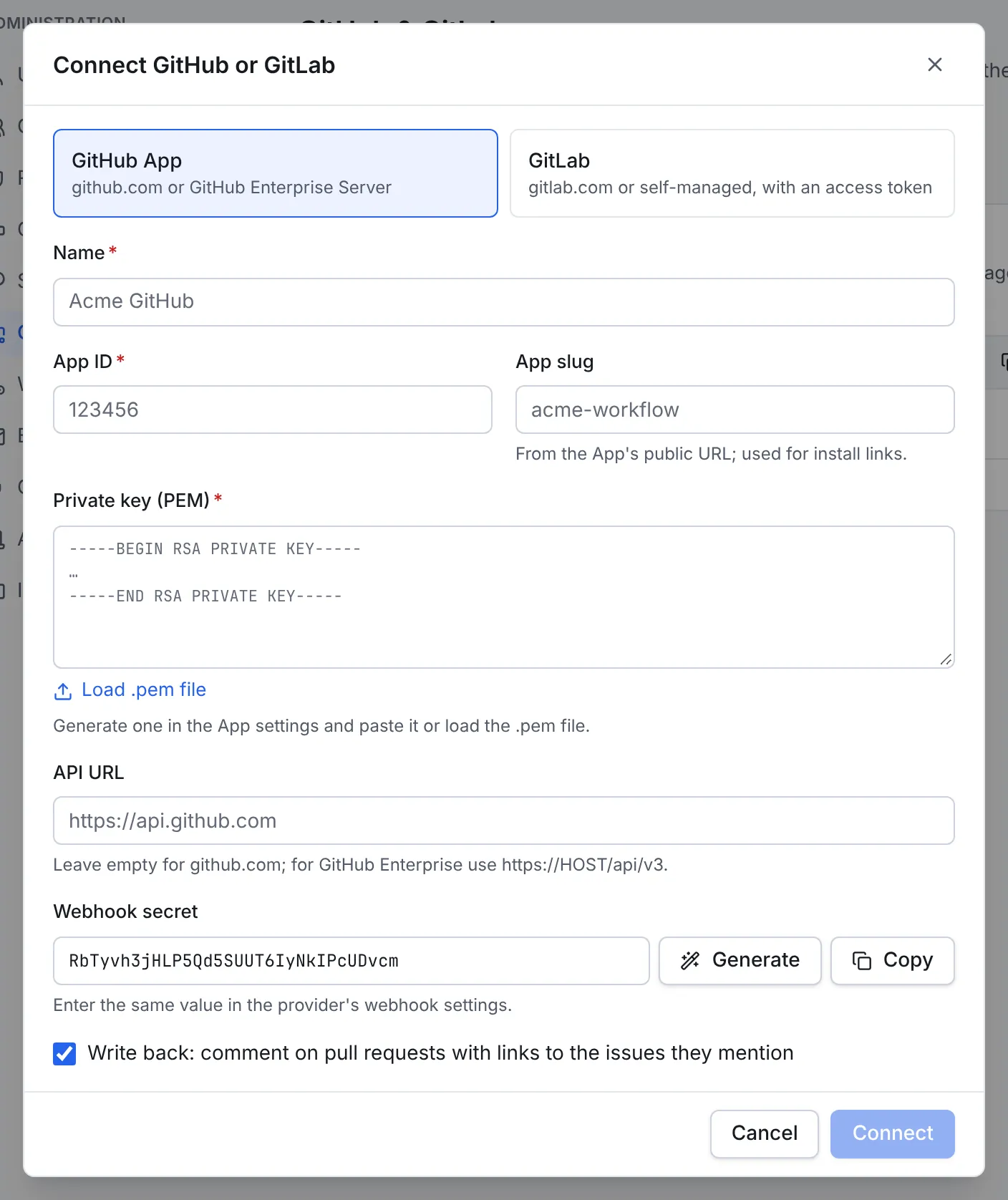
- Choose GitHub App. Give it a Name, such as Acme GitHub, and keep the generated Webhook secret: select Copy now, because you'll enter it in GitHub.
- In GitHub, go to your organisation's Settings → Developer settings → GitHub Apps → New
GitHub App:
- Webhook secret: paste the secret from Workflow.
- Repository permissions: Contents Read & write, Pull requests Read & write, Actions Read, Metadata Read.
- Subscribe to events: Push, Create, Delete, Pull request, Pull request review, Workflow run.
- Webhook URL: you get it from Workflow in step 2. For now, enter a placeholder such as
https://example.com, or untick Active under Webhook.
- Create the App, then note its App ID, generate a private key, and install the App on the repositories Workflow should see.
- Back in Workflow, fill in the App ID, the App slug (the last part of the App's public
URL), and the Private key (PEM), pasted or with Load .pem file. For GitHub
Enterprise Server, set the API URL to
https://HOST/api/v3. - Select Connect.
Workflow connects to GitLab with an access token.
- In GitLab, create a group access token (or a project one) with the
apiscope and the Maintainer role. - In Workflow, open Administration → GitHub & GitLab and select New connection.
- Choose GitLab. Give it a Name and, for a self-managed instance, its GitLab URL (leave it empty for gitlab.com).
- Paste the Access token.
- Keep Create and maintain project webhooks automatically ticked: Workflow then adds the webhook to each project you link, so there's nothing to set up in GitLab.
- Select Connect.
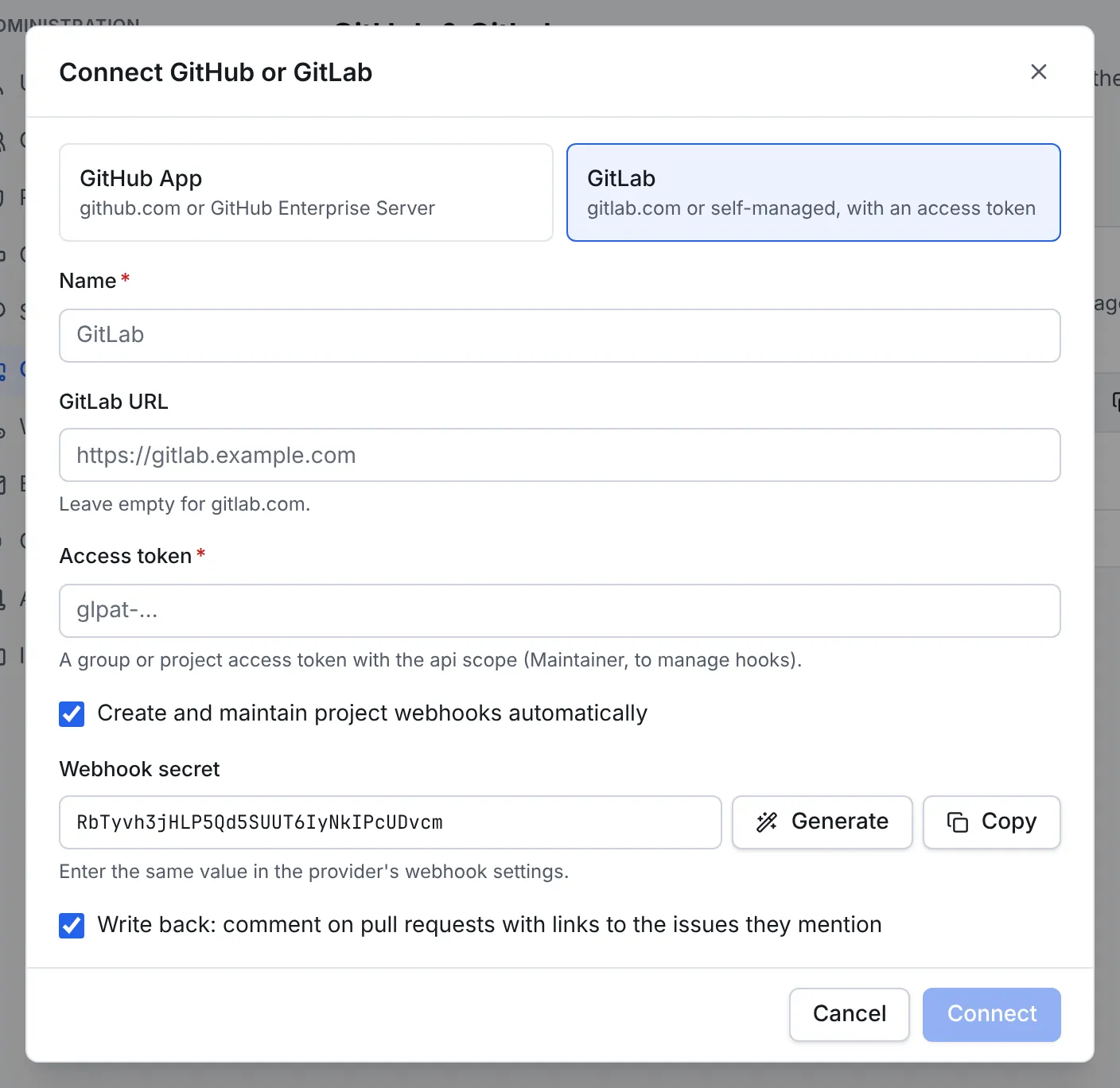
Write back (on by default) lets Workflow comment on a pull request with links to the issues it mentions, the first time it links them.
2. Finish the connection
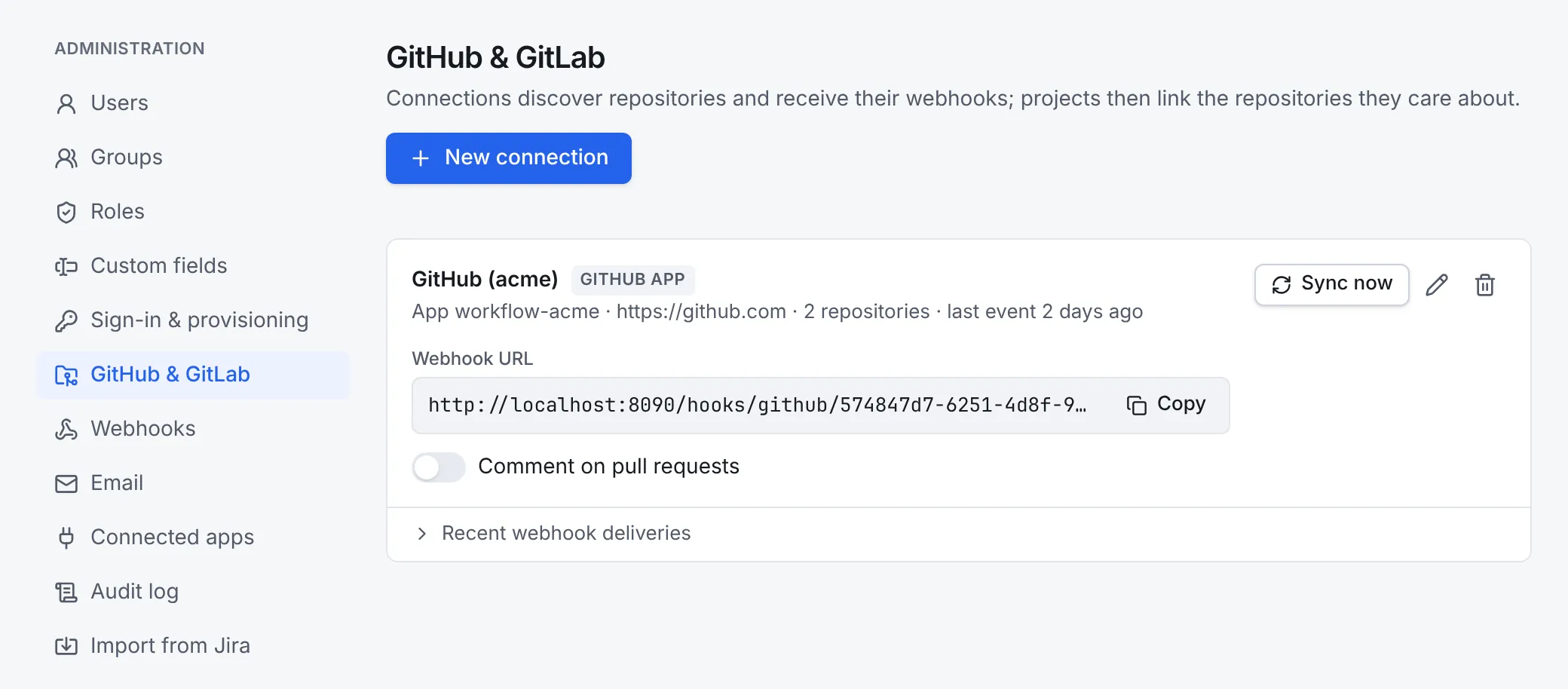
The connection's card now shows its Webhook URL.
- GitHub: select Copy, paste it as the App's Webhook URL in GitHub (ticking Active if you unticked it), and save the App.
- GitLab: nothing to do if Workflow manages the webhooks. Otherwise, add a webhook with this URL and the secret to each project, with Push, Merge request and Pipeline events.
Workflow finds the repositories the connection can see by itself, and Sync now checks again at once, for example after you installed the App on more repositories.
If nothing arrives
Open Recent webhook deliveries on the connection's card. It lists the events the Git host sent and how each was processed, with the error for one that failed and Reprocess to try it again. If it says No deliveries received yet, the Git host can't reach the webhook URL, or the URL or secret in its settings is wrong.
3. Link repositories to the project
Only events from repositories linked to a project update its issues, so PLAT-42 in an
unrelated repository is ignored.
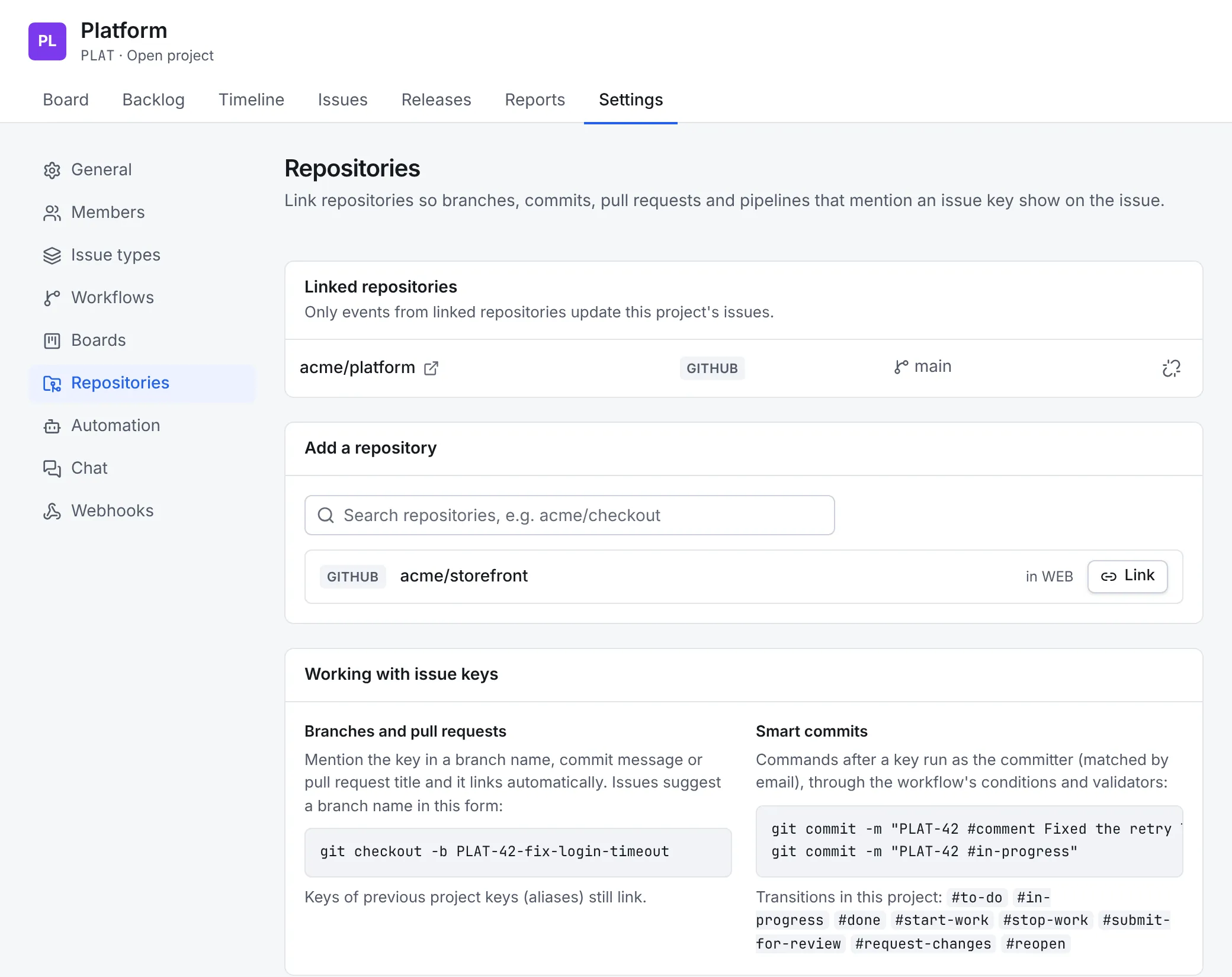
- In the project, open Settings → Repositories.
- Under Add a repository, search for it and select Link. A repository can be linked to several projects. In WEB means the WEB project has linked it too.
4. Work with issue keys
Nothing changes in how developers work, except that the issue key goes where Git already puts text:
| Put the key in | For example | What happens |
|---|---|---|
| A branch name | PLAT-42-fix-login-timeout |
The branch, its commits and its pull request link to PLAT-42, even if they never mention it again |
| A commit message | PLAT-42 Retry the token refresh |
The commit shows on the issue |
| A pull request title or description | PLAT-42: Fix login timeout |
The pull request, its review and its pipeline show on the issue and card |
Keys match in any case and with any separator, so feature/plat-42-login works too.
Smart commits go further: a command after the key runs as the person who made the commit, with their permissions.
PLAT-42 #comment Fixed the retry logic       adds a comment
PLAT-42 #in-progress                          runs the transition into In Progress
PLAT-42 #done                                 runs the transition into Done
The names after # are the project's transitions or statuses, listed on the Repositories page.
A transition whose screen needs fields is skipped, because a commit can't fill them in.
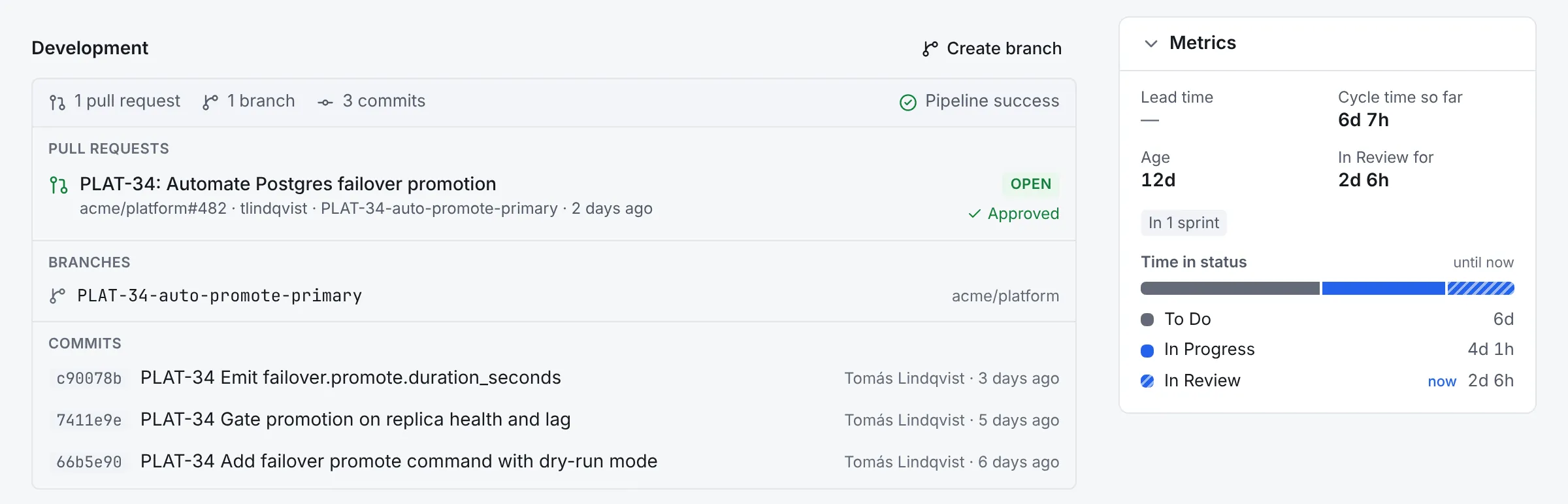
On the issue, the Development panel lists the pull requests, branches and commits, with the review state and the latest pipeline:
5. Create a branch from an issue
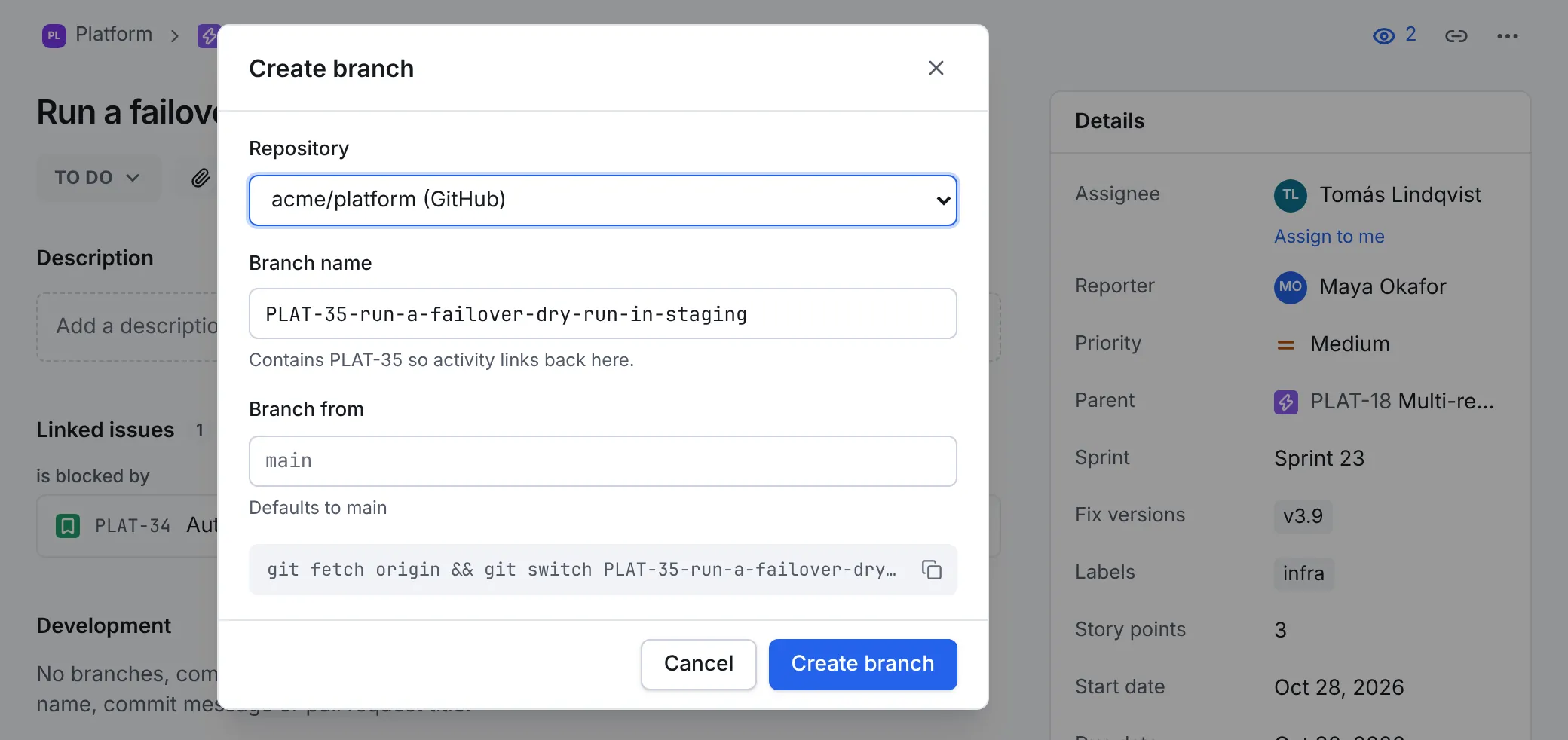
- Open the issue and select Create branch in its Development section.
- Choose the Repository. The Branch name is filled in from the issue's key and summary; keep the key in it.
- Set Branch from if it isn't the default branch, then select Create branch.
- Copy the command shown to check the branch out locally.
6. Let the board follow the code
With the connection working, two automation templates keep issues moving without anyone dragging cards:
- Move to In Review when a pull request opens
- Close issues when their pull request merges
Flag issues whose pipeline fails adds the label ci-failing and a comment with a link to the run when a build for the issue's branch or commit fails.
Next steps
- Read GitHub and GitLab for permissions, every event and how delivery is made reliable.
- Post pull request activity to a team's channel with Slack or Mattermost.