Set up a help desk
A help desk gives the people you support, such as colleagues or customers, a help centre where they ask for things and follow their requests, while your team works those requests in queues with SLA clocks and, where needed, approvals. This tutorial sets one up for an IT team: the help centre, its request forms, the customers, the queues and the SLAs. Then it raises a request as a customer and answers it as an agent.
Who it's for: whoever leads the service desk team, with the project's Administrator role.
Before you start
- Permission to create projects (organisation members can), and the new project's Administrator role, which you get by creating it.
- Customers sign in with a password unless your identity provider lets them in, so local accounts should be on (they are by default).
- Customers get emails about their requests, so the server needs an SMTP server
(
WFM_SMTP_HOST, see Email).
What happens to a request:
flowchart TD
  R[A customer raises a request] --> A{Does its type<br/>need approval?}
  A -->|no| W[Waiting for support]
  A -->|yes| P[Pending approval]
  P -->|approved| W
  P -->|declined| D[Declined]
  W --> I[In Progress:<br/>an agent works on it]
  I -->|the agent asks a question| C[Waiting for customer]
  C -->|the customer replies| W
  I -->|done| S[Resolved]
The SLA clocks run in working hours while the request waits for the team, and pause while it waits for the customer or for approval.
1. Create the service project
- Open Projects, select New project, and choose the Service desk template.
- Name it, such as IT Help with the key IT. The name is what customers see.
- Leave Access set to Private. Everyone who can browse a service project works there as an agent and reads internal notes, so only your team should be in it.
- Select Create project, then add your team under Settings → Members (see Give people a role in the project).
The project comes ready to use: three issue types (Service request, Incident and Change), four request types, six queues and SLAs on business hours. The rest of this tutorial adjusts them. A service project opens on its Queues tab, and its Settings add Help centre, Request types, Queues and SLAs.
2. Set up the help centre
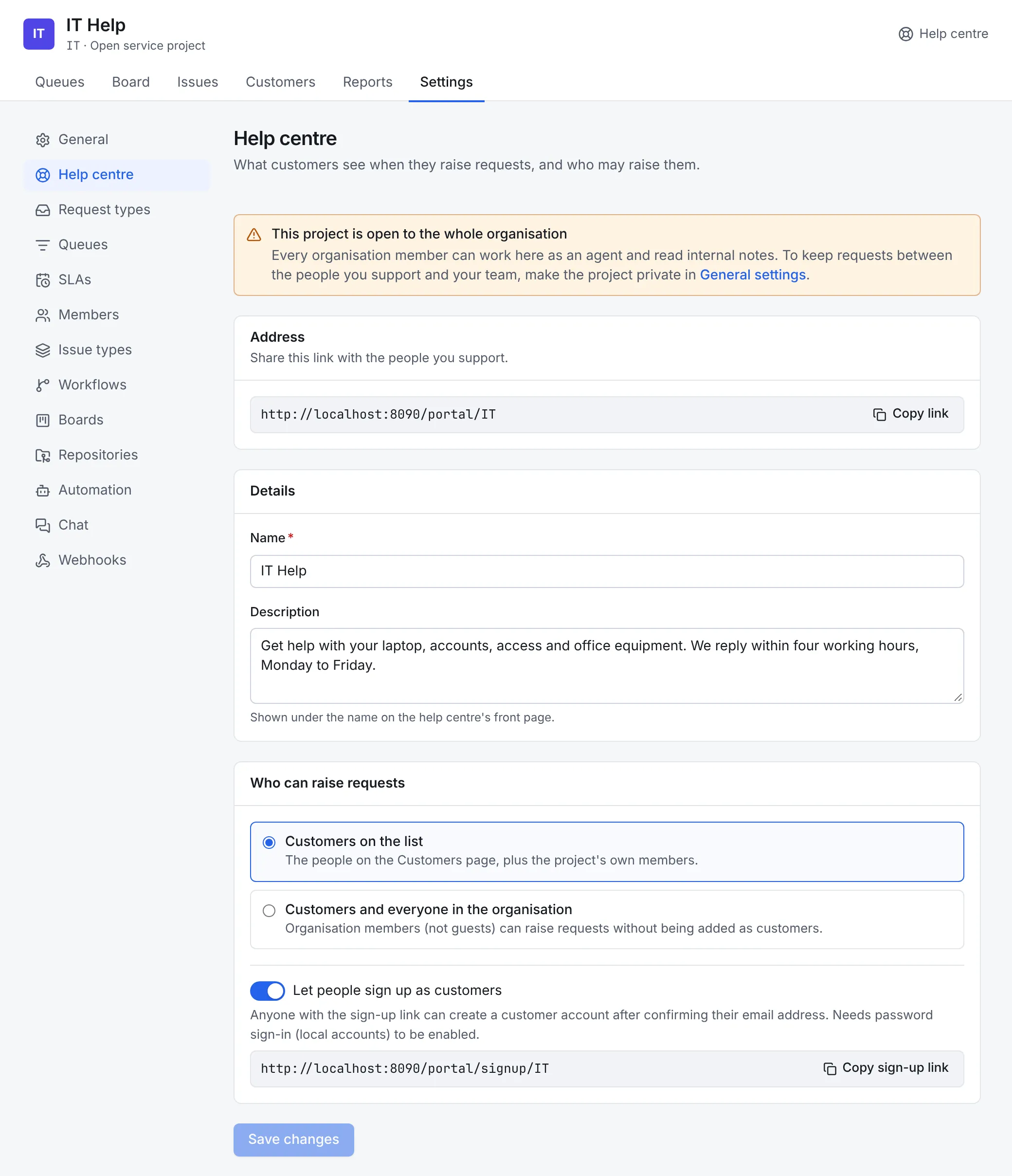
Open Settings → Help centre.
- Address is the link to share with the people you support. Select Copy link.
- Under Details, the Name and Description are what customers see on the help centre's front page. Say what the desk is for and when you reply, such as We reply within four working hours, Monday to Friday.
- Under Who can raise requests, choose:
- Customers on the list, the default: only the people on the Customers tab (step 4), plus your team.
- Customers and everyone in the organisation: anyone in your organisation, except guests, can raise requests without being added.
- To let people create their own customer account, turn on Let people sign up as customers. After you save, the sign-up link appears here to share.
- Select Save changes.
3. Design the request forms
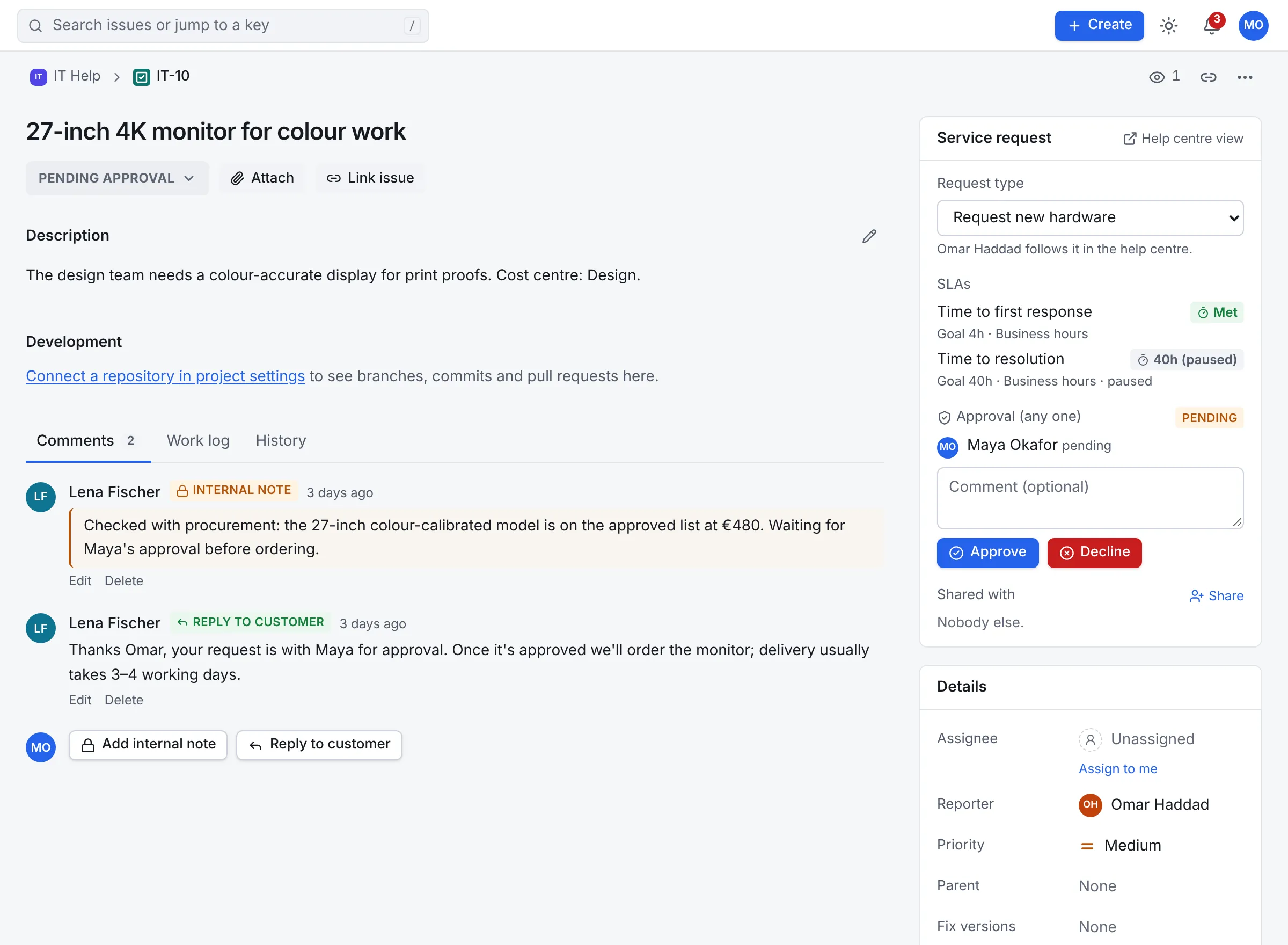
Each request type is something people can ask for, with its own form. Open Settings → Request types. The template starts you with four: Get IT help, Report a problem, Request new hardware and Request a change. The desk below has added Request software access, and an approval on Request new hardware.
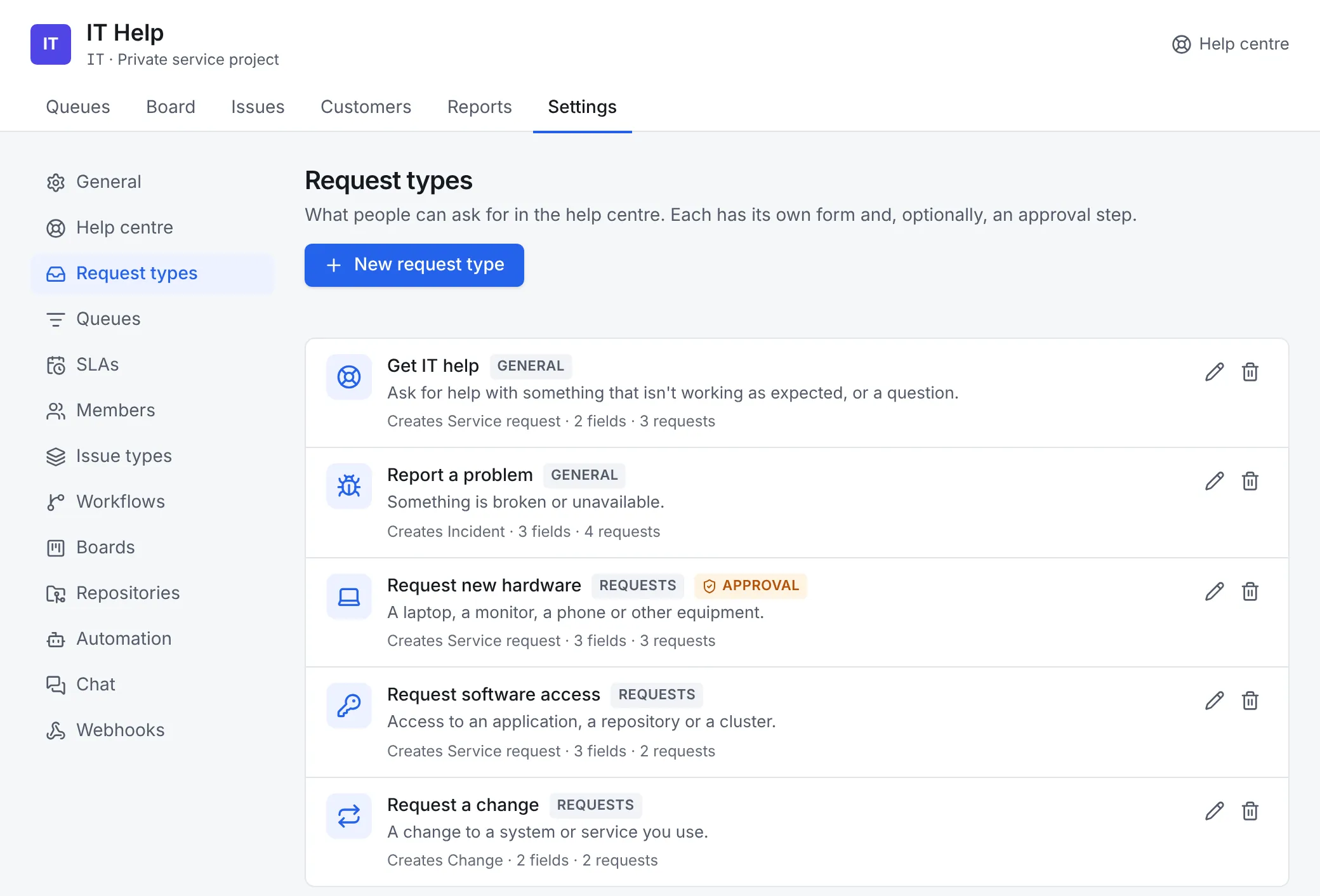
Select New request type, or the pencil on one, to edit it:
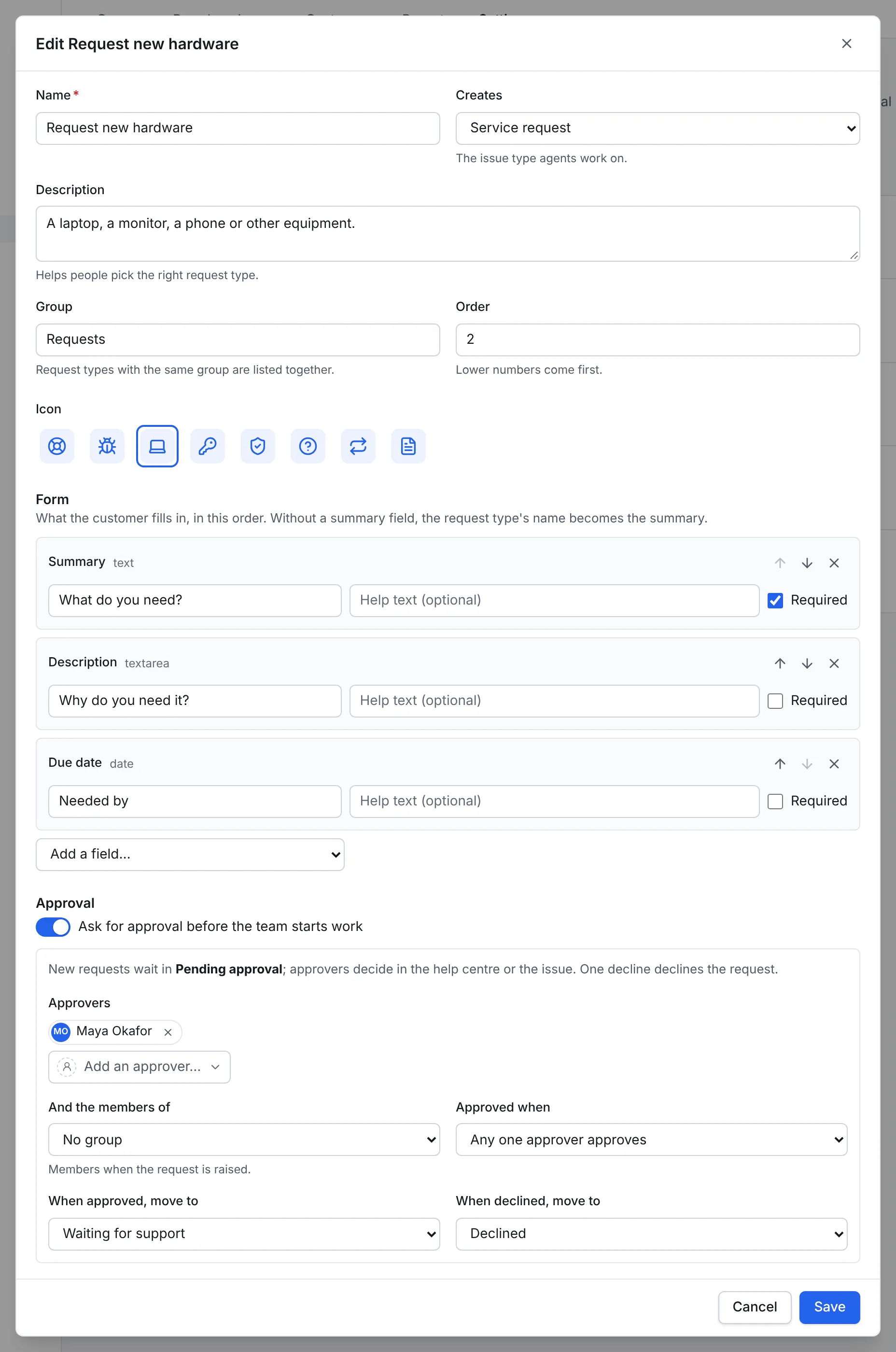
- Name and Description help people pick the right one. Creates is the issue type your team works on: Service request, Incident or Change.
- Group and Order decide where it appears in the help centre: types with the same group are listed together, lower numbers first. Pick an Icon too.
- Under Form, list the questions in order. Each question fills an issue field: the summary, the description, the priority, a due date or a custom field. Give each a Label in the customer's words, such as Why do you need it? rather than Description, optional help text, and tick Required where the team can't start without it. Add a field… adds a question. Without a summary question, the request type's name becomes the summary.
- To have someone approve these requests before the team starts, turn on Ask for approval before the team starts work, then add the Approvers: named people, the members of a group, or both. Choose whether any one or every approver must approve. One decline declines the request, and nobody approves their own.
- Select Save.
A choice of options
For a question with set answers, such as Application, create a custom field of type select under Administration → Custom fields for this project and the Service request type, then add it to the form.
4. Add customers
Open the project's Customers tab. These are the people who can raise requests when the help centre is limited to Customers on the list.
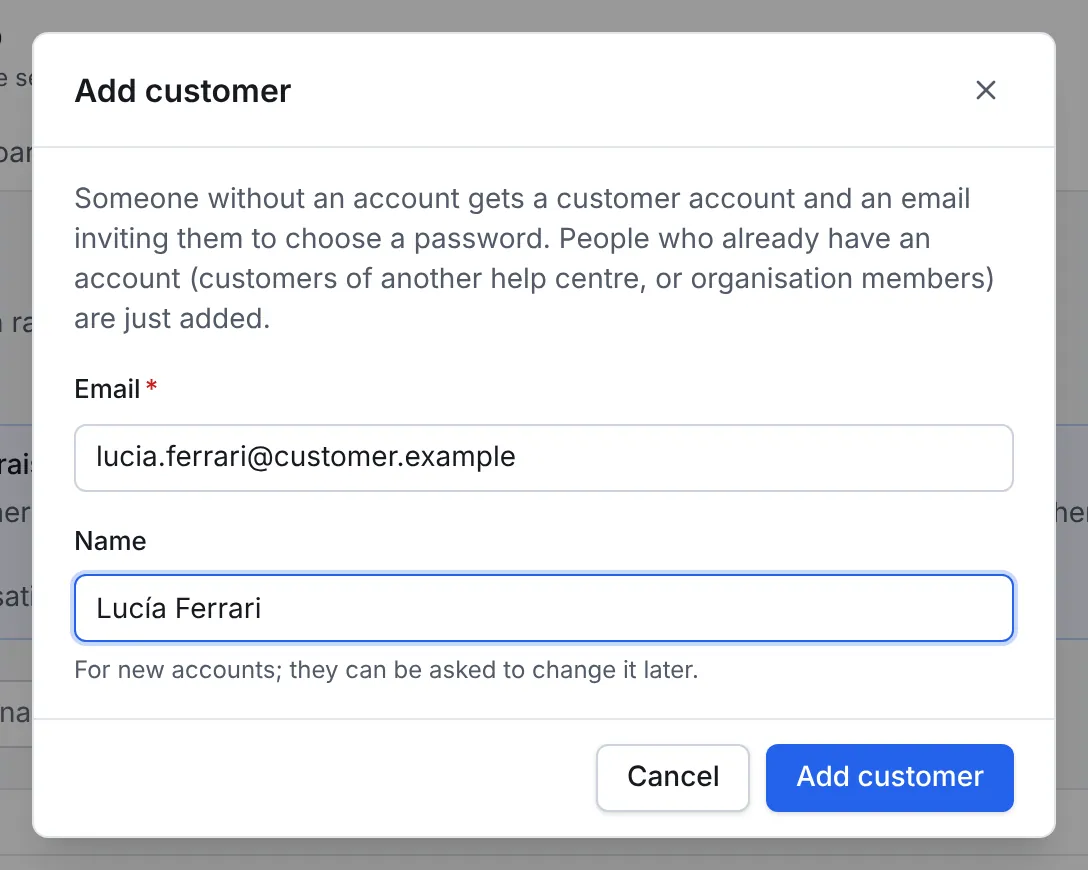
- Select Add customer.
- Enter their Email and, for someone new, their Name.
- Select Add customer. Someone without an account gets a customer account and an email inviting them to choose a password. Someone who already has one, such as a colleague or a customer of another desk, is just added.
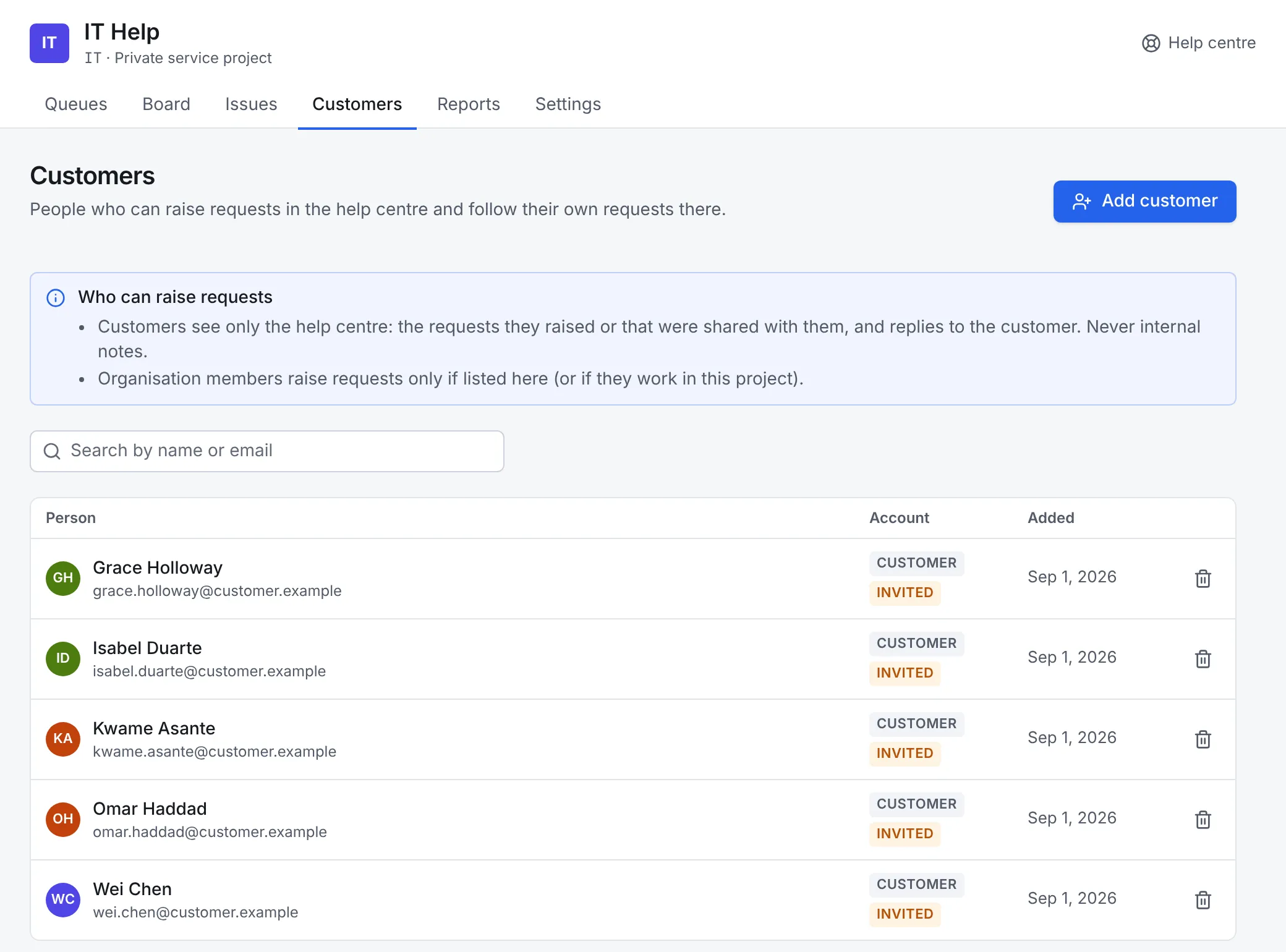
A customer only ever sees the help centre: the requests they raised, those shared with them, and those waiting for their approval. Internal notes, other people's requests and the rest of Workflow stay hidden from them.
5. Arrange the queues
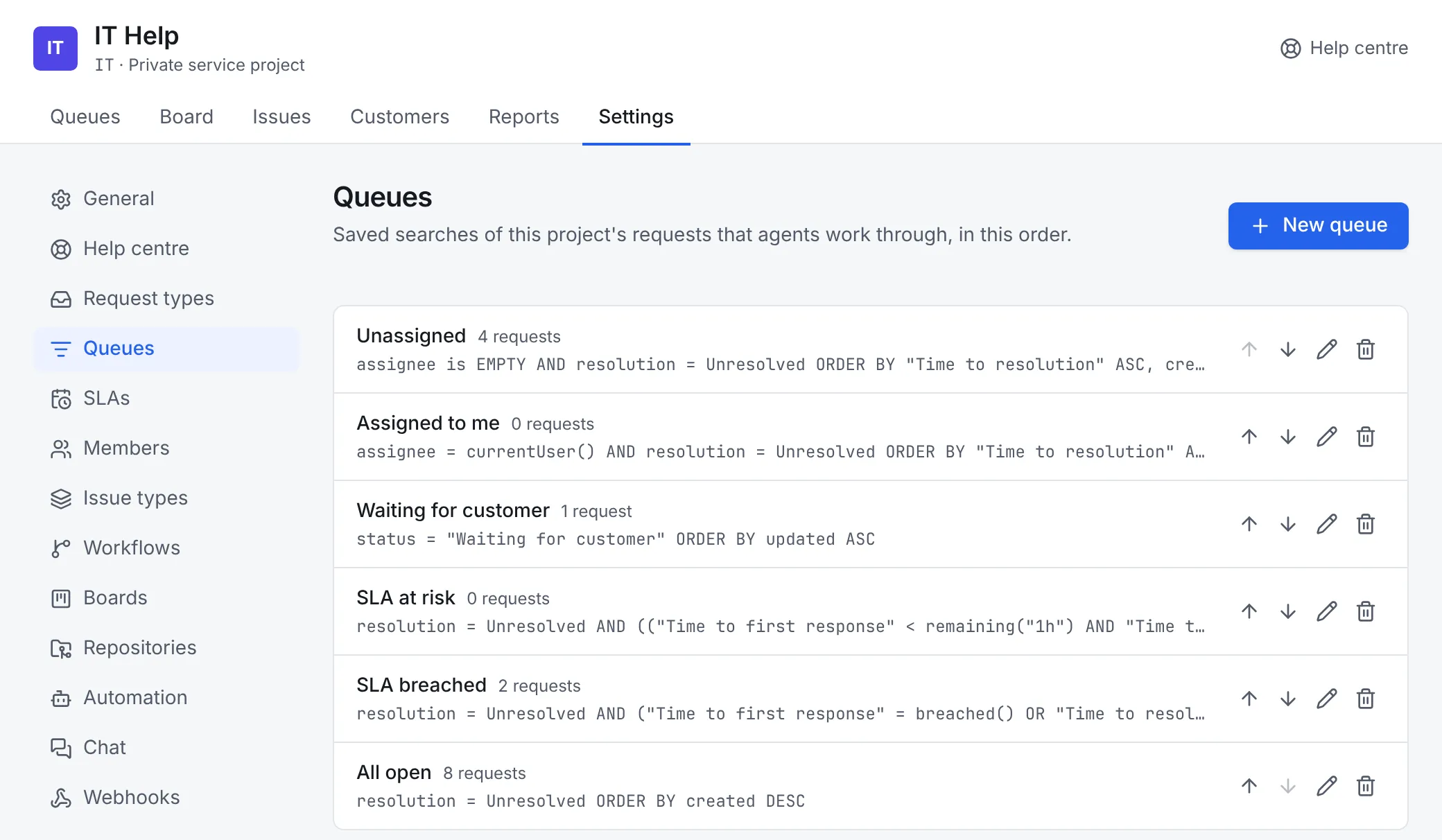
Queues are the lists your team works through, on the Queues tab. Each is a saved search with a live count. The template made six: Unassigned, Assigned to me, Waiting for customer, SLA at risk, SLA breached and All open.
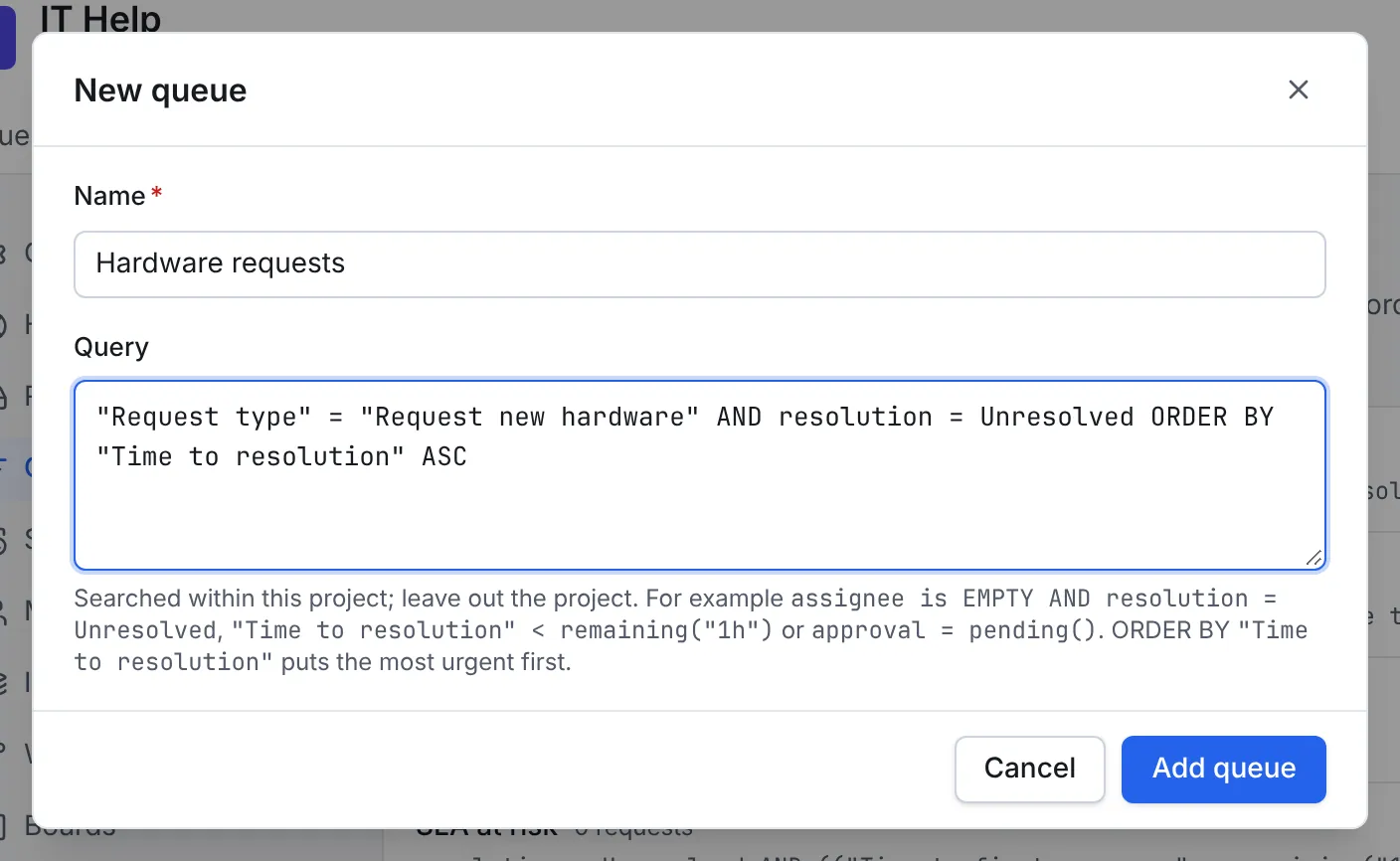
To add one, open Settings → Queues and select New queue:
- Give it a Name, such as Hardware requests.
-
Write the Query in the search language. It's searched within this project, so leave the project out. For example:
"Request type" = "Request new hardware" AND resolution = Unresolved ORDER BY "Time to resolution" ASCOrdering by an SLA's name puts the most urgent request first.
-
Select Add queue. Use the arrows on the queue list to put it where the team expects it.
6. Set the SLAs
SLAs say how quickly requests should get a first response and be resolved, counted in working time. Open Settings → SLAs.
-
Under Calendars, check the working week. The template's Business hours is Monday to Friday, 09:00 to 17:00. Set your Time zone (such as
Europe/London), untick days you're closed, use Split day for a lunch break, and add Days off such as public holidays.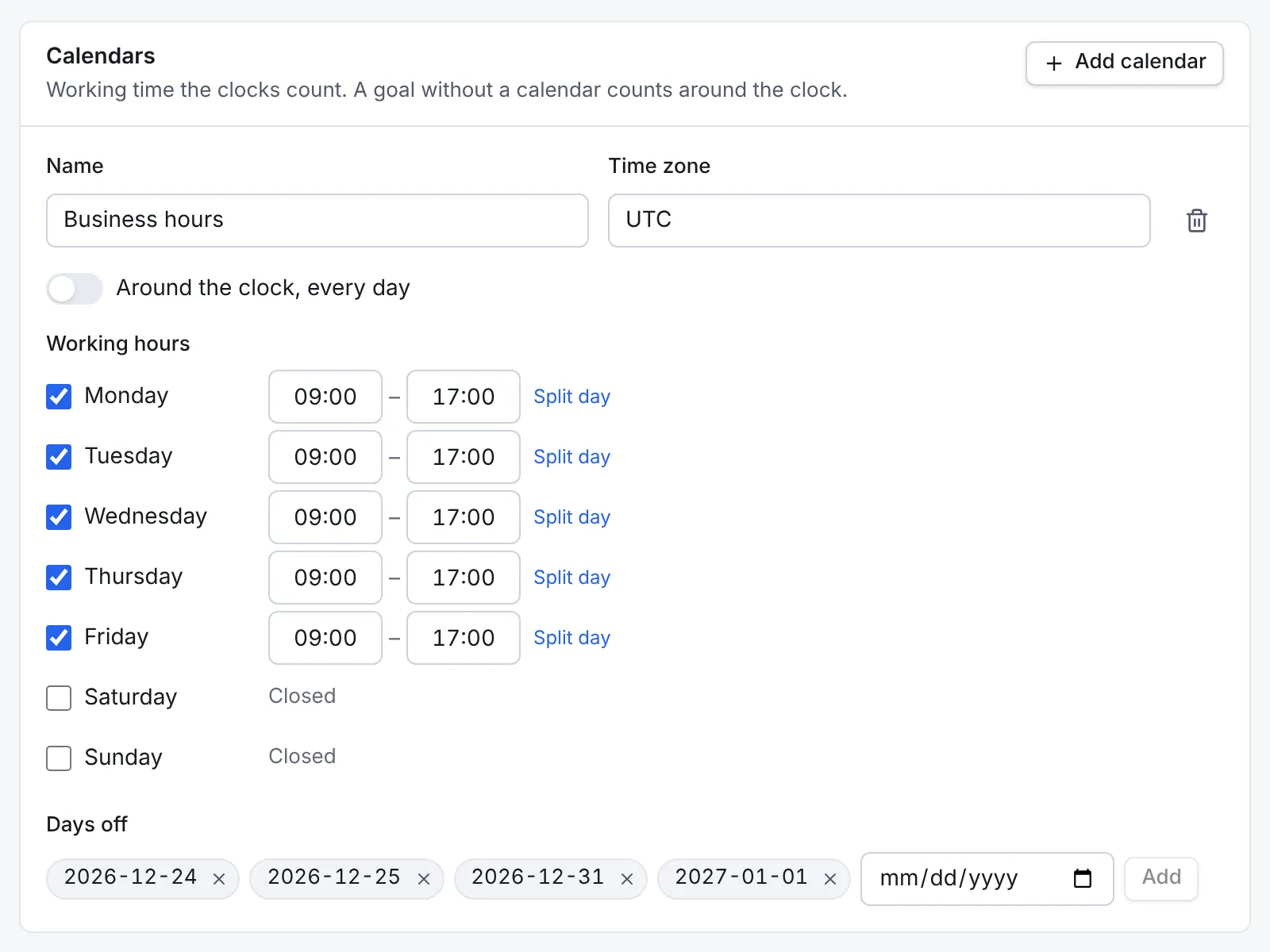
The calendar the SLA clocks count in. -
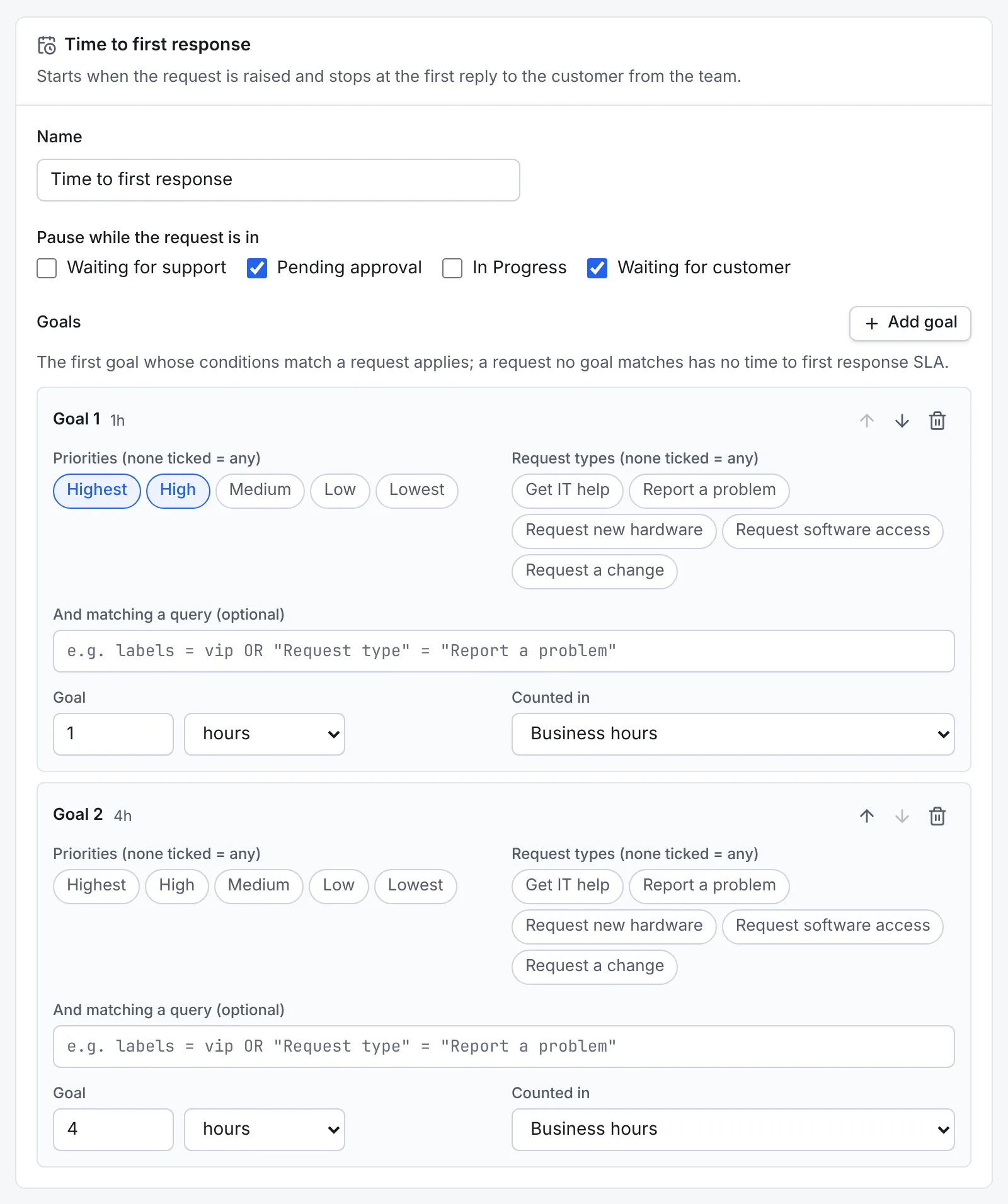
Under Time to first response and Time to resolution, choose the statuses that pause the clock, by default Waiting for customer and Pending approval, so the team isn't measured while it waits on someone else.
-
Set the Goals. Goals are tried in order and the first that matches a request applies, so put the most specific first. For example, for the first response:
- Goal 1: priorities Highest and High, within 1 hour.
- Goal 2: any other request, within 4 hours.
Each goal can also be limited to some request types or to a query, and counted in a calendar or around the clock.
-
Select Save SLAs. Open requests are recalculated with the new goals in the background.
Hours, not days
SLA targets are working time, so write them in hours: 40h is a working week of 8-hour days.
7. Raise a request as a customer
Open the help centre's address in a private window and sign in as a customer, or ask one to try it. Customers always land in the help centre.
- Get help lists the desks they can use. Choose IT Help.
- The request types are listed by group. Choose one, such as Request software access.
- Fill in the form and select Send request. Required questions are checked before it's sent.
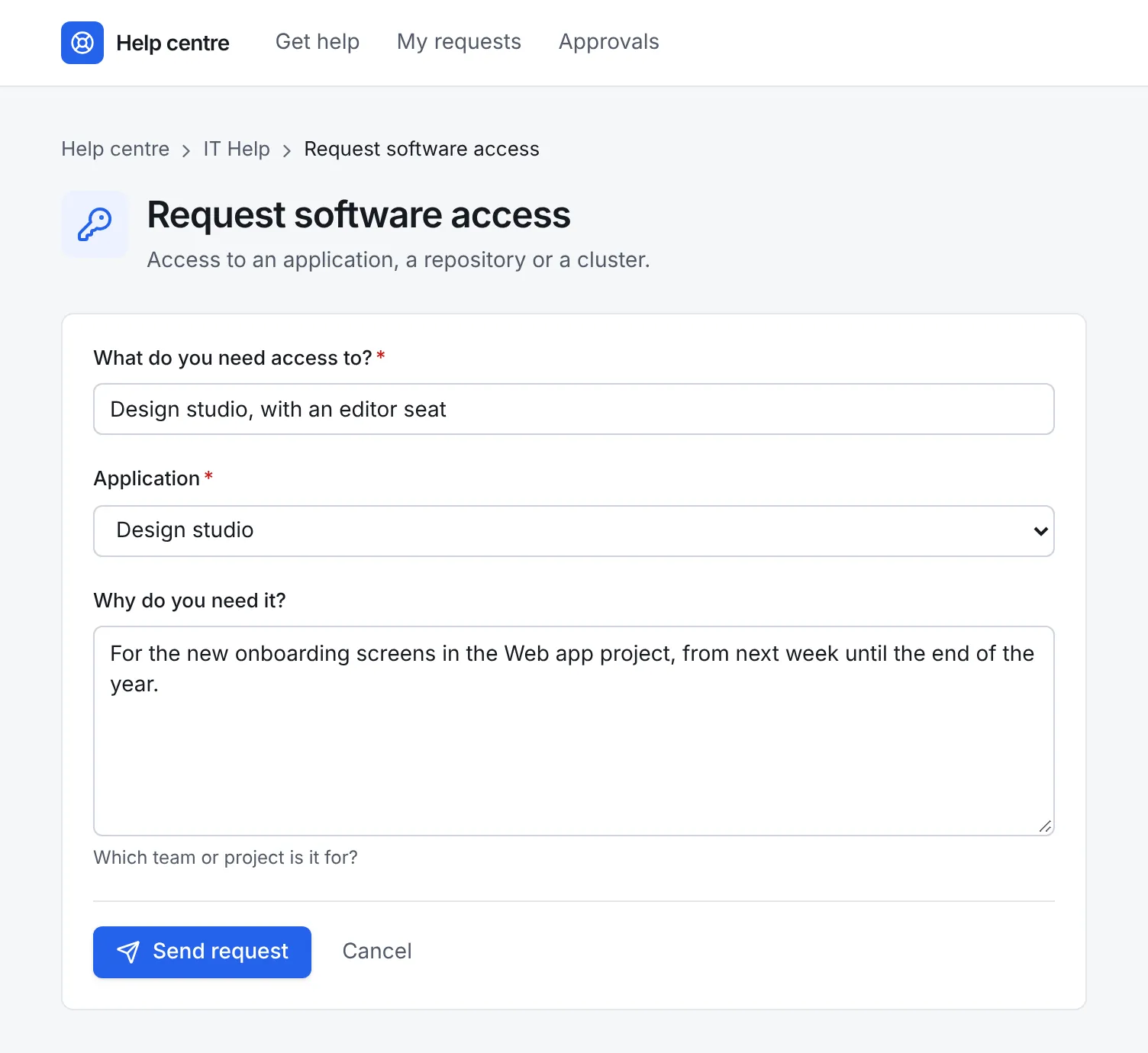
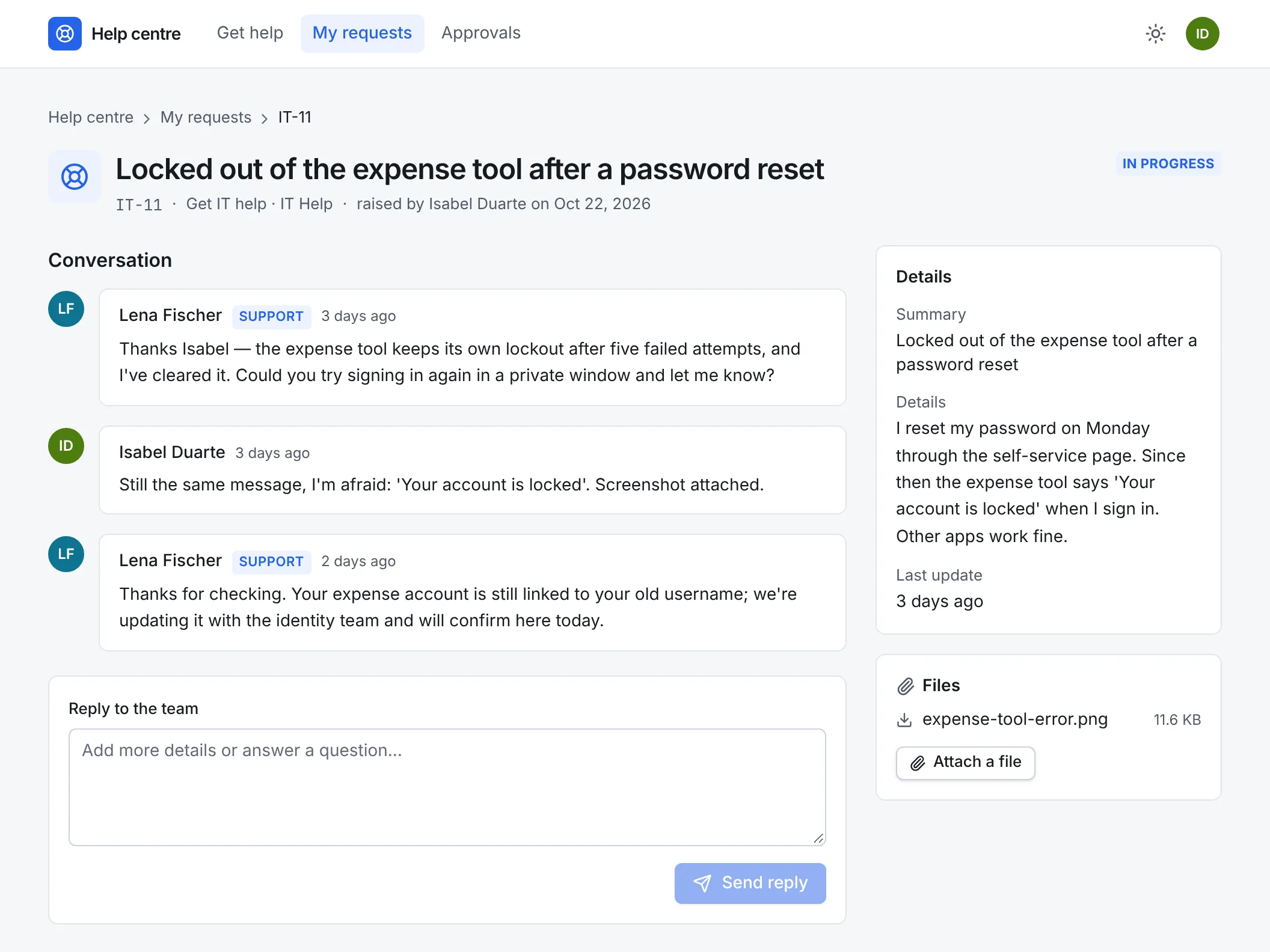
They see their request straight away, with its key and status, and get an email confirming it. My requests lists everything they've raised, and Approvals lists the requests waiting for their decision, if they approve any.
8. Work requests as an agent
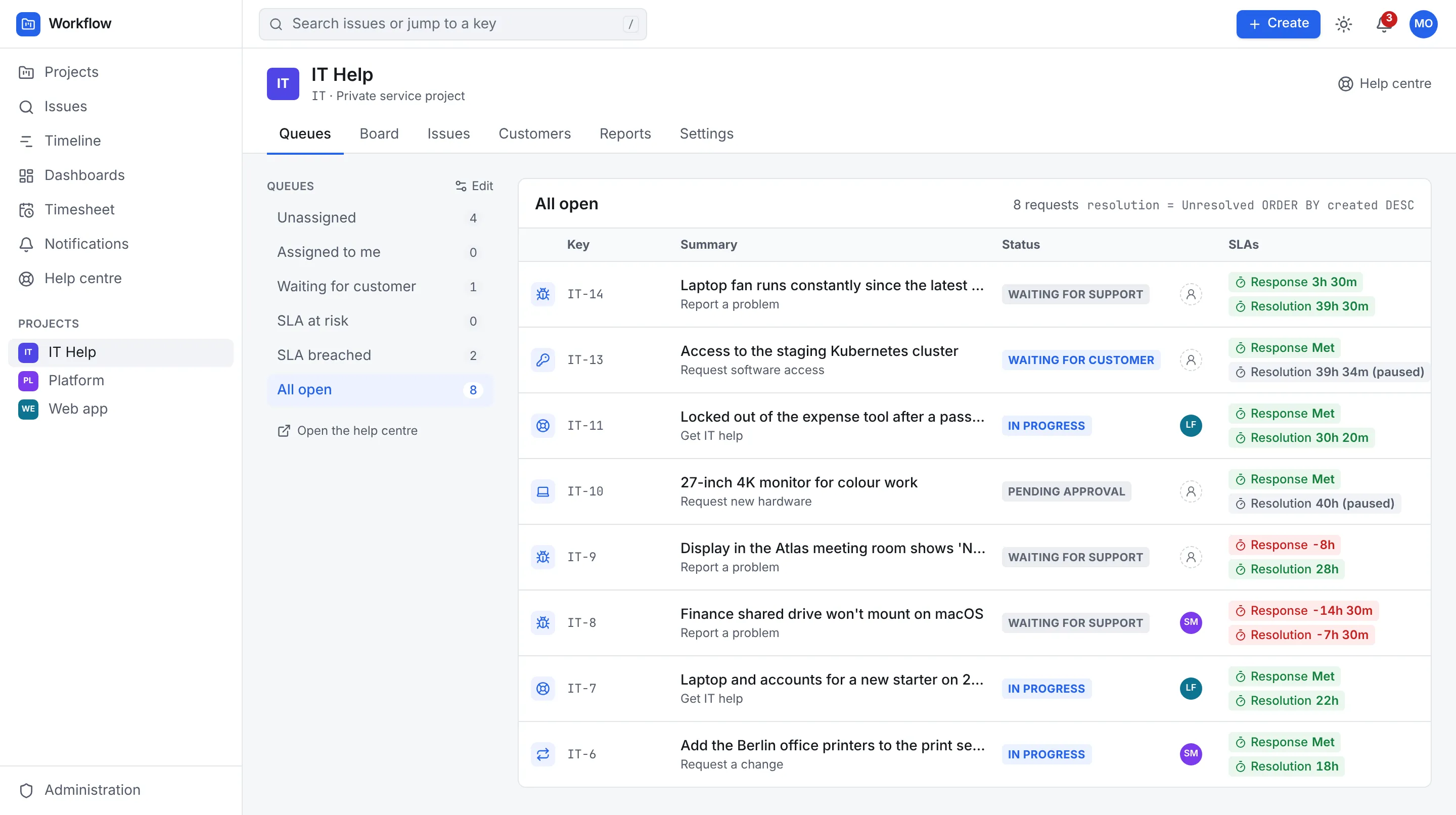
Back in the project, the Queues tab lists the queues on the left with their counts, and each request with its SLA clocks: time left, paused, met or breached. Select a request to open it.
On the request:
- Reply to customer writes in the conversation the customer sees, and emails them. Add internal note is only for the team. Notes are tinted so you can tell them apart.
- Asking the customer a question and moving the request to Waiting for customer pauses the clocks. When the customer replies, it moves back to Waiting for support by itself.
- The Service request panel shows the request type, the SLA clocks with their goals, any approval and who the request is shared with. Approvers can decide there or in the help centre.
- Resolving the request asks for a resolution. Tick Send this comment to the customer to make your closing comment a reply rather than a note.
Next steps
- Read Service management for customers, SLAs, approvals, emails and the security model in full.
- Automate the desk, for example with the trigger SLA breached to tell the team lead.
- Report on the desk with dashboards.