Plan and run a sprint
A sprint is a fixed stretch of time, usually one or two weeks, in which the team finishes an agreed set of issues. This tutorial goes through one whole cycle in a Scrum project: rank the backlog, plan and start the sprint, work it on the board, complete it, and read its report before planning the next.
Who it's for: Scrum teams and whoever runs their planning.
Before you start
- A project made from the Scrum template, with some issues in its backlog. See Set up your first project.
- The project's Member role or higher, which lets you run sprints.
- Story point estimates on the issues help with planning and the reports, but aren't required.
flowchart LR
  A[Rank the backlog] --> B[Create a sprint<br/>and fill it]
  B --> C[Start the sprint]
  C --> D[Work the board]
  D --> E[Complete the sprint]
  E --> F[Read the<br/>sprint report]
  F -->|plan the next one| A
1. Rank the backlog
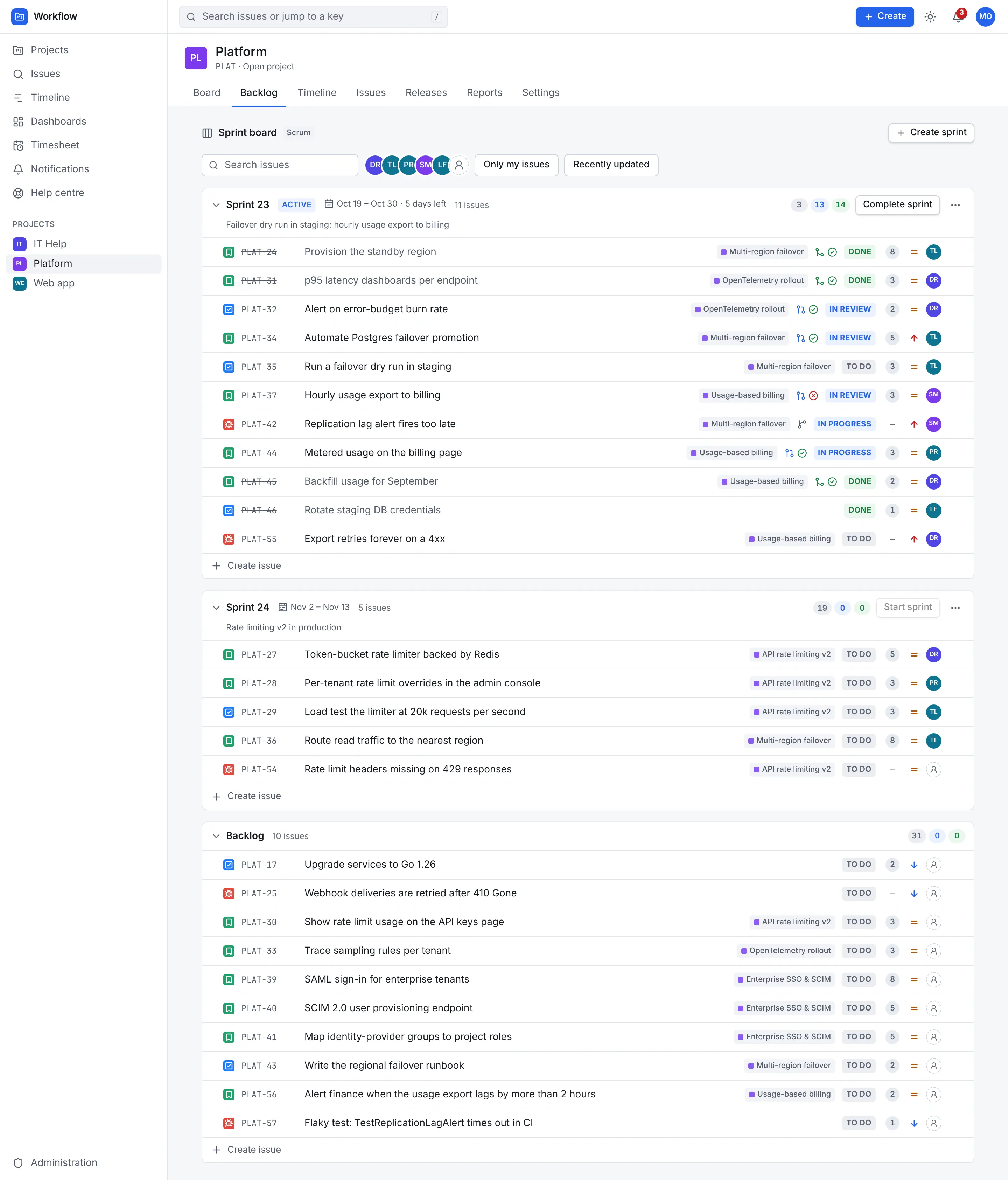
Open the project's Backlog tab. Sprints are listed at the top, the active one first, and the Backlog section below them holds everything not yet planned.
Drag issues up and down to rank them: the most important work goes at the top. The rank is shared by the whole team, and the top of the backlog is what you pull into the next sprint.
2. Create a sprint and fill it
-
On the Backlog tab, select Create sprint. An empty sprint appears straight away, named after the project, such as PLAT Sprint 6.

A sprint just created, ready to fill from the backlog. -
To rename it or give it a goal, open its … menu and choose Edit sprint. Set the Name, the Start date and End date if you know them, and a Sprint goal: one sentence about what the sprint should achieve. Then select Save.
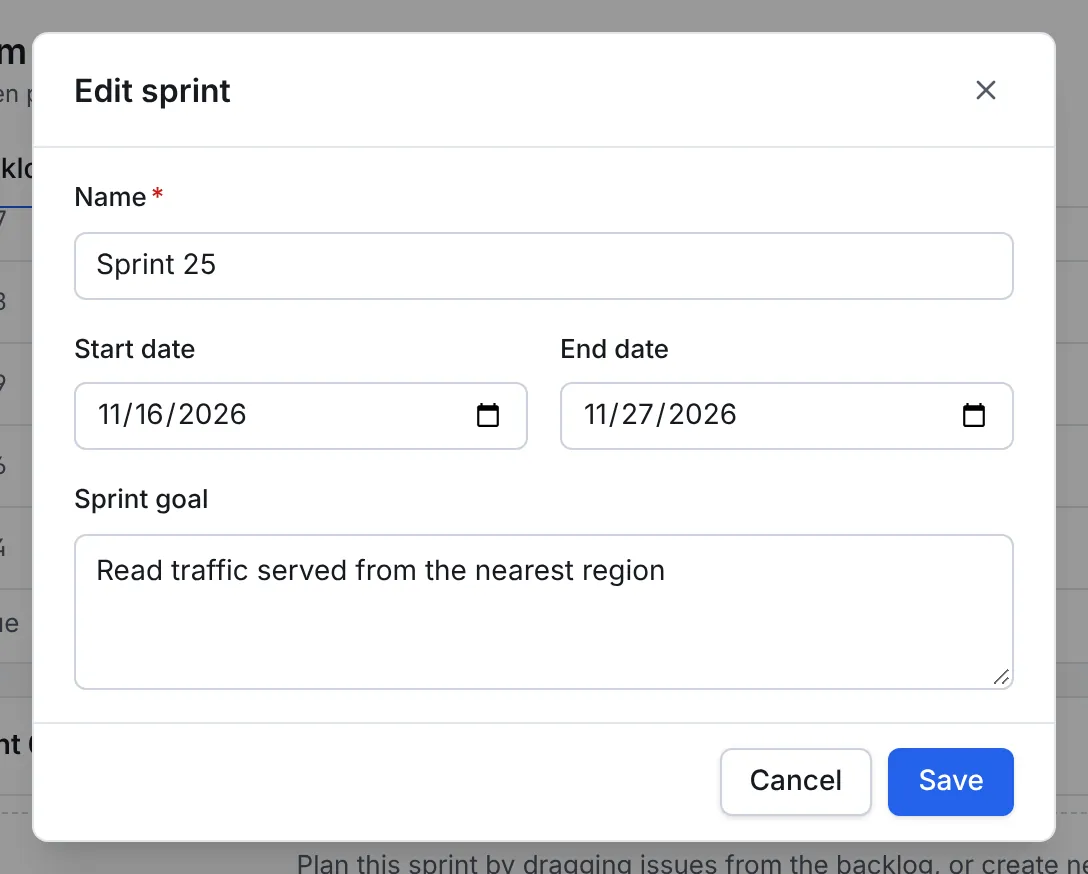
Naming the sprint and setting its goal. The dates can wait until you start it. -
Drag issues from the top of the Backlog section into the sprint until it holds what the team expects to finish. You can also create issues directly in the sprint with Create issue under it.
3. Start the sprint
- On the sprint's header, select Start sprint.
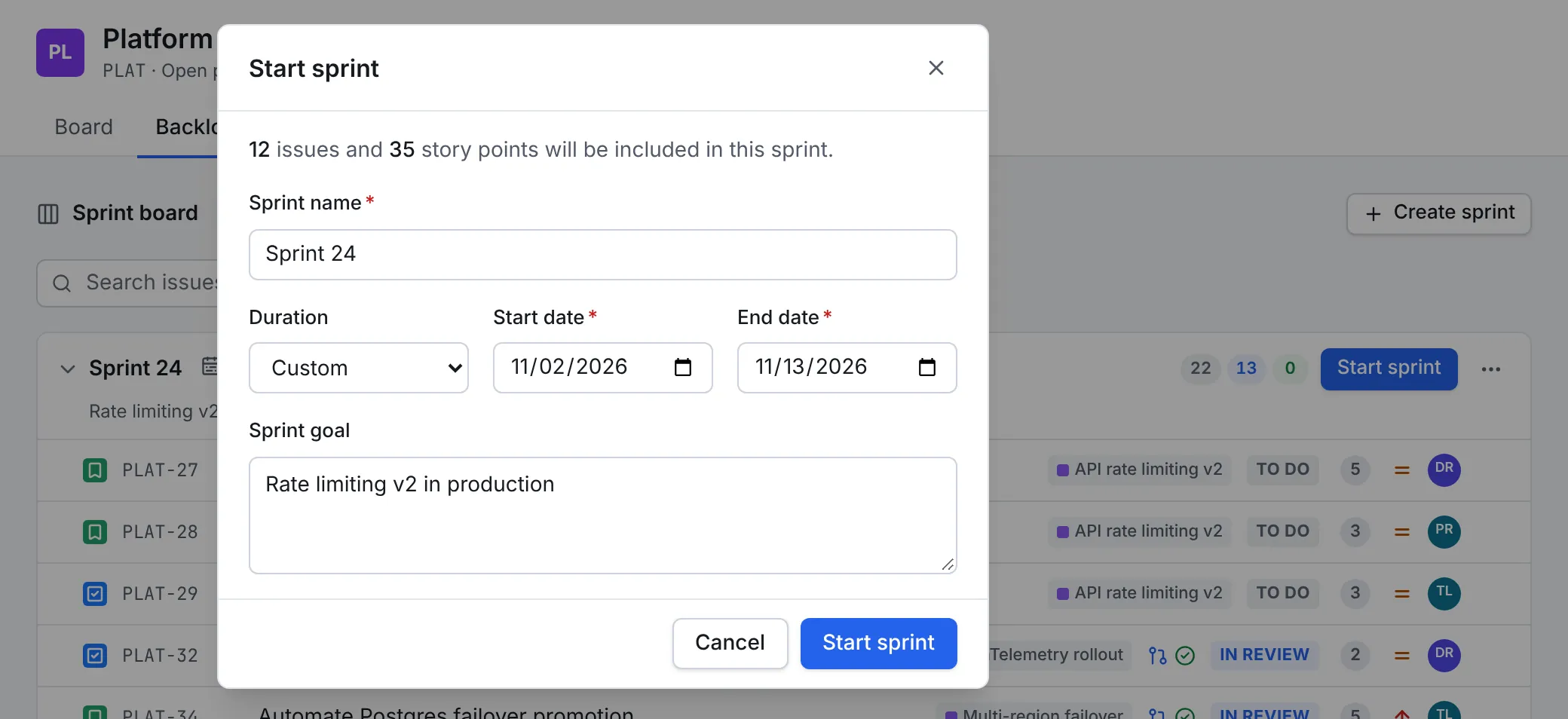
- Check the summary at the top of the dialog, such as 12 issues and 35 story points will be included in this sprint. If it's too much, cancel and move issues back to the backlog.
- Choose a Duration of 1 to 4 weeks, which sets the End date from the Start date, or set both dates yourself with Custom.
- Confirm the Sprint goal, then select Start sprint.
If Start sprint is disabled
- Another sprint is active. A project runs one sprint at a time: complete the active one first (step 5). Hovering over the button says so.
- The end date is before the start date. Fix the dates; the dialog doesn't show a message for this.
4. Work the board
The Board tab shows the active sprint. Each column holds one or more statuses of the project's workflow, and moving a card from one column to another runs that workflow's transition. The board updates live, so everyone sees each move as it happens.
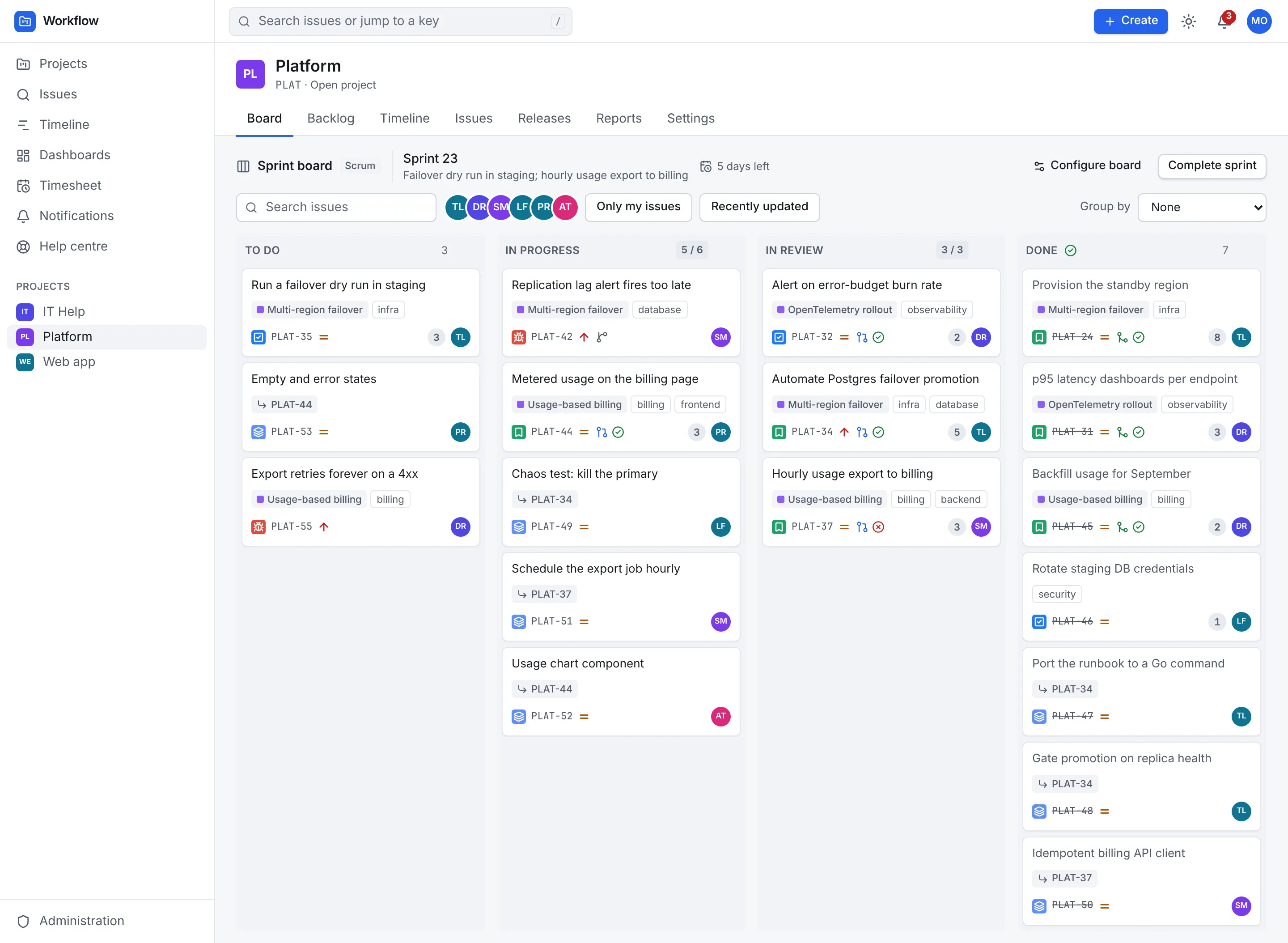
A move can need more than a drag. What happens depends on the workflow's rules:
- A screen asks for fields first. Here, moving a help desk request to Done asks for a resolution and an optional comment. The move happens when you confirm; Cancel puts the card back.
- A validator can refuse the move with a message, such as Finish every sub-task first.
- A condition decides who may make the move at all. If yours doesn't allow you, the move isn't offered.
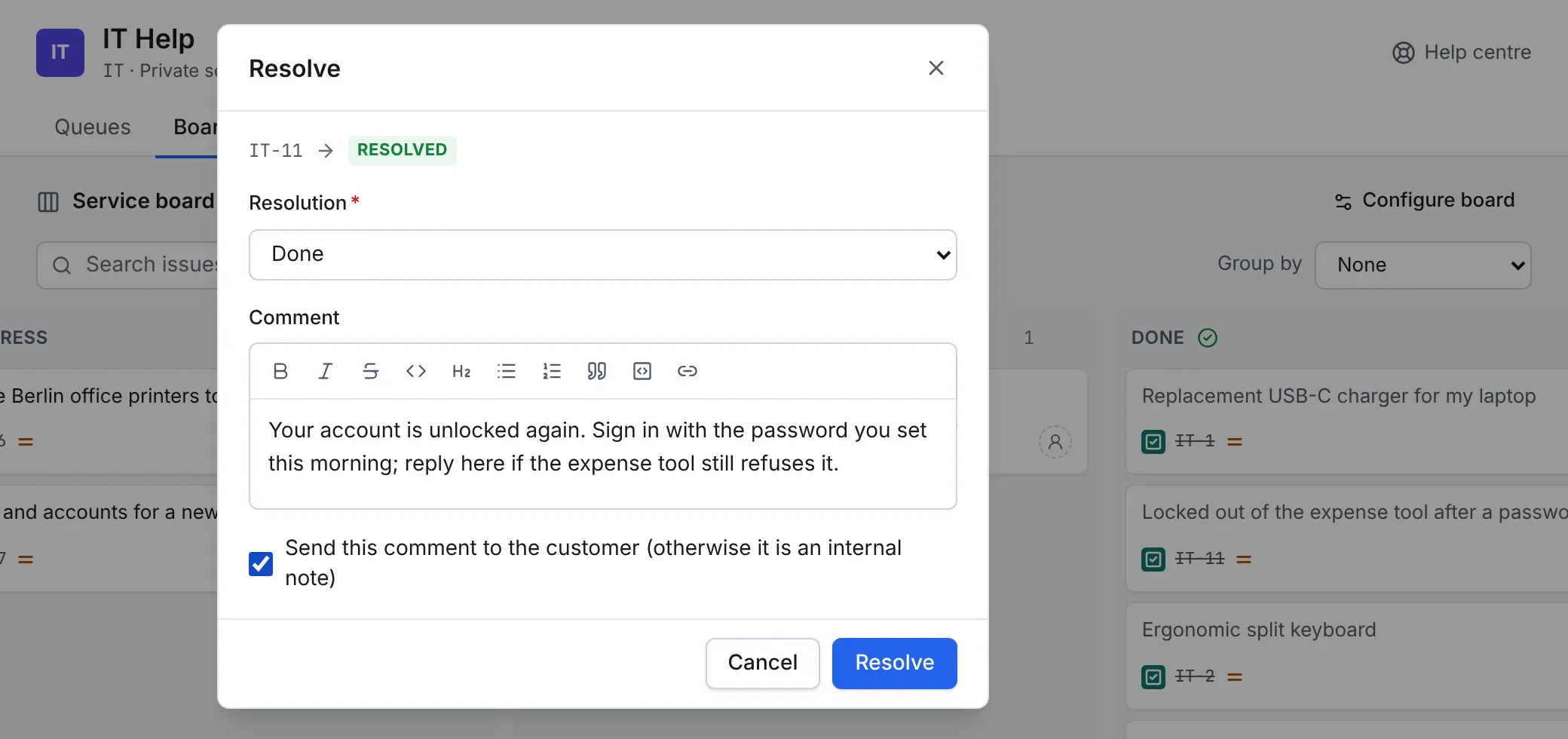
Open a card for the full issue: its description, comments, sub-tasks, linked issues, time logged and, if the project is connected to Git, its branches and pull requests.
5. Complete the sprint
At the end of the sprint:
- On the Backlog tab, select Complete sprint on the active sprint's header.
- The dialog counts the completed issues (those in a done status) and the open ones.
- Choose where the open issues go under Move open issues to: the Backlog, the next planned sprint, or a New sprint.
- Select Complete sprint.
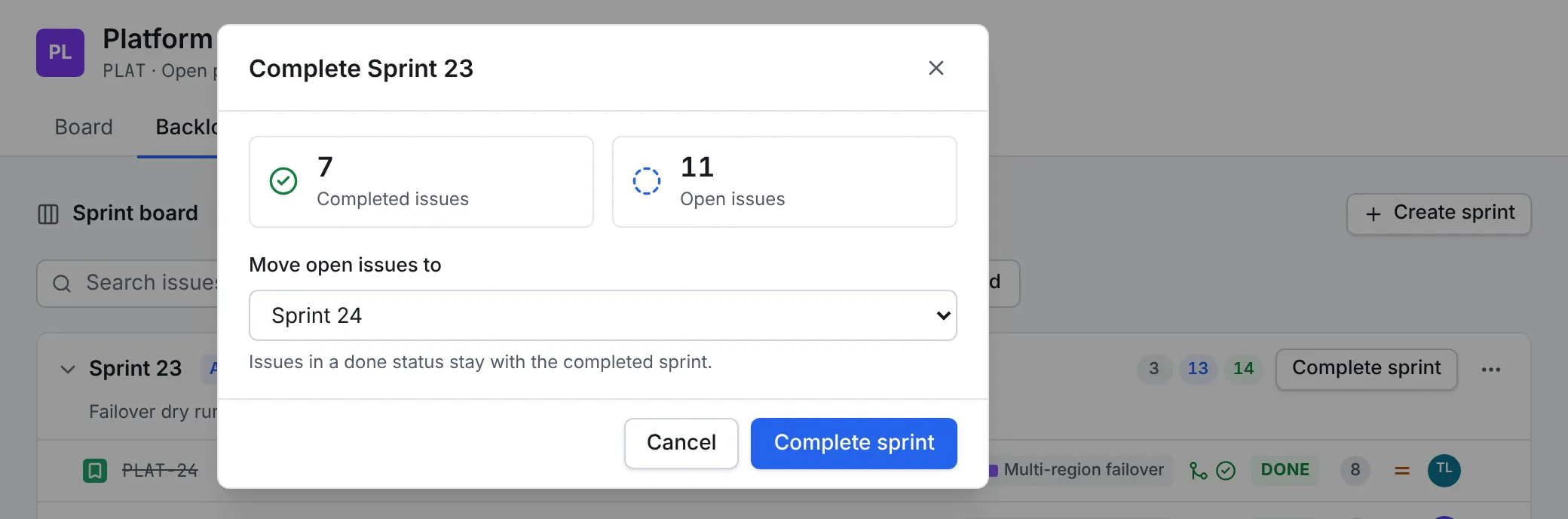
The completed sprint leaves the backlog. Its issues and report stay, and the next planned sprint can now be started.
6. Read the sprint report
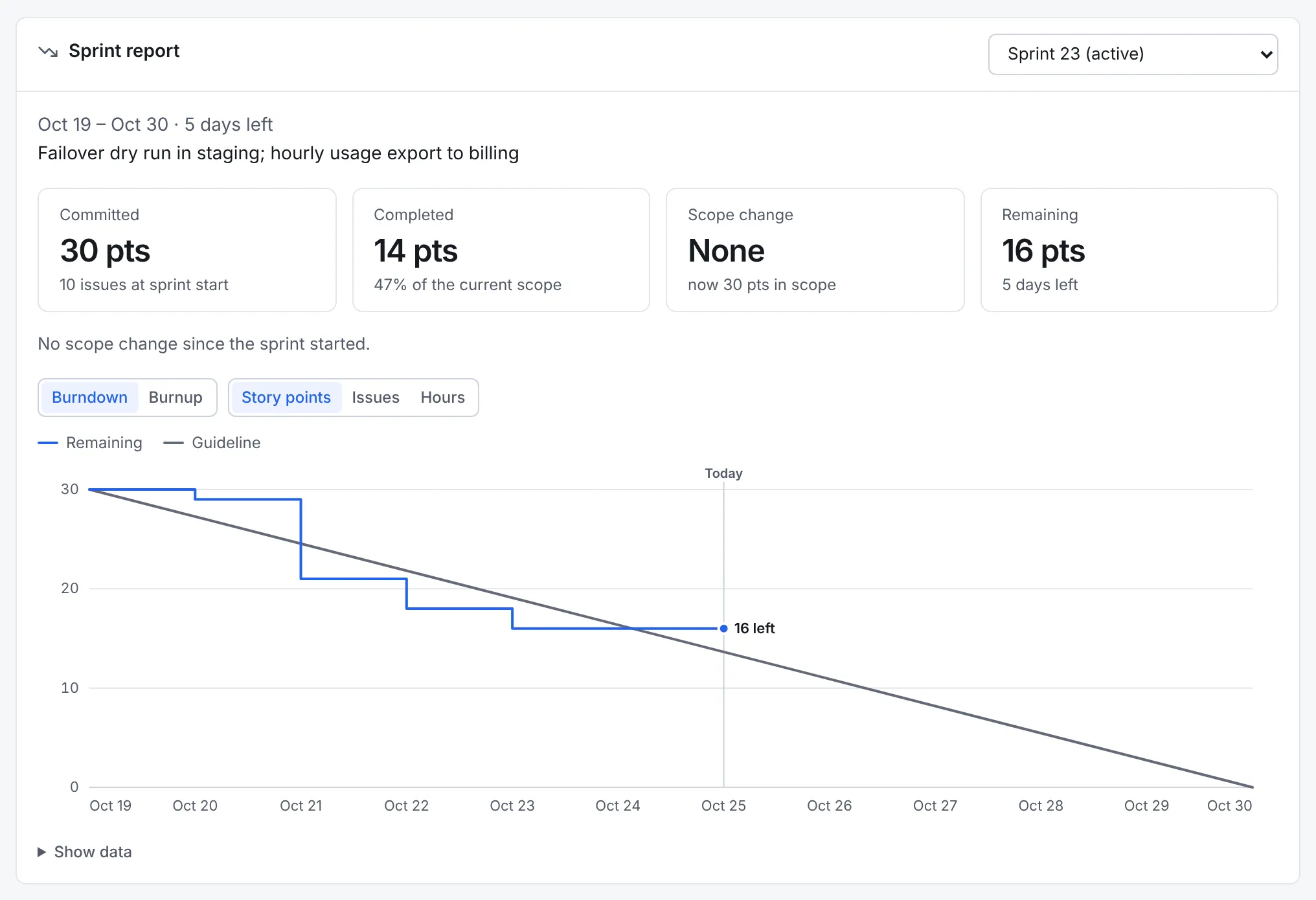
Open the Reports tab. The Sprint report comes first; pick the sprint at its top right.
- Committed: what was in the sprint when it started.
- Completed: what reached a done status, also as a share of the current scope.
- Scope change: what was added or removed after the start.
- Remaining: what is still open.
The chart shows the Burndown (work left against the ideal line) or the Burnup (work done against the scope), counted in Story points, Issues or Hours. Show data lists the numbers behind it.
Further down the page, Velocity compares recent sprints and Cycle time shows how long issues take from start to done. Use both when planning the next sprint: a team that finishes about 30 points a sprint shouldn't start one with 50.
Next steps
- Change the workflow behind the board, for example to add a review step.
- Automate routine moves, such as starting an epic when work starts on one of its stories.
- Read Sprint reports and flow metrics for how each number is worked out.
- Find issues across sprints with the search language, for example
sprint in openSprints() AND assignee = currentUser().