Connect an AI assistant
Workflow works with Claude and other AI assistants through the Model Context Protocol (MCP). Once connected, you can ask in plain language: What's in progress on PLAT and who's on it?, File a bug for the checkout timeout and put it in the active sprint, or How is the sprint going? The assistant acts as you: it sees only what you can see, the workflow's rules apply to it, and its changes are recorded under your name. This tutorial connects an assistant, approves its access, and shows how to disconnect it.
Who it's for: anyone with a Workflow account, except customers of a help desk.
Before you start
- An assistant that supports MCP, such as claude.ai, Claude Desktop, Claude Code, Cursor or VS Code.
- For claude.ai, Claude Desktop and Claude mobile: these connect from Anthropic's network, so your Workflow address must be reachable from the internet. Assistants running on your own computer, such as Claude Code, only need to reach it from there.
sequenceDiagram
  participant You
  participant A as Assistant
  participant W as Workflow
  You->>A: Add Workflow by its address
  A->>W: Connect to /mcp
  W-->>You: Consent page in your browser
  You->>W: Allow access: read, or read and write
  W-->>A: Access as you
  You->>A: Ask about your work
  A->>W: Search, read, create and move issues
No token to copy: you approve the assistant in your browser, and you can disconnect it at any time.
1. Find your server's address
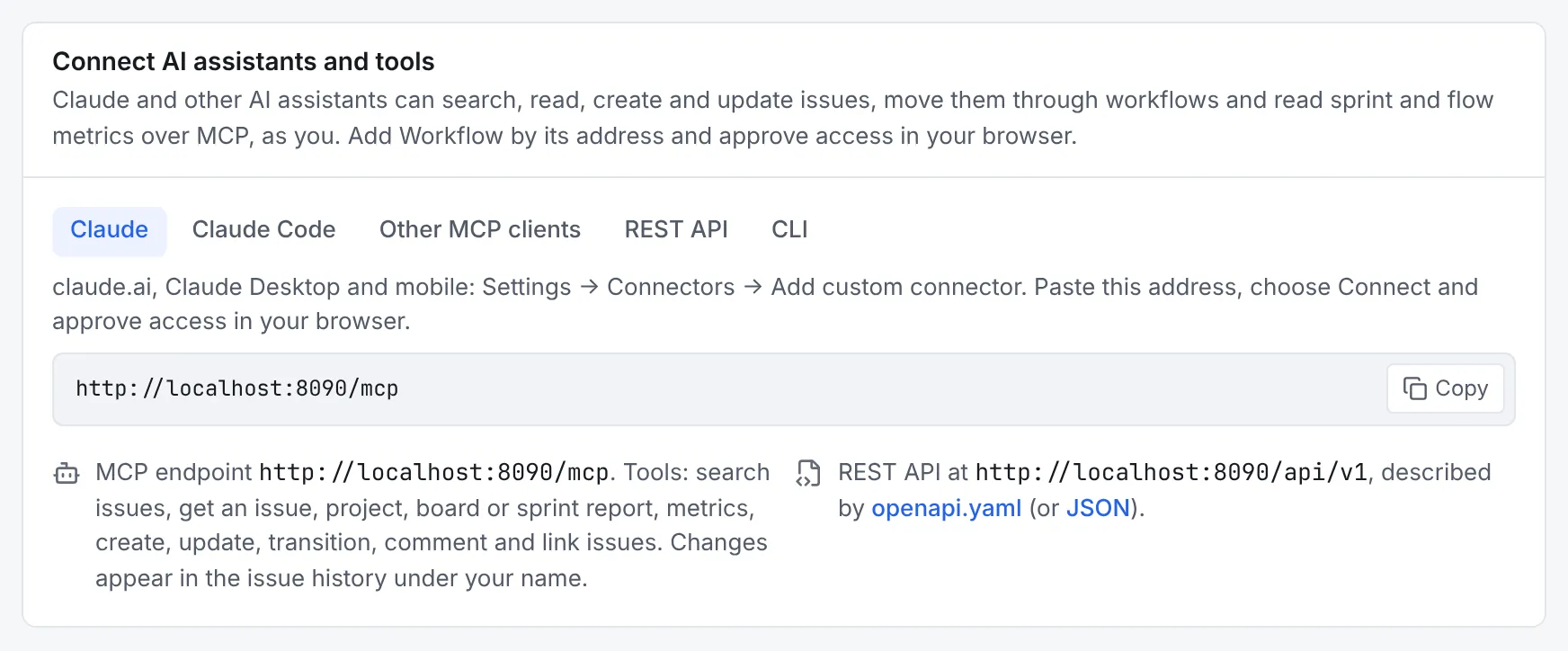
Open the account menu (your avatar, top right) and choose Profile and tokens, then go to
Connect AI assistants and tools. It shows your server's MCP address, ending in /mcp, and
the steps for each kind of client with that address filled in.
2. Add Workflow to your assistant
In claude.ai, Claude Desktop or the Claude mobile app:
- Open Settings → Connectors and choose Add custom connector.
- Paste the address, such as
https://wfm.example.com/mcp. - Choose Connect. Your browser opens Workflow's consent page (step 3).
Run this in a terminal, with your server's address:
Then, in Claude Code, run /mcp, choose workflow and Authenticate. Your browser opens
Workflow's consent page (step 3).
Cursor, VS Code, ChatGPT connectors and other clients that support MCP with OAuth: add the address in their MCP settings, for example:
They open Workflow's consent page in your browser when they first connect (step 3).
3. Approve its access
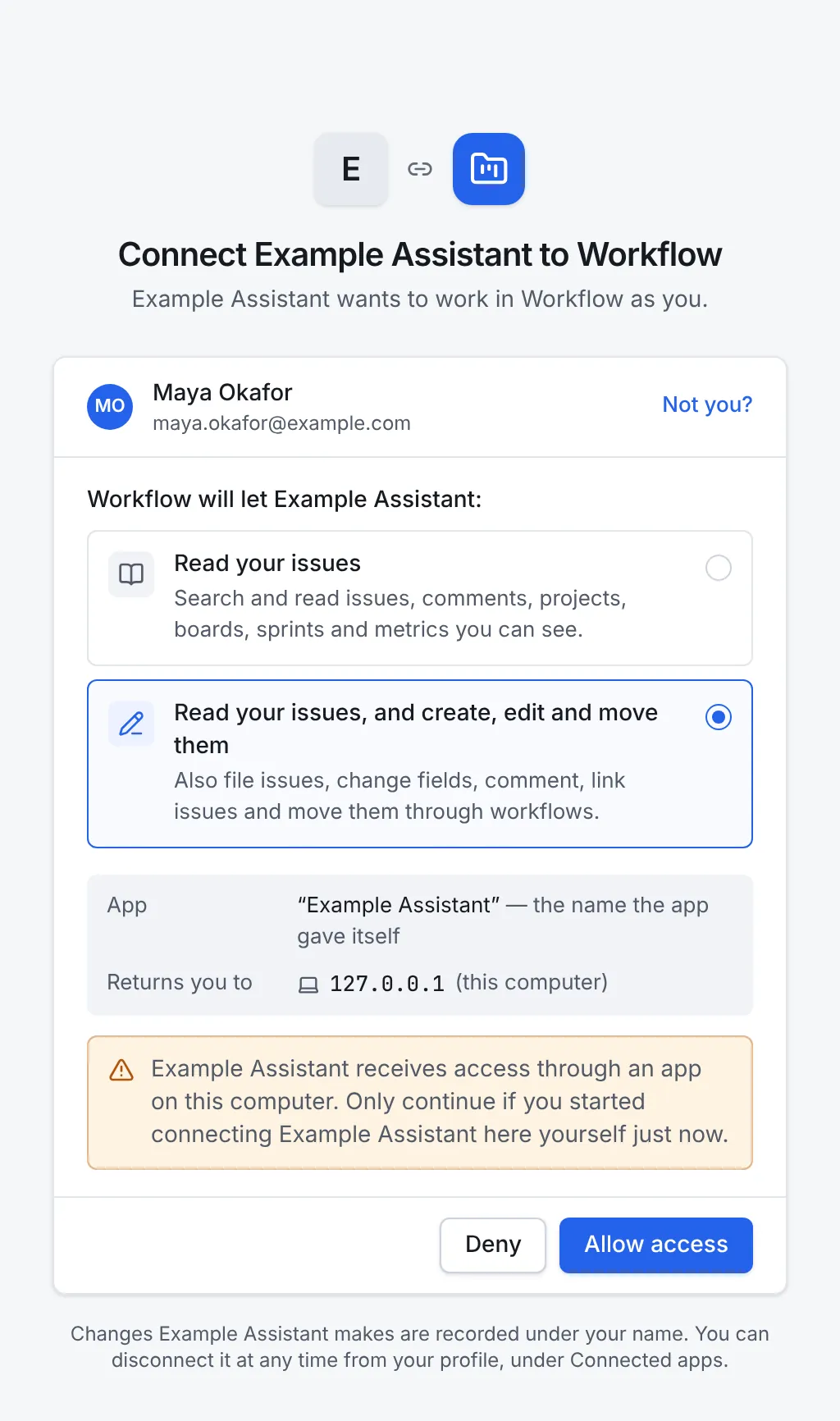
The consent page names the assistant and the account it will act as. If you aren't signed in, you sign in first and then come back to it.
- Check that the account shown is yours. If it isn't, choose Not you?.
- Choose what the assistant may do:
- Read your issues: search and read issues, comments, projects, boards, sprints and metrics.
- Read your issues, and create, edit and move them: also file issues, change fields, comment, link issues and move them through workflows.
- Check the app's name and where it returns you. Only continue if you started connecting it yourself, just now.
- Choose Allow access. The browser hands you back to the assistant.
Only approve what you started
If a consent page appears that you didn't expect, choose Deny. Approving it would let someone else's app work as you.
4. Ask it about your work
The assistant can now use Workflow's tools: search with the query language, read issues with their comments and timing, read boards, sprint reports and flow metrics, and, with write access, create, update, comment on, link and move issues and log time. Try:
- What's in progress on PLAT and who's on it?
- File a bug in PLAT: the checkout times out after 30 seconds. High priority, assign it to me, and put it in the active sprint.
- Move PLAT-42 to review with a comment summarising the pull request.
- How is the sprint going? Is scope creeping?
- Which bugs took longest to fix this month?
What it changes appears in the issue history under your name, marked with the app, such as Maya via Claude. If a workflow rule refuses a move, the assistant gets the reason, such as a validator's message, and can tell you or fix what's missing.
5. See and disconnect assistants
Profile and tokens → Connected apps lists the assistants you've allowed, with their access and when they were last used. Disconnect cuts one off at once; it has to ask you again to reconnect. Administrators can see and disconnect everyone's under Administration → Connected apps.
For clients without OAuth: a personal access token
Scripts, CI jobs and clients that can't sign in through a browser use a personal access token instead.
- On Profile and tokens, under Personal access tokens, select New token.
- Give it a Name that says what uses it, such as Claude Desktop or GitHub Actions: workflows repo.
- Choose its scopes: Read, Write, and Admin for organisation administration, which works only while you're an admin. Give it no more than it needs.
- Choose when it Expires: from 7 days to a year (90 days by default).
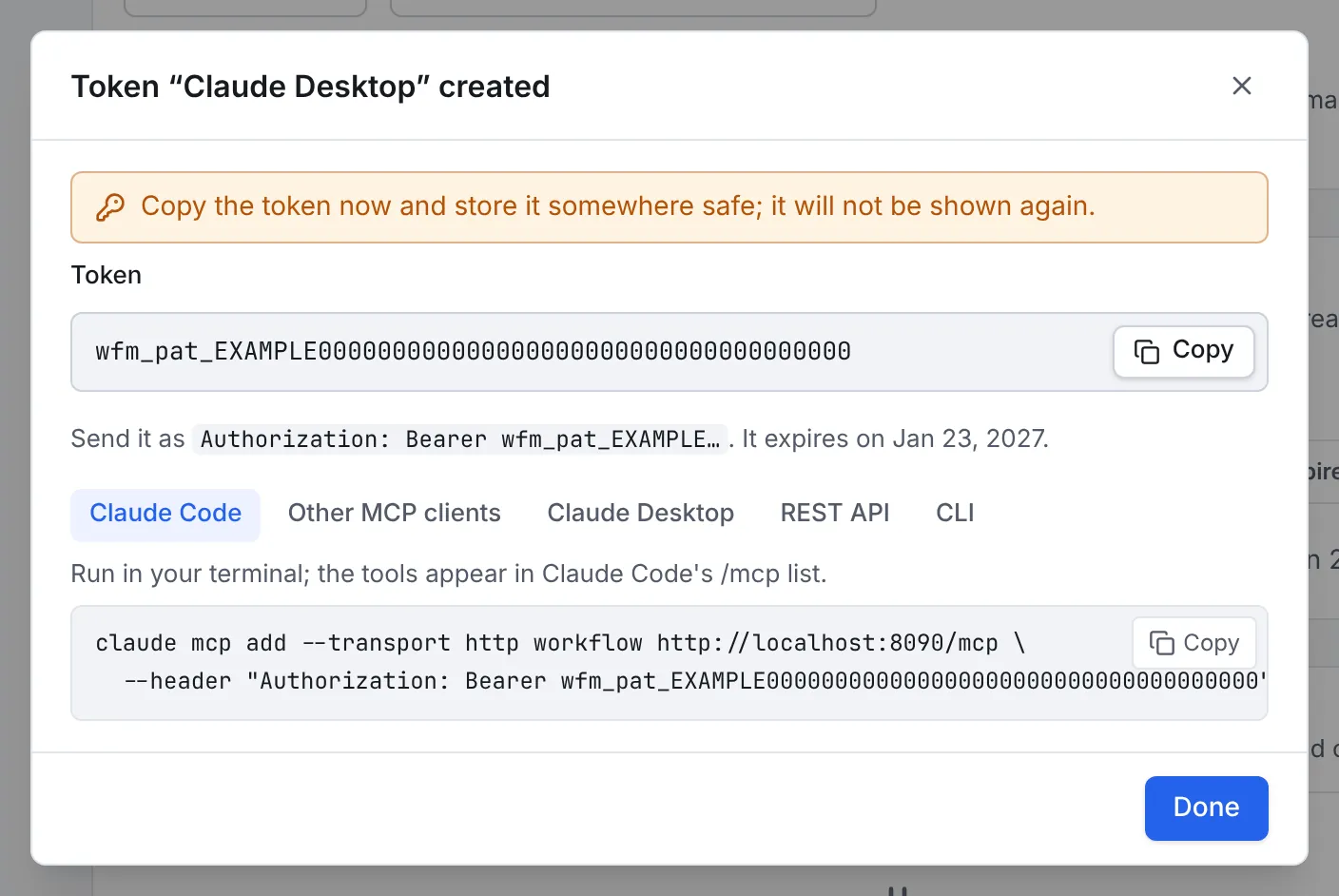
- Select Create token, then copy it straight away. It's shown only once.
The dialog then shows the setup for each client with the token filled in:
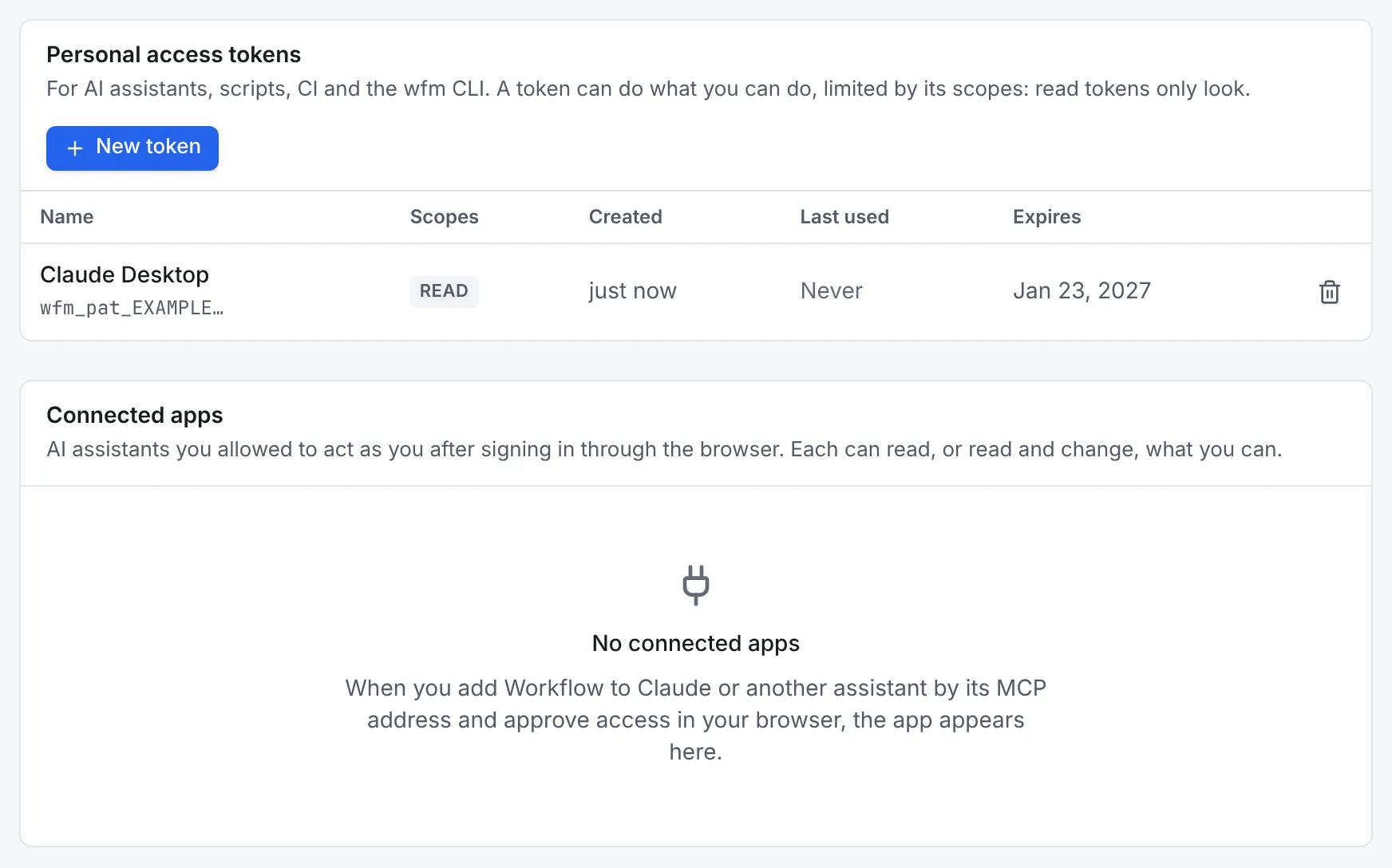
The token list shows each token's name, the start of the token, its scopes, and when it was created, last used and expires. Delete a token as soon as nothing uses it.
Treat a token like a password
A token can do anything you can, within its scopes, until it expires or is deleted. Don't paste it into chats, issues or repositories; keep it in your client's settings or a secret store.
Next steps
- Read AI assistants (MCP) for every tool, how sign-in works and the security model.
- Script Workflow with the REST API and a token.
- Keep workflows in a repository and apply them with the
wfmCLI.