Keep a risk register and a decision log
A project can keep its risks and its decisions next to its work, without either getting in the way of planning. This tutorial records a risk and scores it, links the work that reduces it, reviews and closes risks, then records a decision, links the work that carries it out, and replaces it when a newer decision comes along.
Who it's for: project leads, architects, and whoever runs the team's risk reviews.
Before you start
- A project with Risks and decisions turned on. Projects made from the Scrum, Kanban and Bug tracking templates have it from the start. For any other project, a project admin turns it on in Settings → General → Risks and decisions.
- The project's Member role or higher, which lets you create and edit issues.
flowchart LR
  subgraph Risks
    A[Record a risk<br/>and score it] --> B[Link the work<br/>that mitigates it]
    B --> C[Review it by<br/>its review date]
    C -->|still a risk| B
    C --> D[Close it with<br/>a resolution]
  end
  subgraph Decisions
    E[Propose a<br/>decision] --> F[Accept or<br/>reject it]
    F --> G[Link the work<br/>that implements it]
    G --> H[Supersede it when<br/>a newer one replaces it]
  end
Risks and decisions are issues, so they have keys, comments, watchers, history and notifications, and you can search for them. They're kept out of planning: they never appear on boards, in the backlog, in sprints or in velocity and flow reports. Work links to them instead.
1. Record a risk
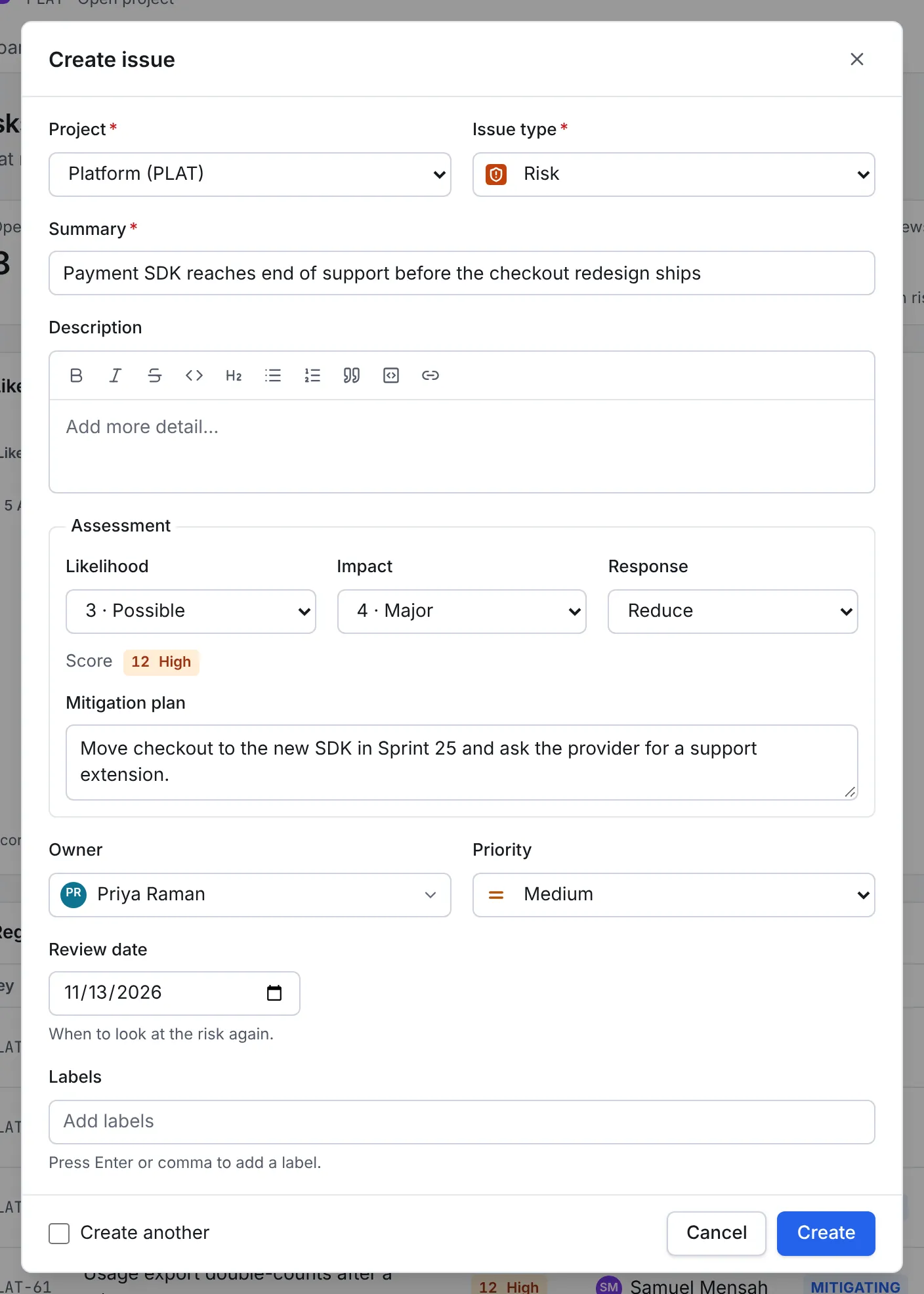
- Open the project's Risks tab and select New risk. The create dialog opens with the Risk issue type selected.
- In Summary, say what might happen, such as Payment SDK reaches end of support before the checkout redesign ships. Add the background in Description if it helps.
- Under Assessment, choose the Likelihood and the Impact, each from 1 to 5. The Score is the two multiplied together, and its rating follows from it: Low (1–4), Medium (5–9), High (10–16) or Critical (20–25).
- Choose a Response: Avoid, Reduce, Transfer or Accept. Then write the Mitigation plan: what makes the risk less likely or less harmful.
- Pick the Owner, the person who looks after the risk, and a Review date for when to look at it again.
- Select Create.
2. Read the register
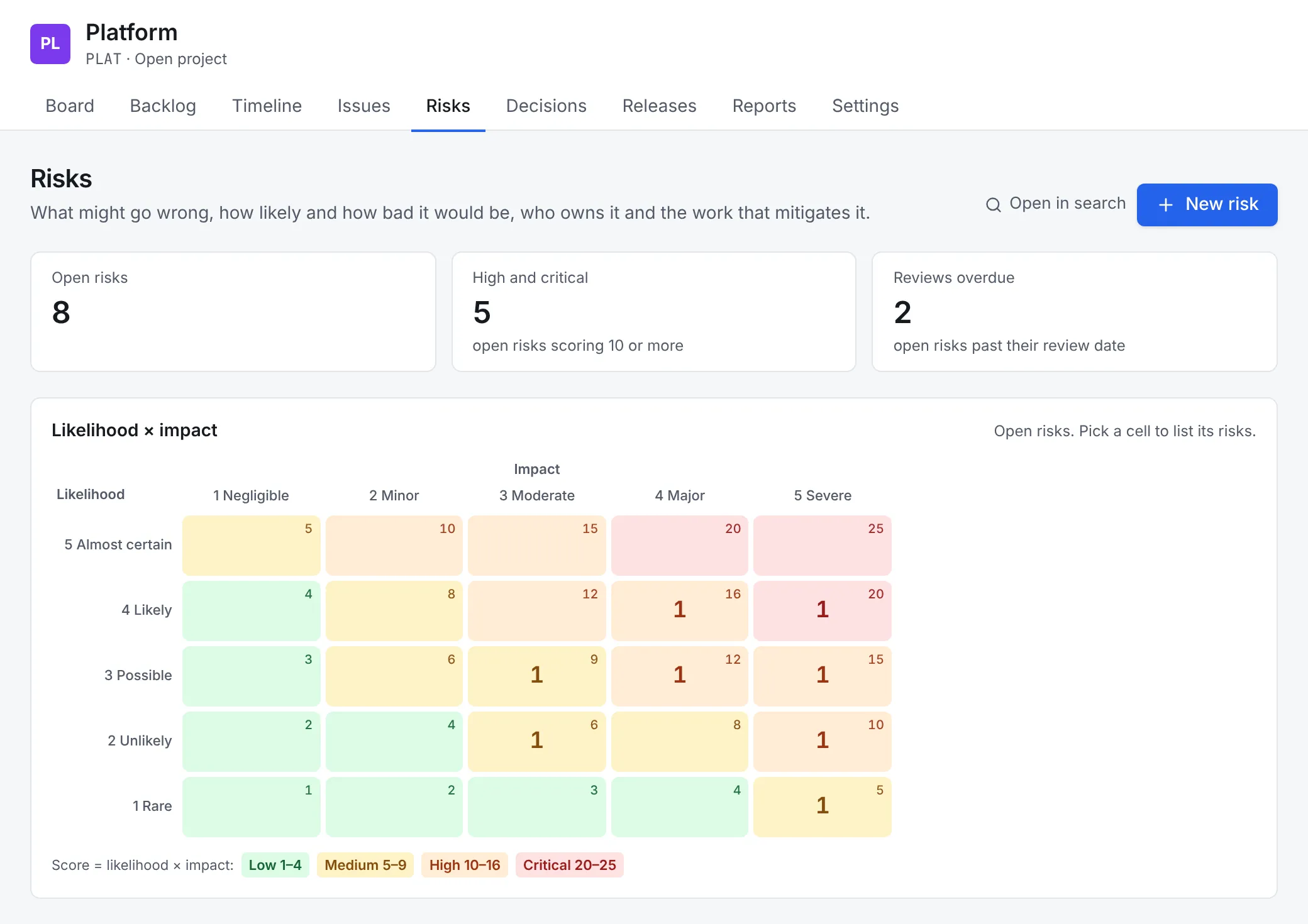
The Risks tab opens with three counts, Open risks, High and critical (open risks scoring 10 or more) and Reviews overdue (open risks past their review date), and the Likelihood × impact heat map. Each cell of the map shows how many open risks it holds, on the colour of its rating.
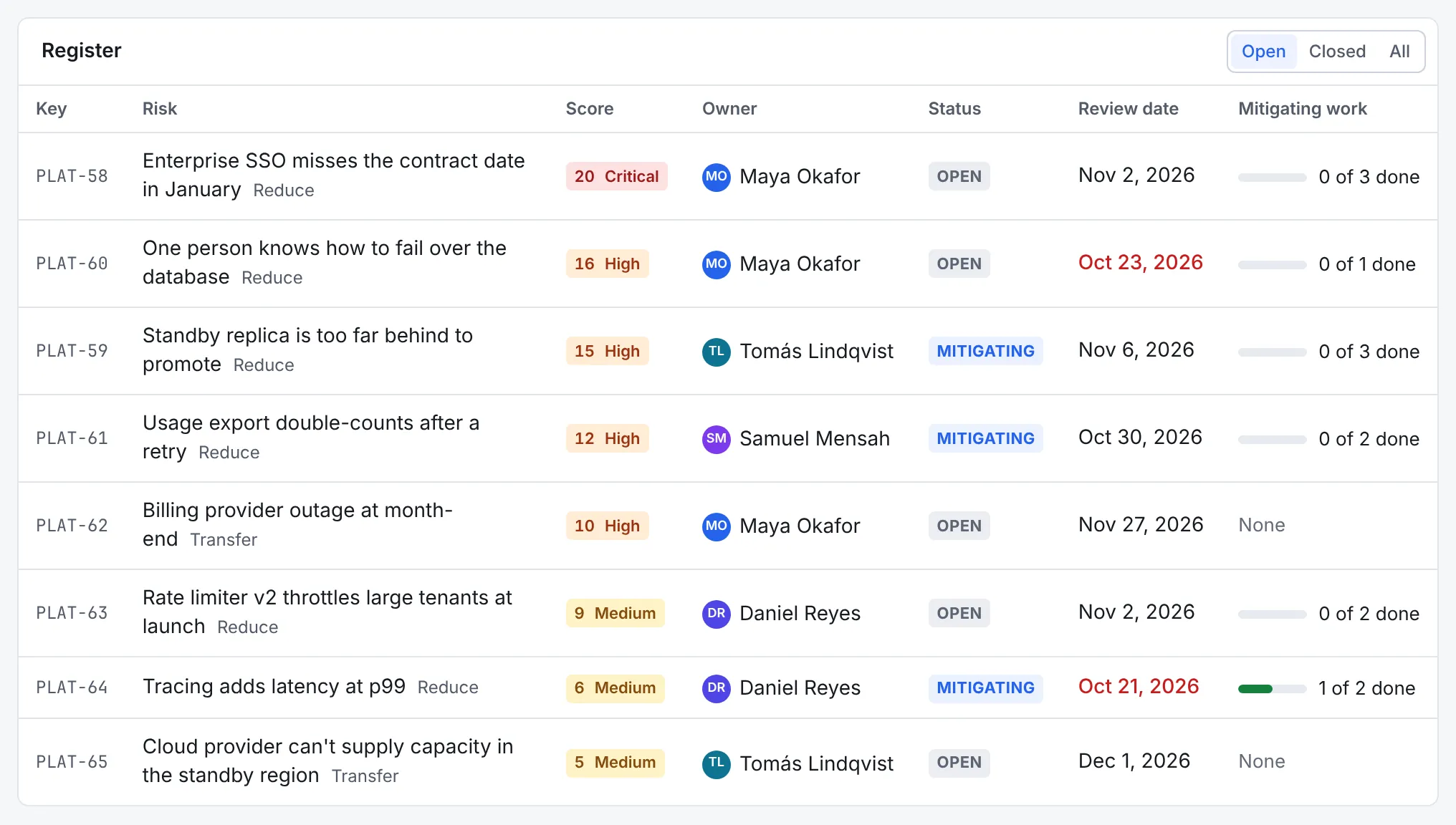
Below the map, the Register lists every open risk, highest score first, with its owner, status, review date and how much of its mitigating work is done. A review date in red has passed. Switch to Closed or All to see the rest.
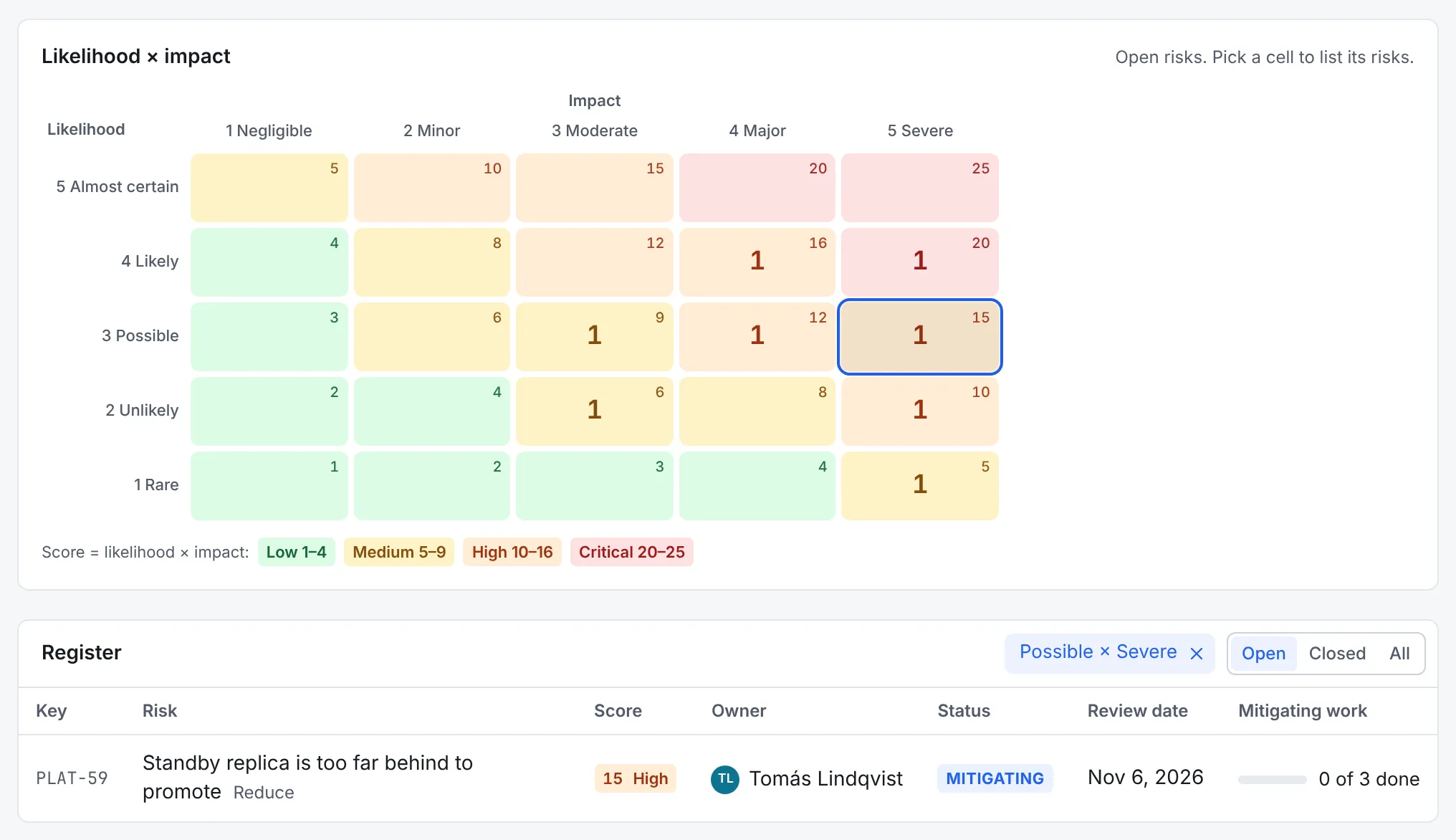
To see what's in one cell, select it on the map: the register then lists only that cell's risks. Select the cell again, or the × on the filter, to show every risk.
3. Link the work that mitigates it
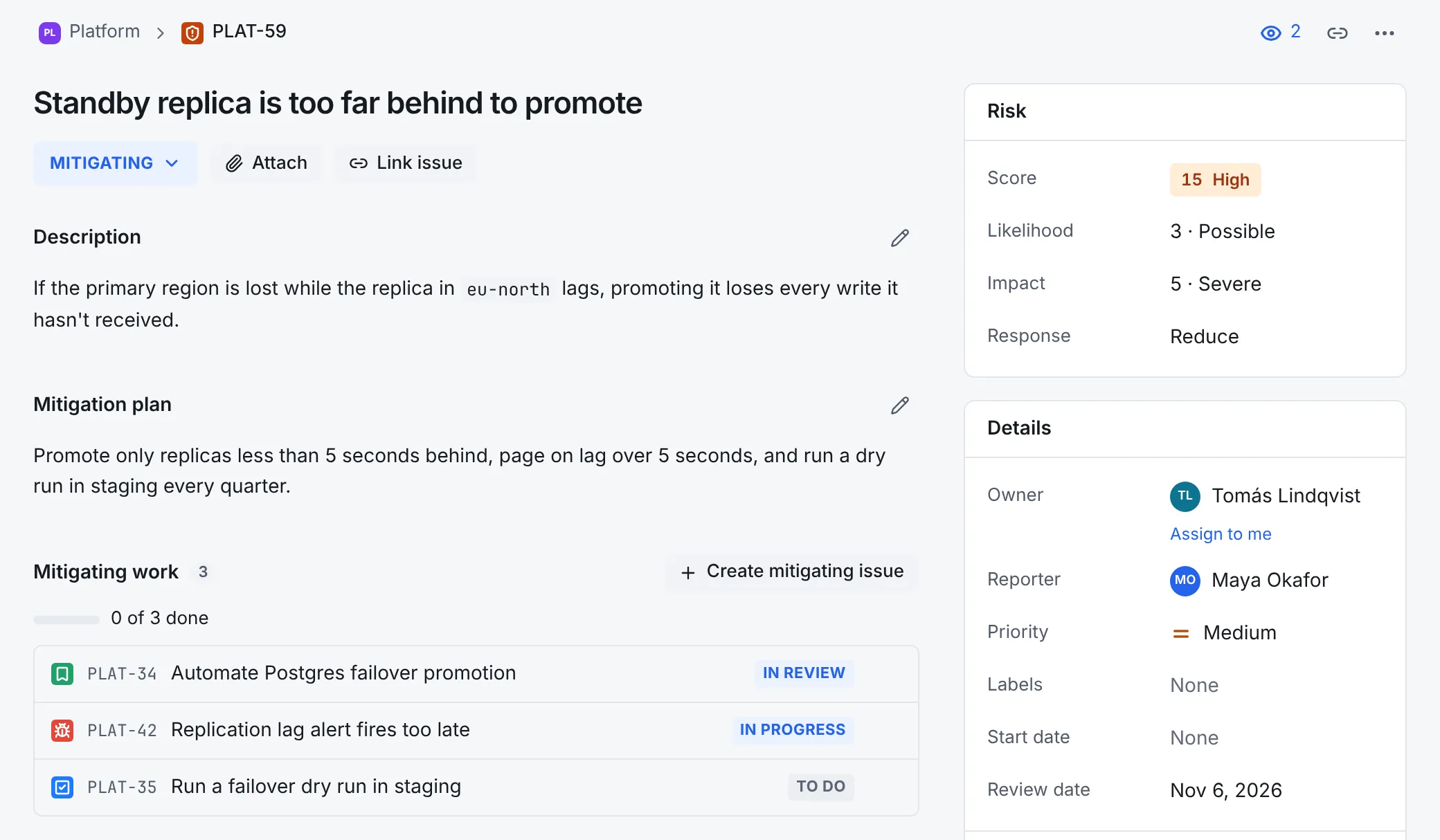
Open a risk from the register. Its page shows the assessment in the Risk panel, the Mitigation plan, and the Mitigating work with how much of it is done.
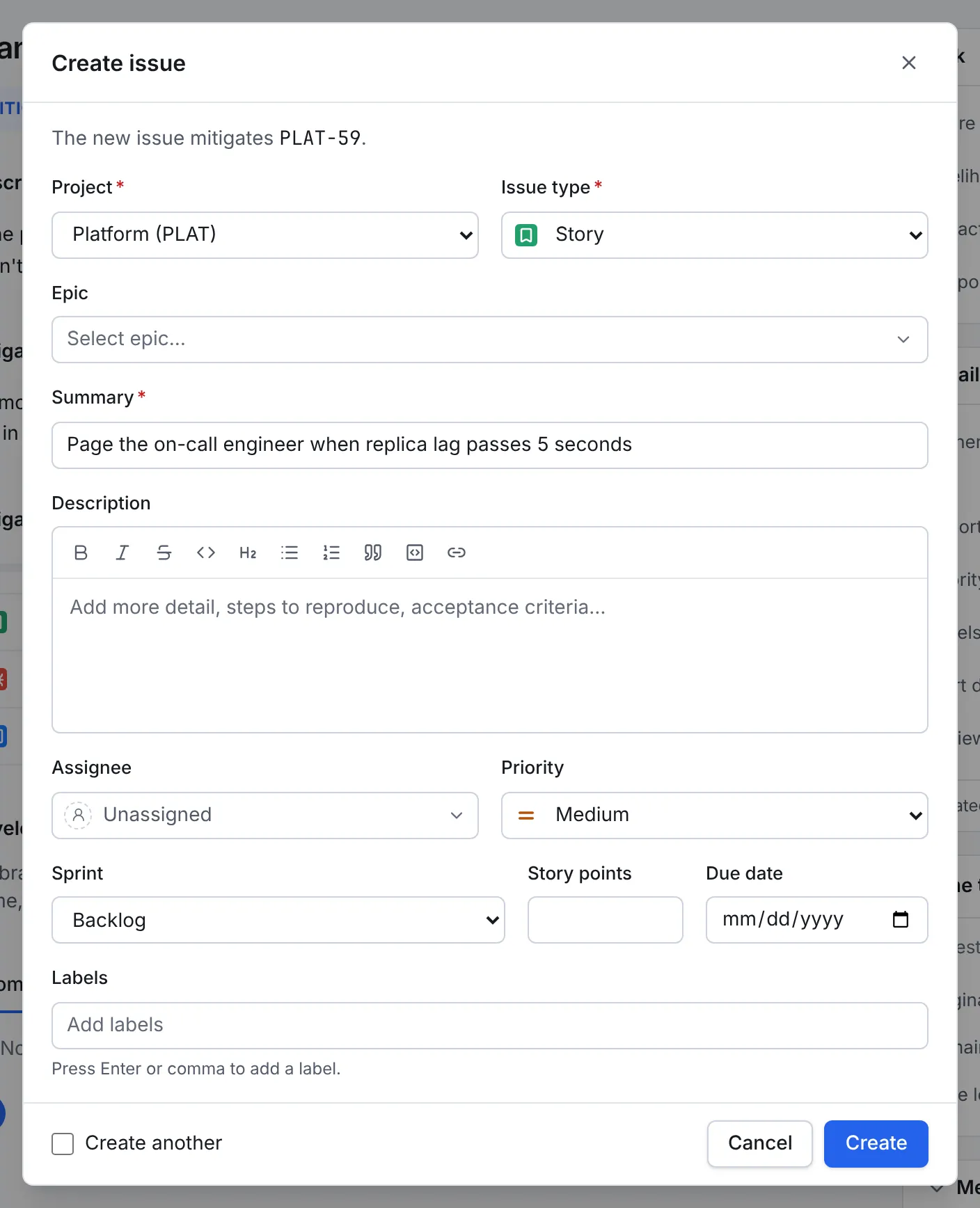
- To plan new work against the risk, select Create mitigating issue. The create dialog opens for a story, task or bug in the project, says at the top which risk the new issue mitigates, and links the two when you create it. The issue goes into the backlog like any other work.
- To link work that already exists, select Link issue, choose is mitigated by and pick the issue. From the work's side, the same link reads mitigates.
When work on the plan starts, move the risk to Mitigating from its status button.
4. Review and close risks
Look at each risk by its review date: check the mitigating work, update the likelihood and impact if they've changed (the score and rating follow), and set the next Review date. The Reviews overdue count on the Risks tab shows what's waiting.
A weekly reminder
In Settings → Automation, the template Remind risk owners about reviews due this week notifies each risk's owner every Monday about reviews that are due in the next seven days or have passed. See Automate routine work.
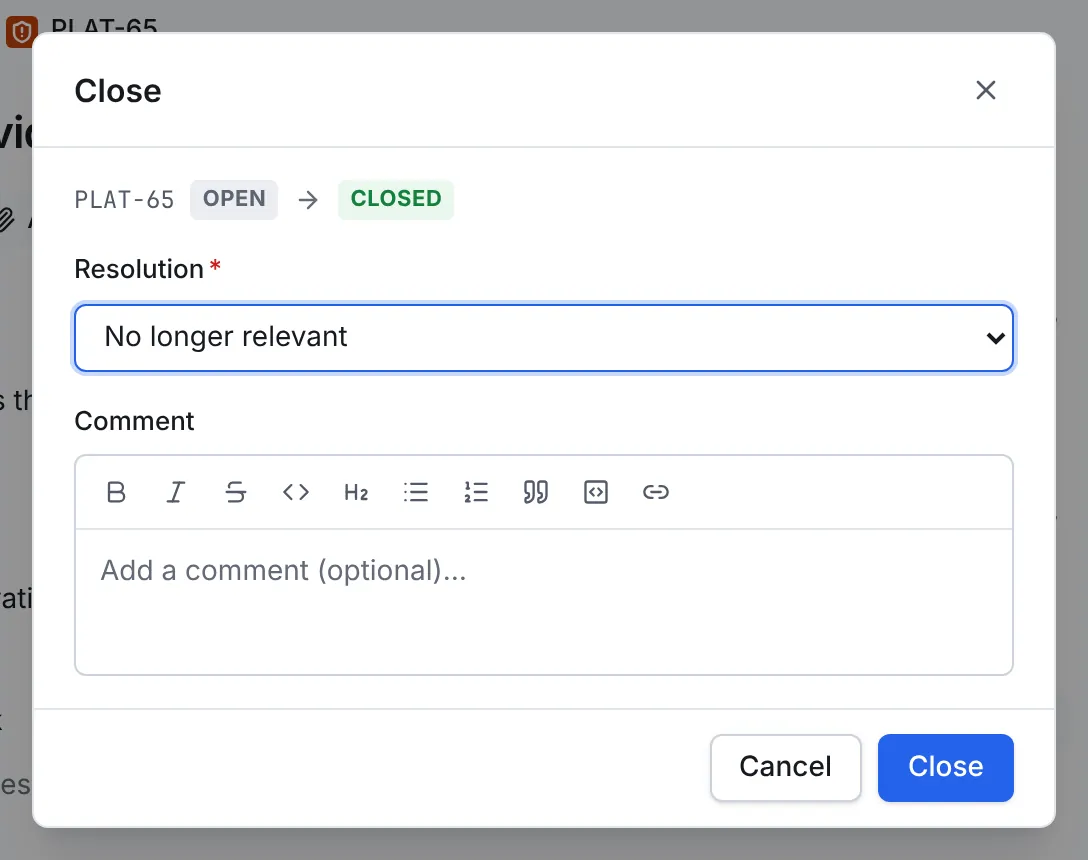
When a risk is over, close it: select its status button, choose Close, and pick a Resolution:
- Mitigated: the work brought it down to an acceptable level.
- Accepted: the team decided to live with it.
- Occurred: it happened. Link the incident or the follow-up work.
- No longer relevant: the situation changed.
5. Record a decision
- Open the project's Decisions tab and select New decision.
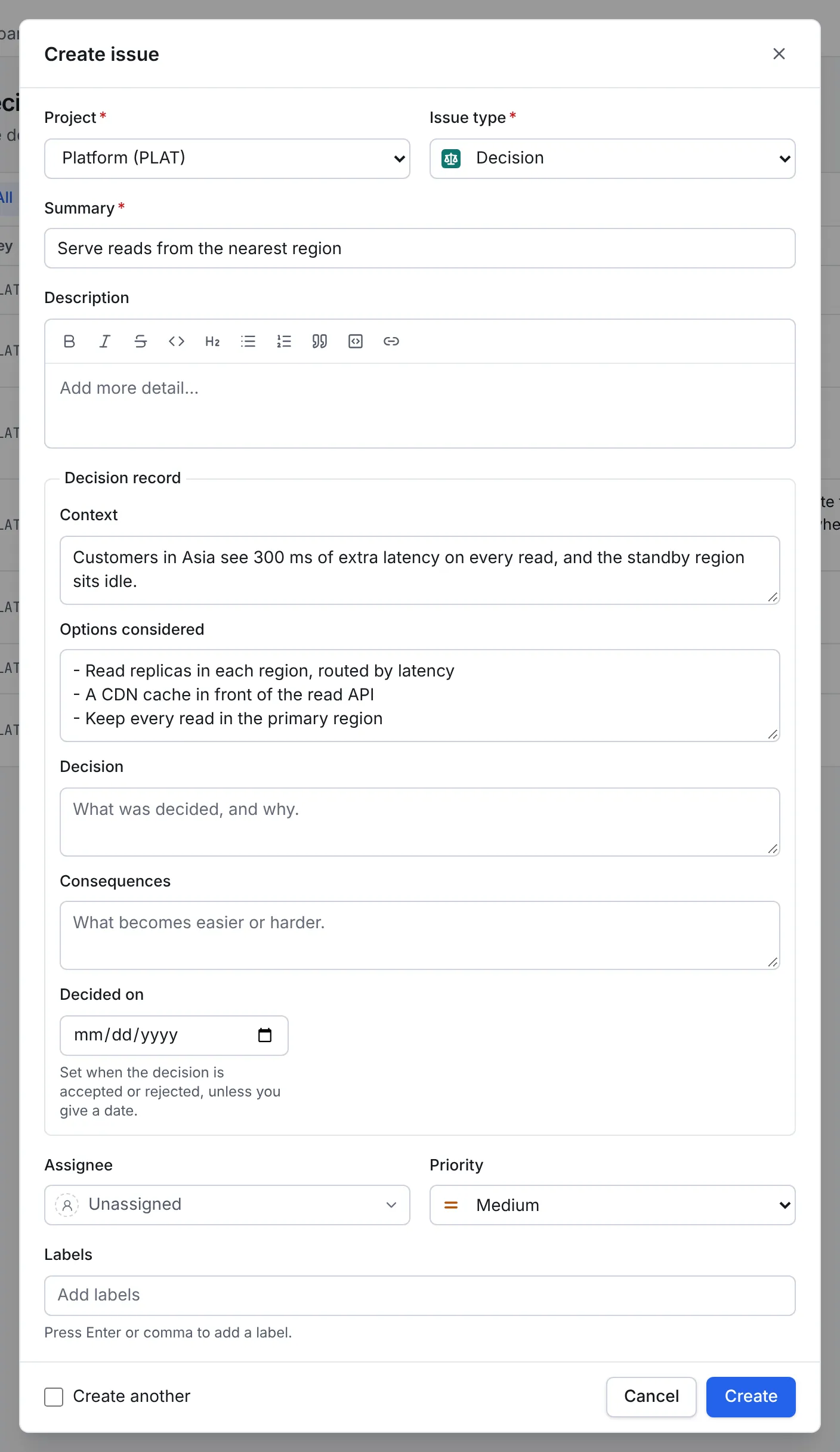
- In Summary, name the decision, such as Serve reads from the nearest region.
- Under Decision record, fill in what you know so far:
- Context: the situation and what makes a decision necessary.
- Options considered: the alternatives, with their pros and cons.
- Decision: what was decided, and why. Leave it empty while the decision is proposed.
- Consequences: what becomes easier or harder as a result.
- Select Create. The decision starts as Proposed.
When the team has decided, open the decision, fill in Decision and Consequences, and choose Accept or Reject from its status button. Decided on is set to that day, unless you gave it a date already: useful when you record a decision made earlier.
6. Read the decision log
The Decisions tab lists every decision, newest first, with its status, the day it was decided, any decision that replaced it, and how much of the work implementing it is done. Filter by status with the buttons above the list.
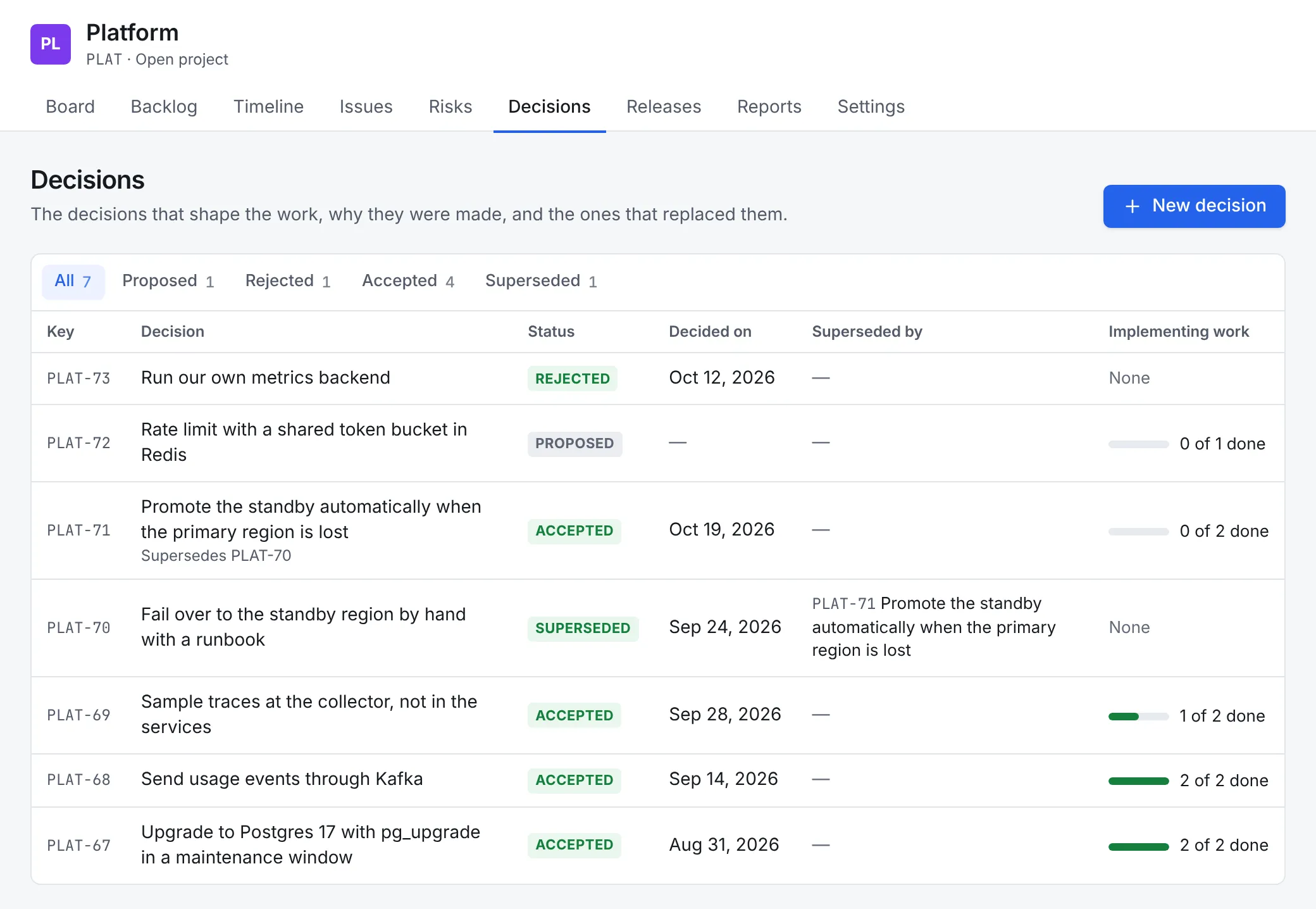
Link the work that carries a decision out the same way as for risks: on the decision, Link issue → is implemented by; from the work, implements.
7. Supersede a decision
Decisions aren't edited after the fact: when the team changes its mind, a newer decision replaces the old one, and the log keeps both.
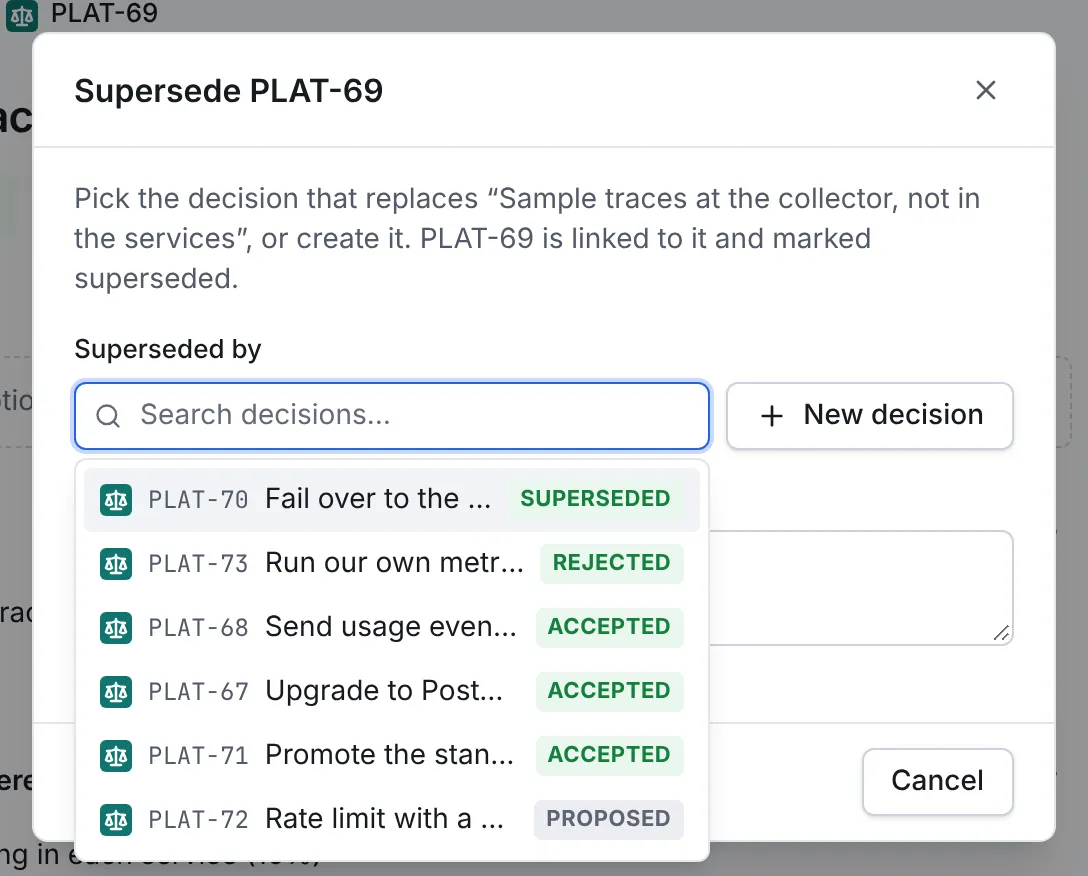
- Open the accepted decision that's being replaced and select Supersede in its Decision panel.
- Under Superseded by, search for the newer decision, or select New decision to create it now.
- Add a comment if you like, then confirm.
The newer decision is linked to the old one, and the old one moves to Superseded in the same step.
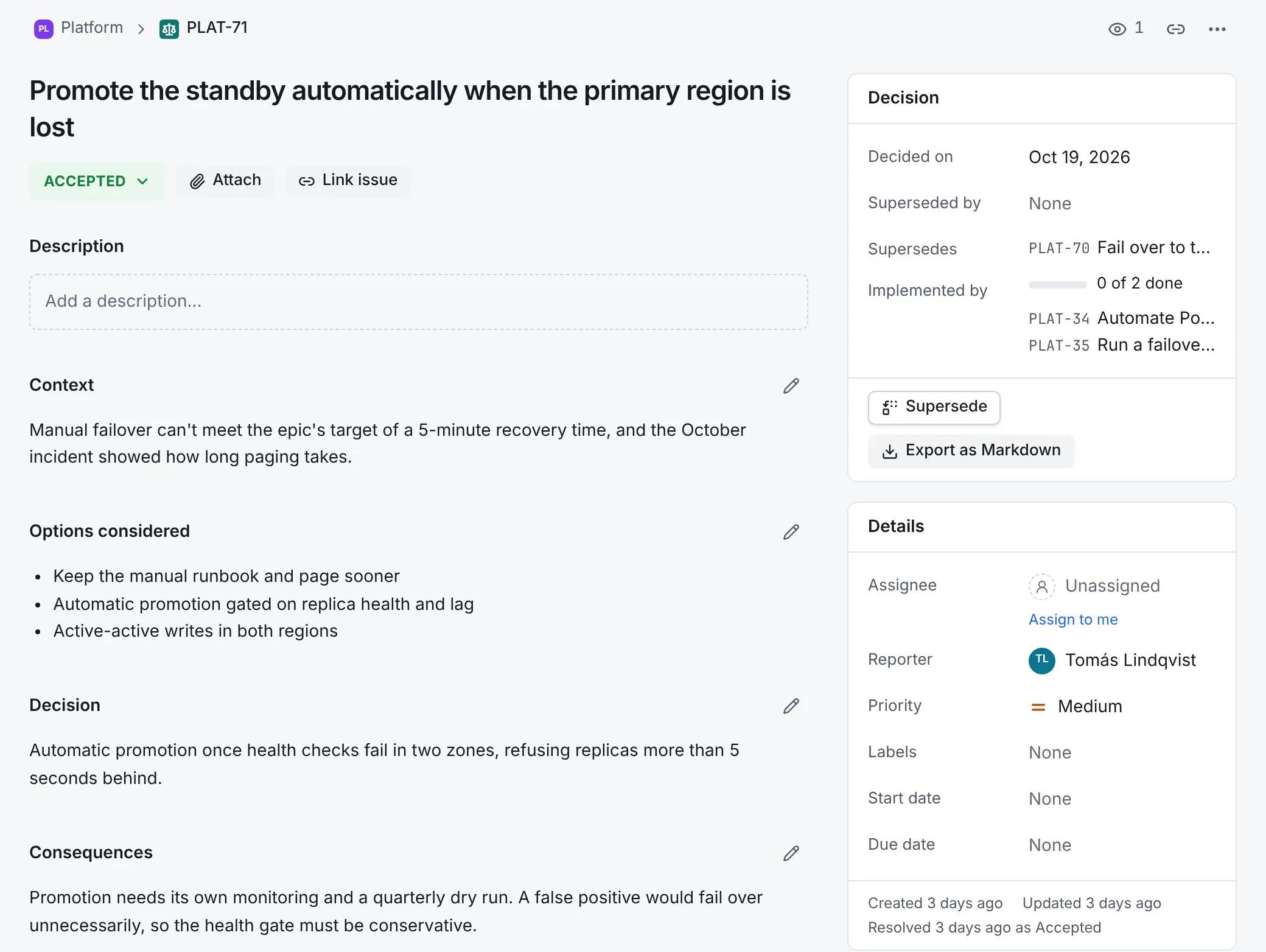
A decision's page shows its record, when it was decided, what it supersedes and what supersedes it, and the work implementing it. Export as Markdown downloads it as an architecture decision record (ADR), ready to commit next to the code it's about.
Find risks and decisions with a search
Risks and decisions are in search like every issue. A few useful queries:
kind = risk AND "Risk rating" in (High, Critical) AND statusCategory != Done
kind = risk AND due < startOfDay() AND statusCategory != Done
kind = risk AND assignee = currentUser() ORDER BY due
kind = decision AND status = Accepted AND "Decided on" >= startOfYear()
On the Risks tab, Open in search opens the project's risks in issue search, where you can save the query as a filter or put it on a dashboard.
Where next
- Risks and decisions covers every field, the workflows, the link types and the API.
- Plan and ship a release takes the work from here to production.