Plan and ship a release
A release is a version of your product, such as v3.9, and the issues that ship in it. This tutorial creates a release, follows it on its own page while the work gets done, writes the release notes, links the Git tag, ships it, and then follows it out to staging and production.
Who it's for: project leads, release managers and anyone who decides when a version goes out.
Before you start
- A project with some issues to ship. See Set up your first project.
- The project's Admin role, or another role with the Manage releases permission, to create, edit and ship releases. Everyone who can see the project can see its releases.
- For tags and deployments: a GitHub or GitLab repository linked to the project. See Connect GitHub or GitLab.
flowchart LR
  A[Create the<br/>release] --> B[Give issues the<br/>release as their<br/>fix version]
  B --> C[Follow progress<br/>and readiness]
  C --> D[Write the<br/>release notes]
  D --> E[Link the Git tag<br/>and ship it]
  E --> F[See it reach<br/>staging and<br/>production]
1. Create a release
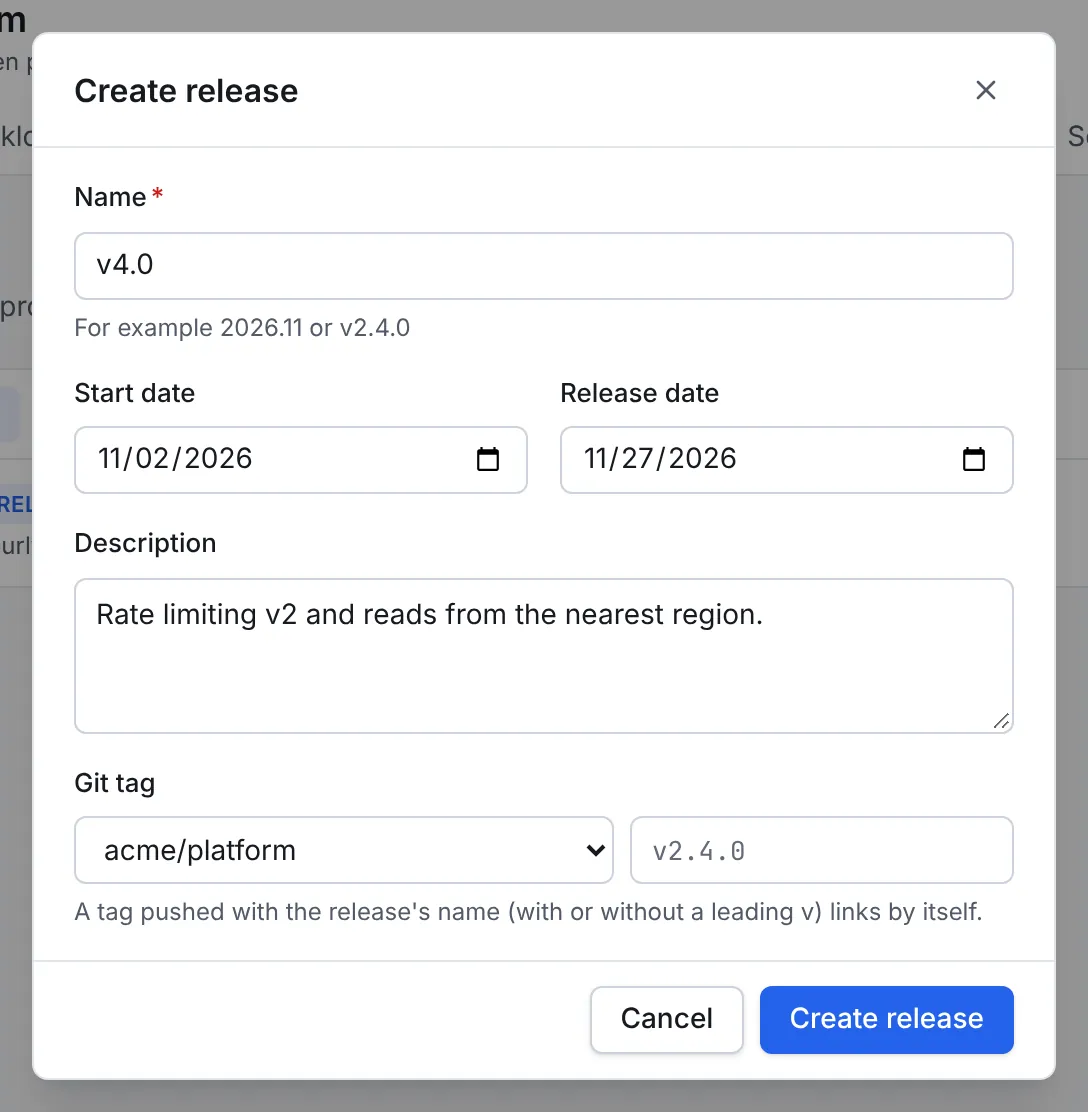
- Open the project's Releases tab and select Create release.
- Give it a Name, such as v4.0 or 2026.11, and optionally a Start date, a Release date and a Description of what it's for.
- Select Create.
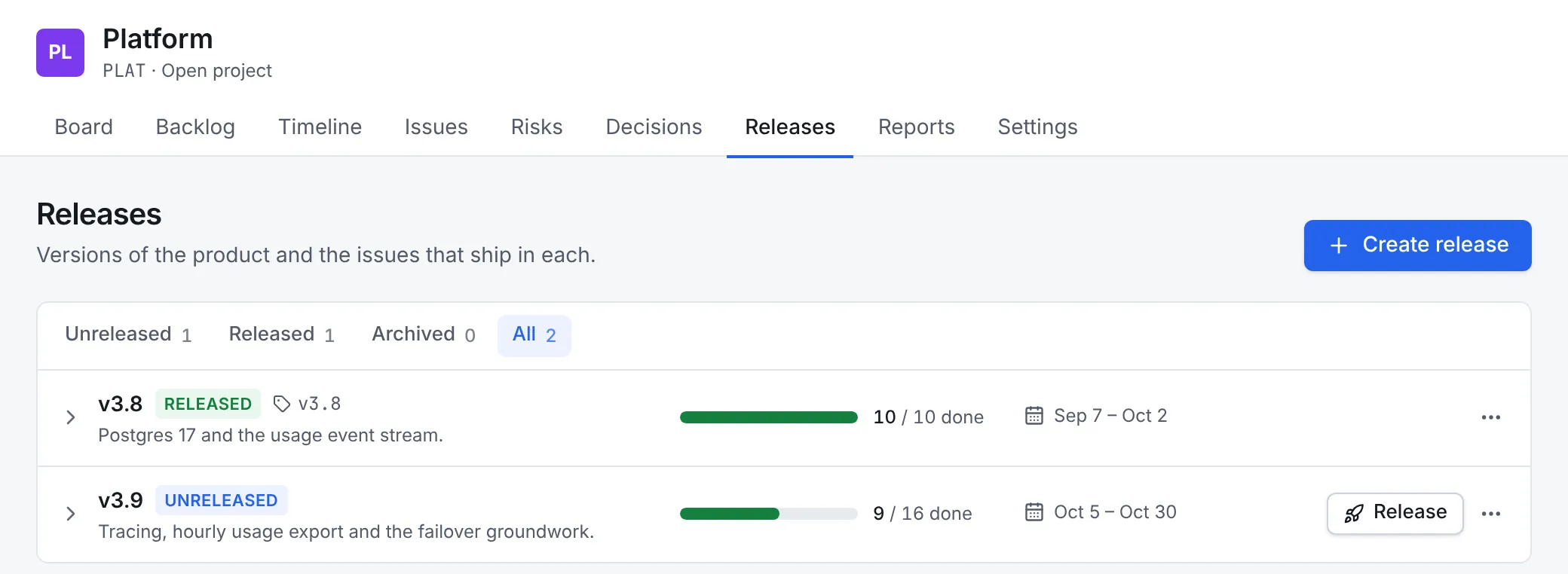
The Releases tab lists the releases with how many of their issues are done and their dates. Switch between Unreleased, Released, Archived and All.
2. Add issues to the release
An issue is in a release when the release is one of its Fix versions. Set it in the issue's Details panel, or when you plan a sprint by opening each issue from the backlog. Unfinished issues can also move from one release to another when you ship (step 6).
Risks and decisions can't have a fix version: they aren't work that ships.
3. Follow it on the release page
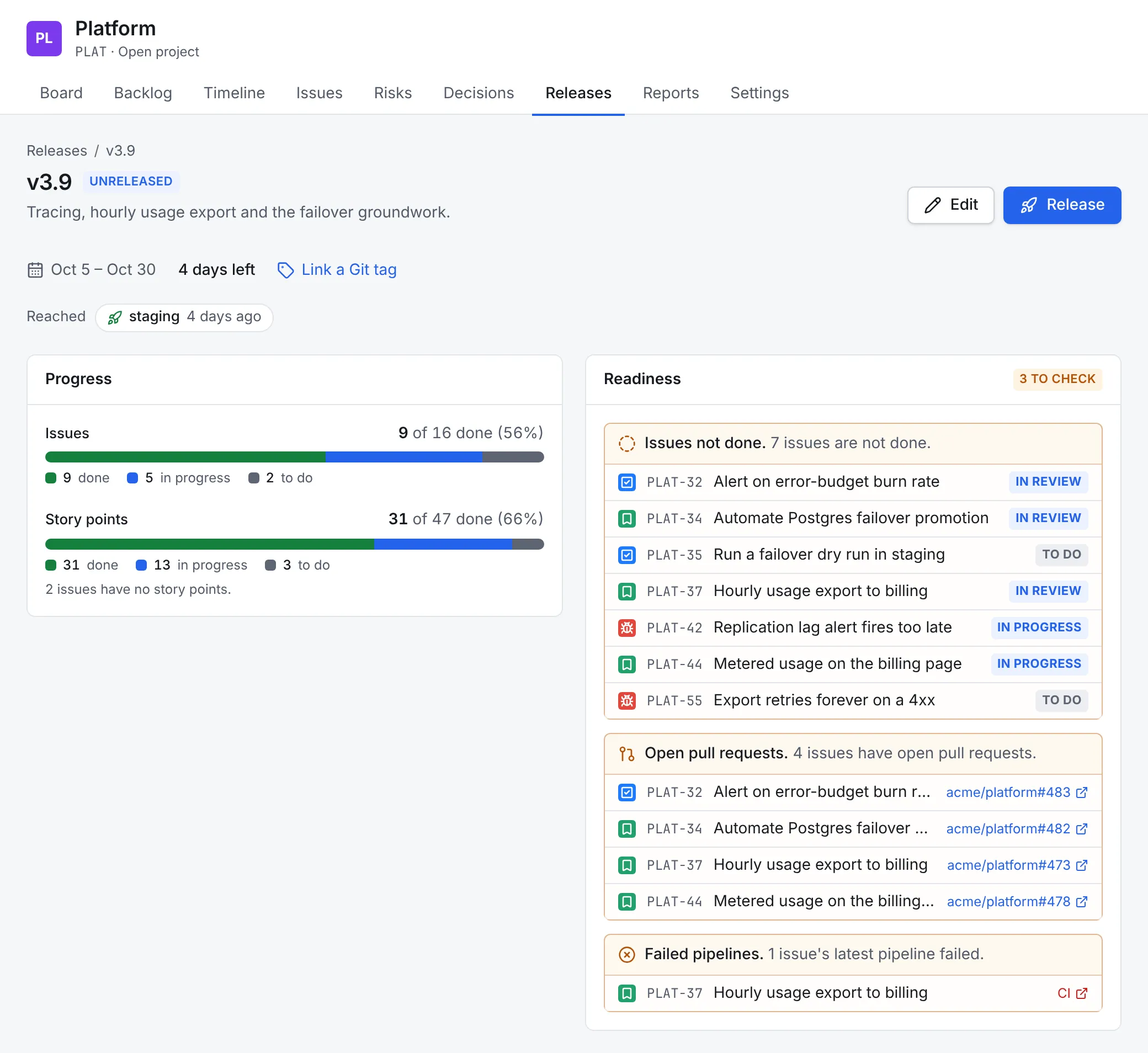
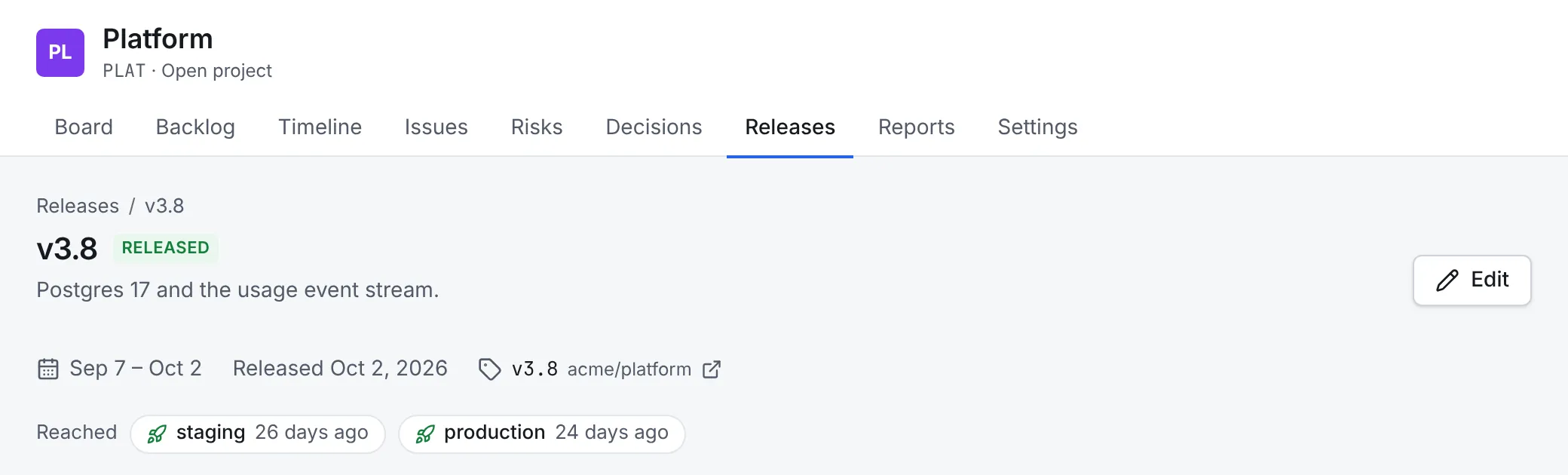
Select a release's name to open its page. At the top are its dates, how many days are left (or how late it is), its Git tag and the environments it has reached. Below:
- Progress: issues and story points by status category, done, in progress and to do.
- Readiness: what stands in the way of shipping. It lists the issues that aren't done, the issues with open pull or merge requests, the issues whose latest pipeline failed, and a release date that has already passed. Each warning lists the issues concerned, with links to the pull requests and pipelines.
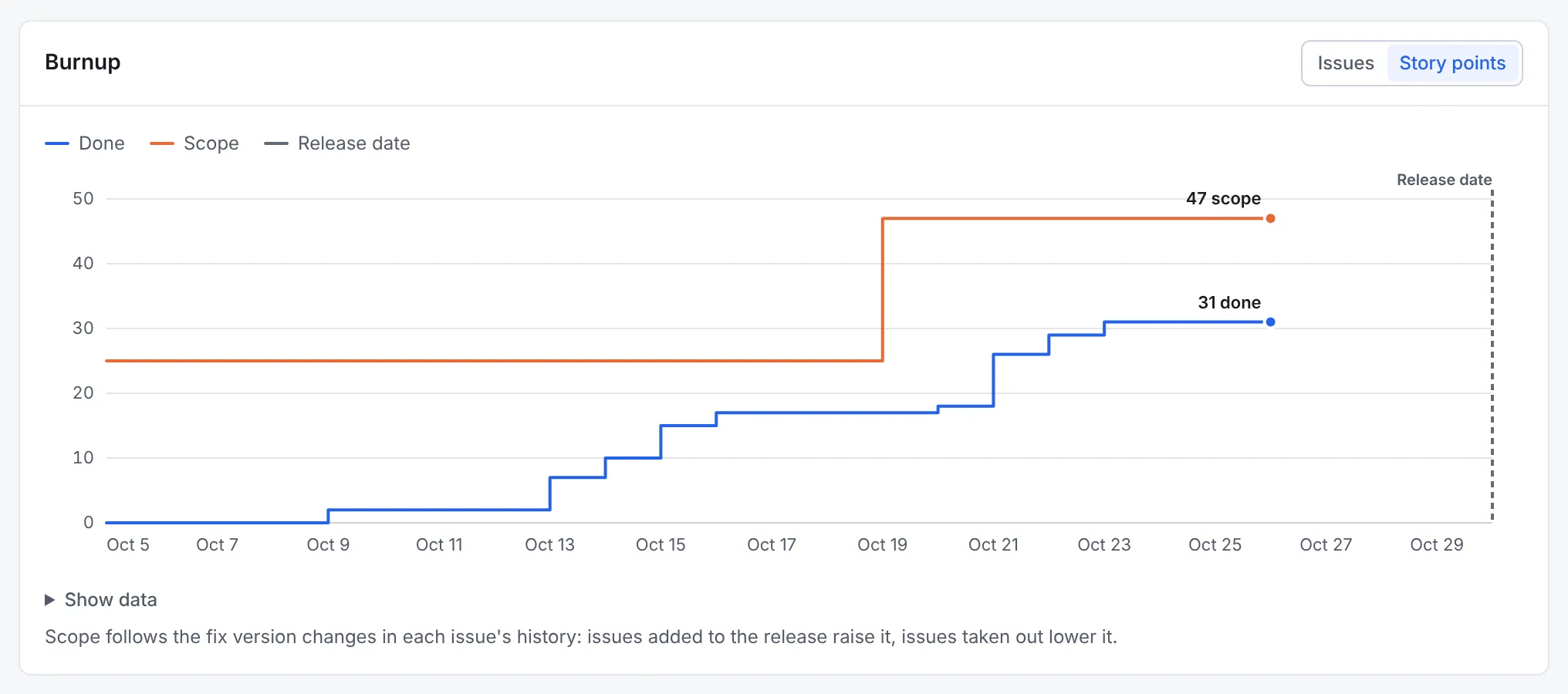
Further down, the Burnup shows done work against the release's scope each day, in issues or story points. When issues are added to the release, the scope line steps up, so you can tell new work from slow work. The dashed line is the release date.
The Issues section at the bottom lists the release's issues, filtered by status category or type. Select one to open it beside the page.
4. Write the release notes
- In Release notes, select Generate. Workflow writes a section per issue type, such as Features from stories, Bug fixes from bugs and Improvements from tasks, with a line for each done issue. Sub-tasks are left out.
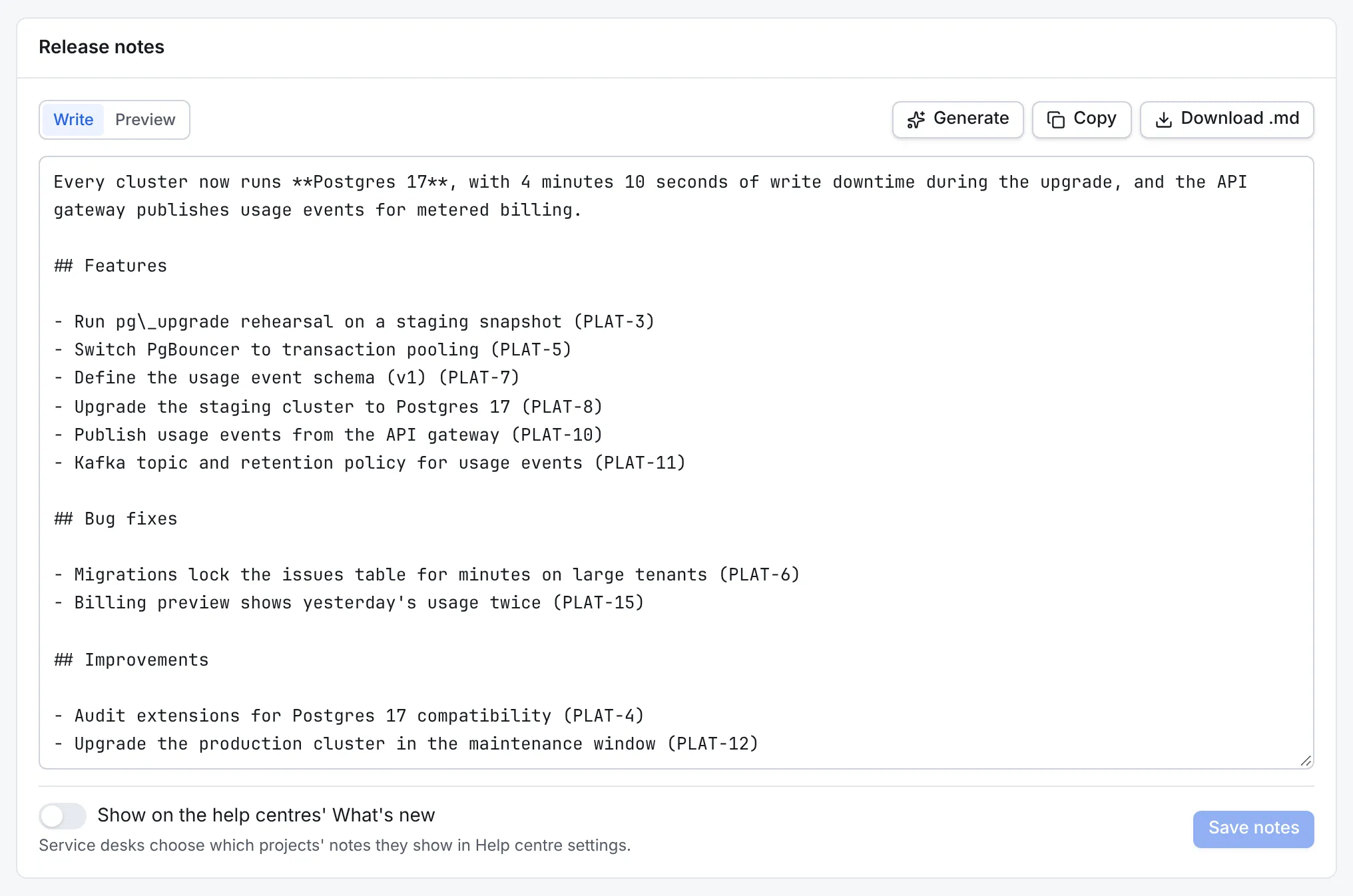
- Edit the text. It's Markdown: add an introduction, reword lines for your readers, and remove what they don't need. Preview shows how it reads.
- Select Save notes.
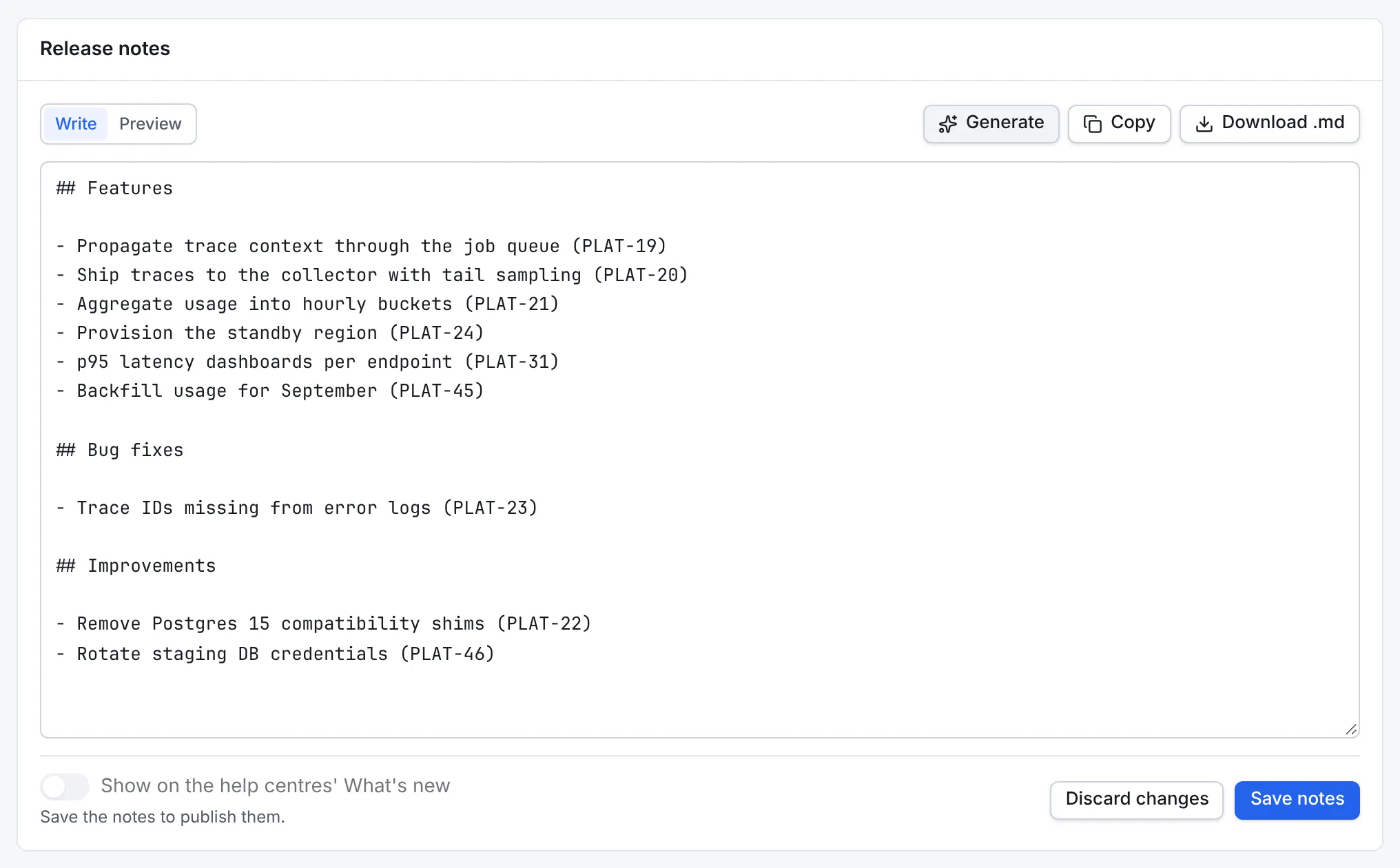
Copy and Download .md take the notes as they are in the editor, for a changelog, a chat message or a GitHub release. To show the notes to your service desk's customers, turn on Show on the help centres' What's new: help centres that chose this project list them on their What's new page. See Set up a help desk.
5. Link the Git tag
A release can ship as a Git tag. When a repository linked to the project gets a new tag named like a release, the release links to it by itself: v3.9 and 3.9 both match a release called v3.9. To link a tag by hand, select Link a Git tag on the release page, choose the repository and type the tag name, then select Save.
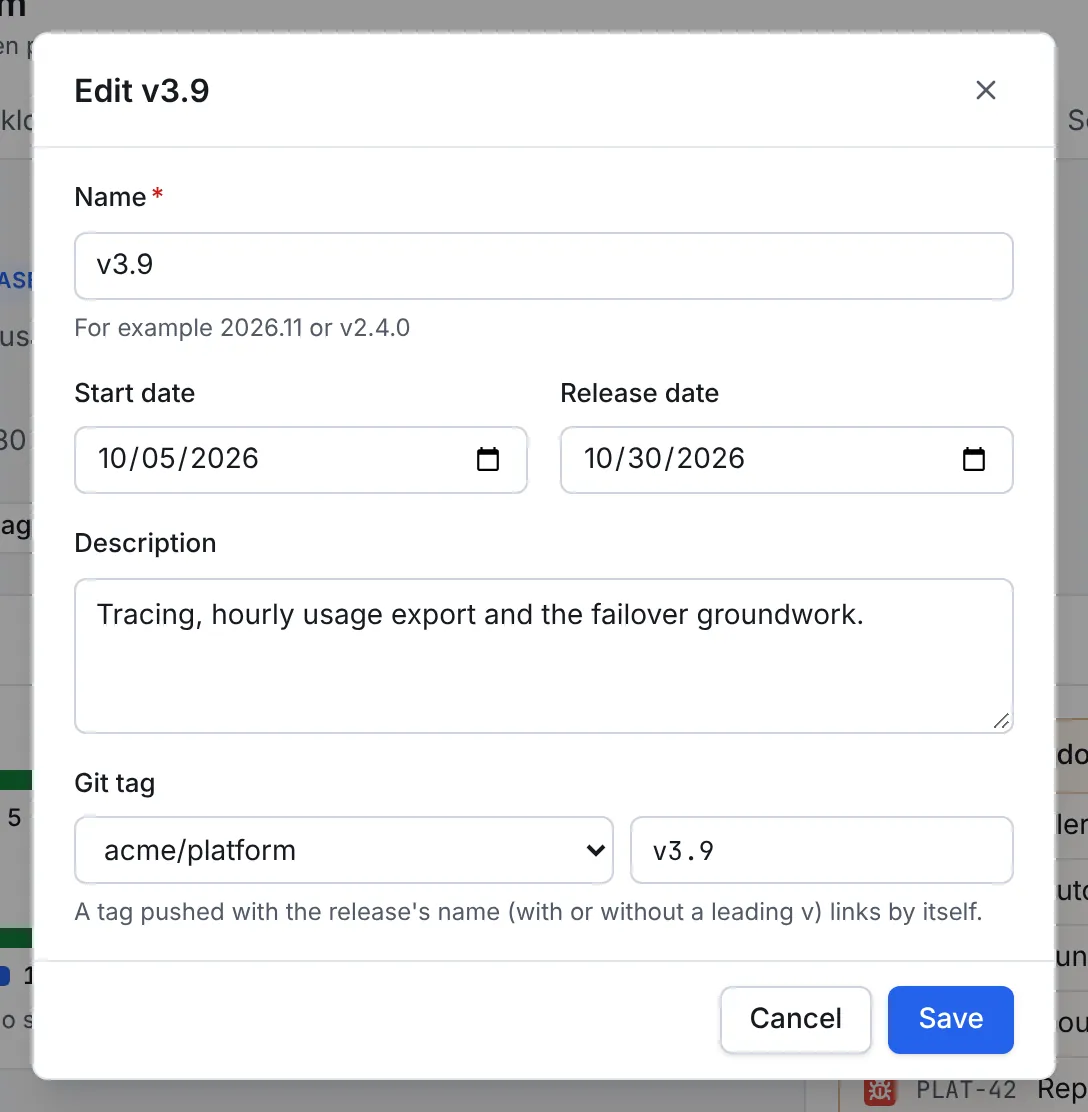
Once linked, the release page shows the tag with a link to it on GitHub or GitLab, and a link to the changes since the previous release's tag.
Let tags drive releases
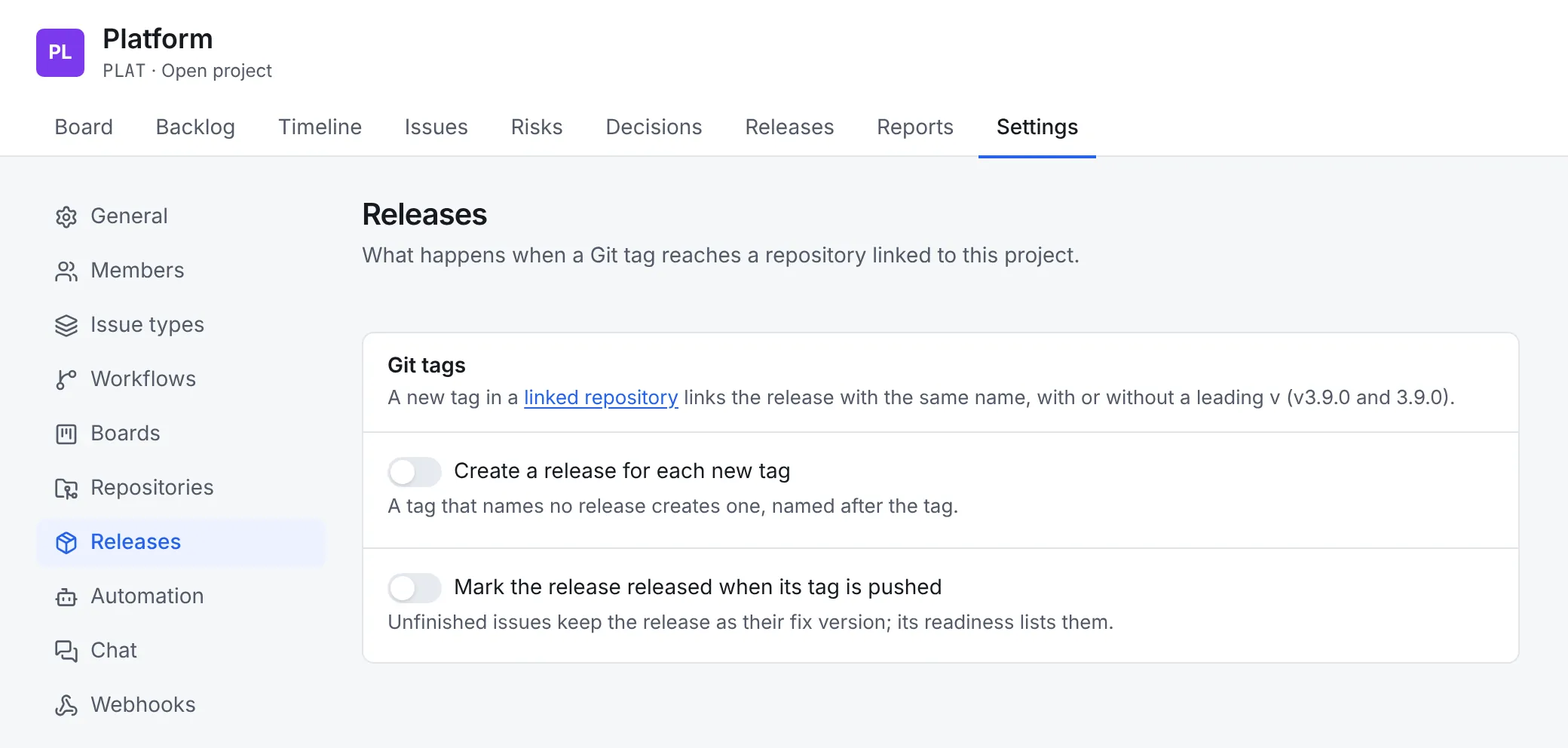
In Settings → Releases, a project admin can turn on Create a release for each new
tag and Mark the release released when its tag is pushed. With both on, pushing
v4.0 creates the v4.0 release if it doesn't exist and marks it released.
6. Ship it
- On the release page, select Release.
- Read Before you release: it repeats the readiness warnings. You can still ship, but this is the last chance to wait for the open pull requests or the failed pipeline.
- Check the Release date: it's today unless you change it.
- If issues aren't done, choose what happens to them: move them to another unreleased release, or remove them from this one.
- Select Release, or Release anyway if there were warnings.
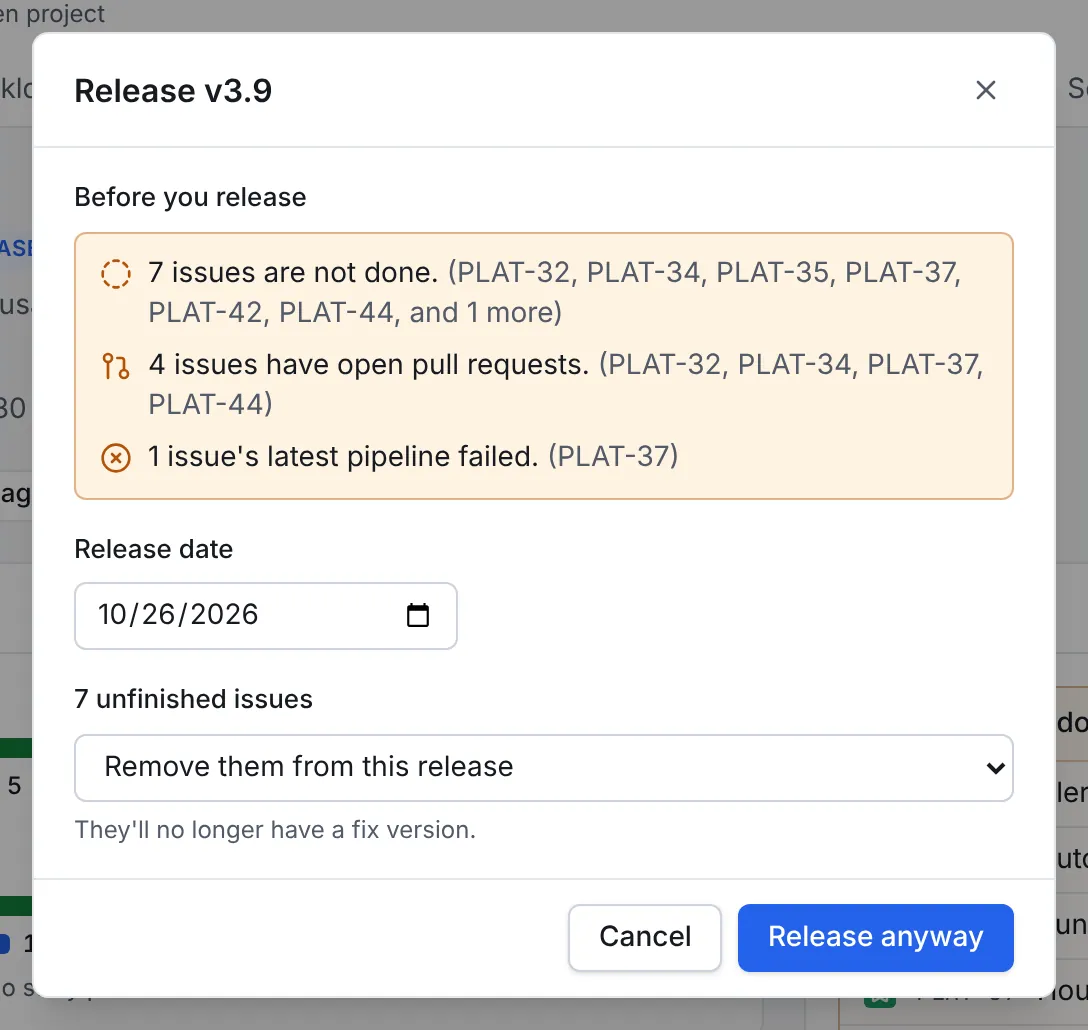
The release moves to Released, and its rules and webhooks get a release.released event.
When a release is no longer interesting, archive it from its … menu on the Releases tab.
7. See where it's deployed
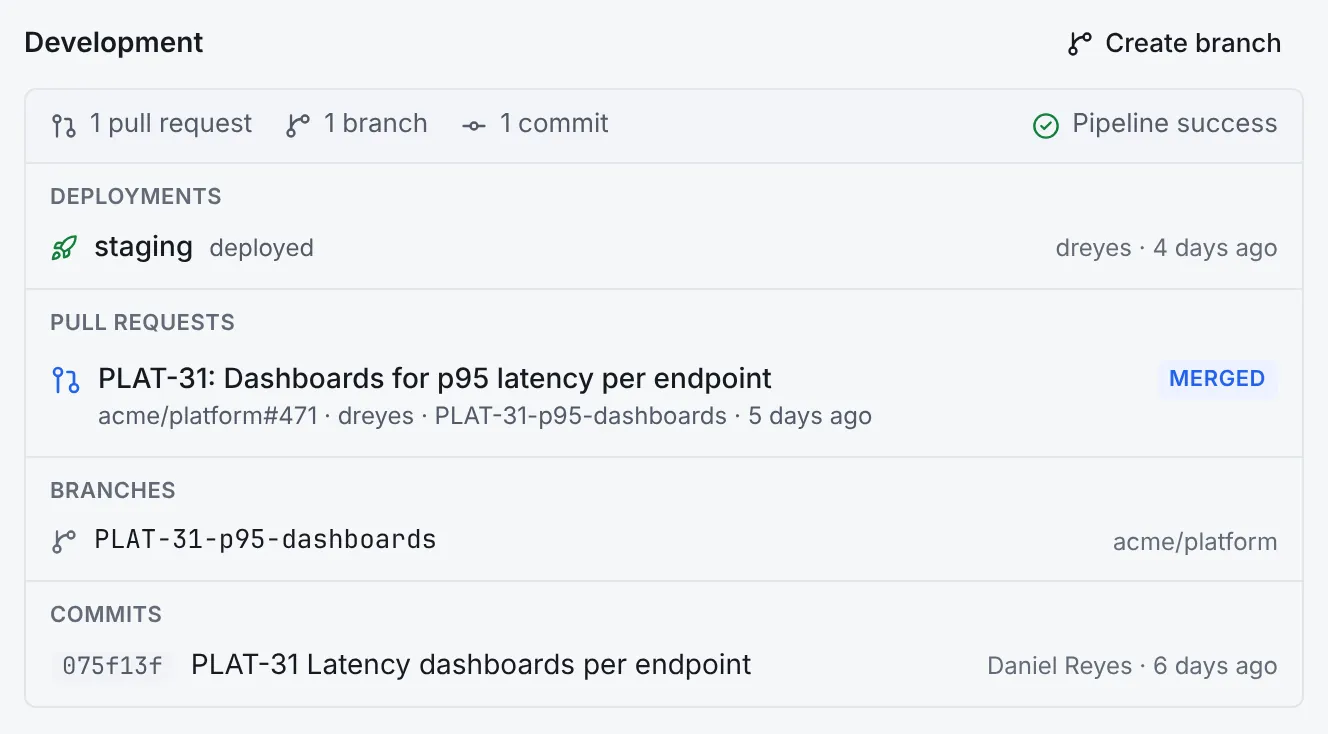
When your pipelines report deployments to GitHub or GitLab, for example from GitHub Actions jobs
with an environment, Workflow records them and works out which issues each deployment
contains. A release has reached an environment when its tag was deployed there, or when every one
of its done issues was. The release page lists those environments under Reached.
Each issue shows the environments it went to in its Development panel, next to its pull requests, branches and commits. Board cards show a deployed mark too.
To find what's waiting to go out, search for done work that hasn't reached production:
Where next
- Releases covers the readiness checks, the burnup and the API.
- GitHub and GitLab explains how tags and deployments are recorded.
- Keep a risk register and a decision log tracks what could get in the way.