Change a workflow
A workflow is the set of statuses an issue moves through, such as To Do → In Progress → In Review → Done, and the transitions between them. Transitions can carry rules: who may run them, what must be true first, what to ask for, and what happens afterwards. This tutorial changes the workflow a Scrum project's stories use: it adds rules to the Done transition, renames a status, and publishes the result as a new version without losing track of any issue.
Who it's for: project admins.
Before you start
- The project's Administrator role.
- It helps to know which issue types use the workflow you're changing. Every issue type uses exactly one workflow, and several types can share it.
- Nothing you edit affects anyone until you publish, so you can explore freely and use Discard.
flowchart LR
  A[Open the workflow] --> B[Edit statuses<br/>and transitions]
  B --> C[Add rules to<br/>a transition]
  C --> D[Publish a<br/>new version]
  D --> E[Choose where issues<br/>in removed statuses go]
  E --> F[Map new statuses<br/>on the board]
How a transition runs
When someone moves an issue, by dragging its card or with the issue's status button, the transition's rules apply in this order:
flowchart LR
  C{Condition:<br/>may this person<br/>run it?} -->|yes| S[Screen:<br/>ask for fields]
  C -->|no| H[Not offered]
  S --> V{Validators:<br/>is the issue<br/>ready?}
  V -->|no| M[Refused, with<br/>the validator's message]
  V -->|yes| T[The status changes]
  T --> P[Post-functions:<br/>assign, set fields,<br/>notify, call a webhook]
Conditions and validators are short expressions in CEL,
such as issue.storyPoints > 0. Each editor box has a CEL reference and examples section
to copy from.
1. Open the workflow
- In the project, open Settings, then Workflows. The list shows each workflow's current version and the issue types that use it.
- Select the workflow to open it in the editor.
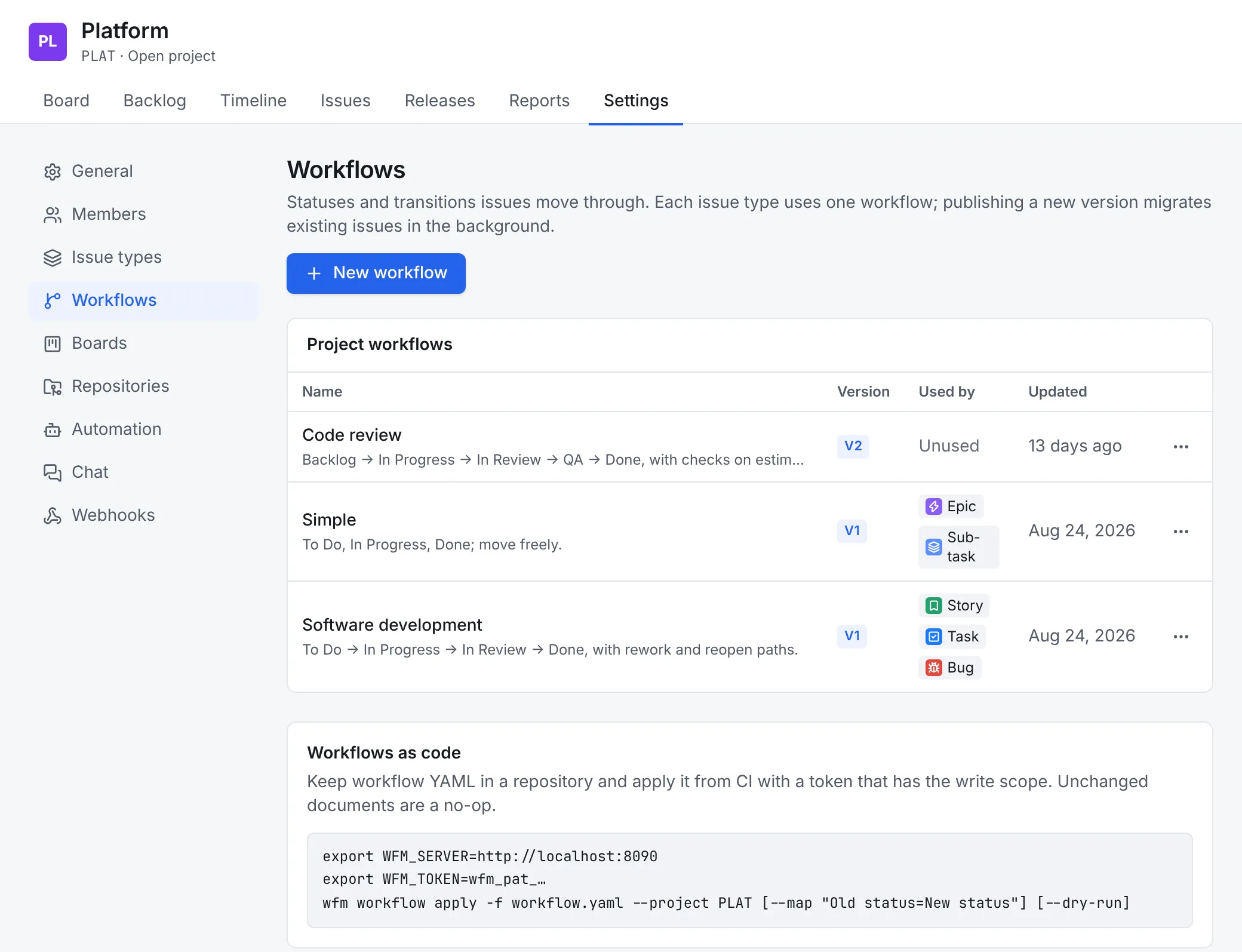
To start a new one instead, select New workflow and start from Blank (To Do → In Progress → Done), Copy a workflow, or Paste YAML.
2. Edit statuses and transitions
The editor opens on the Diagram tab: statuses are boxes, transitions are the arrows between them. Select anything to edit it in the panel on the right.
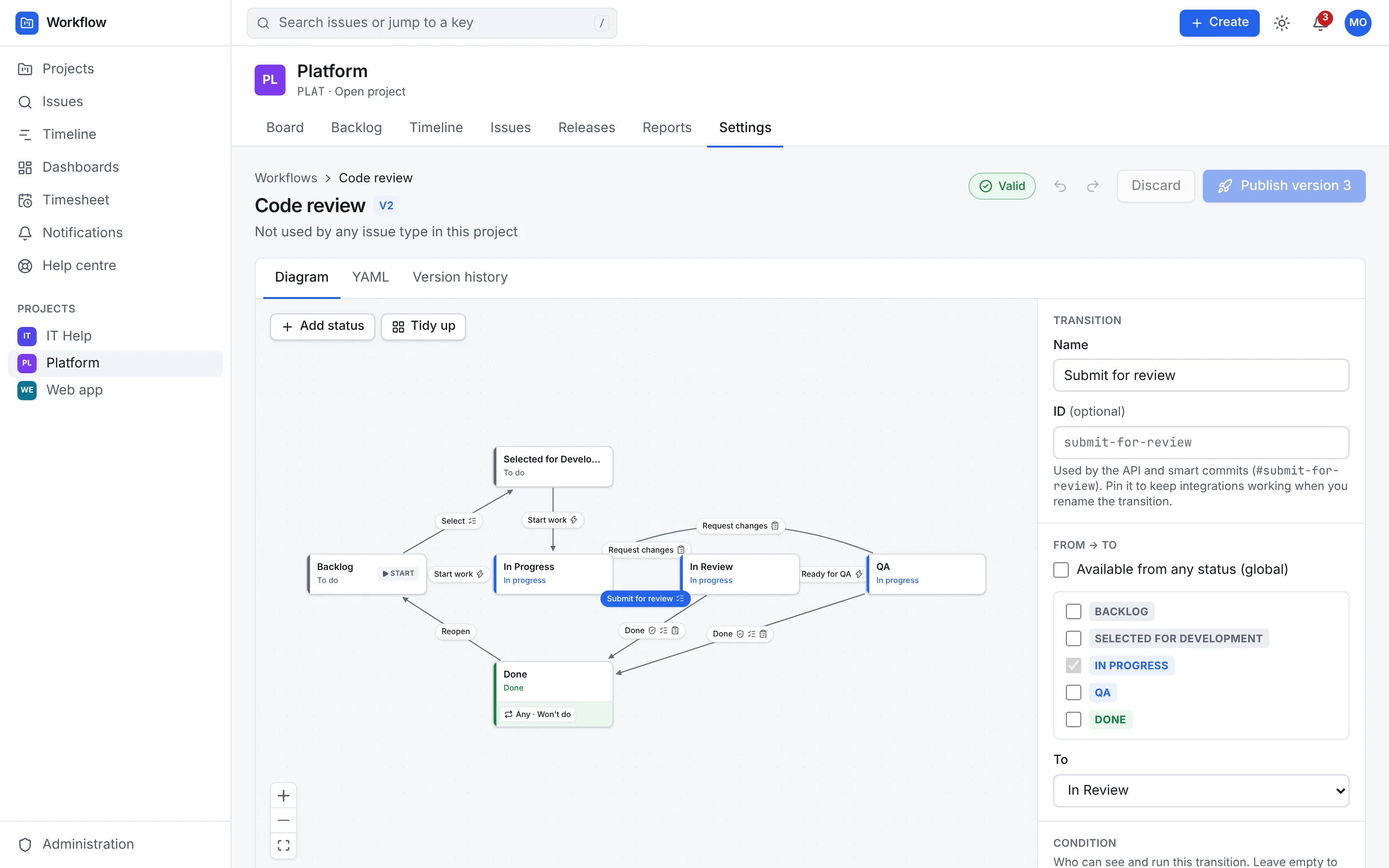
- Add a status with Add status, then give it a name and a Category: To do, In progress or Done. The category matters: issues in a Done status count as resolved and completed in reports.
- Rename a status by selecting it and retyping its Name. Statuses are shared by name across workflows, boards and searches, so a rename is really a new status. When you publish, you choose where the old status's issues go (step 4).
- Mark the initial status, where new issues start, by ticking Initial status on it.
- Edit a transition by selecting its label on the diagram, or from the list in the panel when nothing is selected. Set its From statuses and its To status, or tick Available from any status (global).
- Tidy up lays the diagram out again if it gets crowded.
3. Add rules to a transition
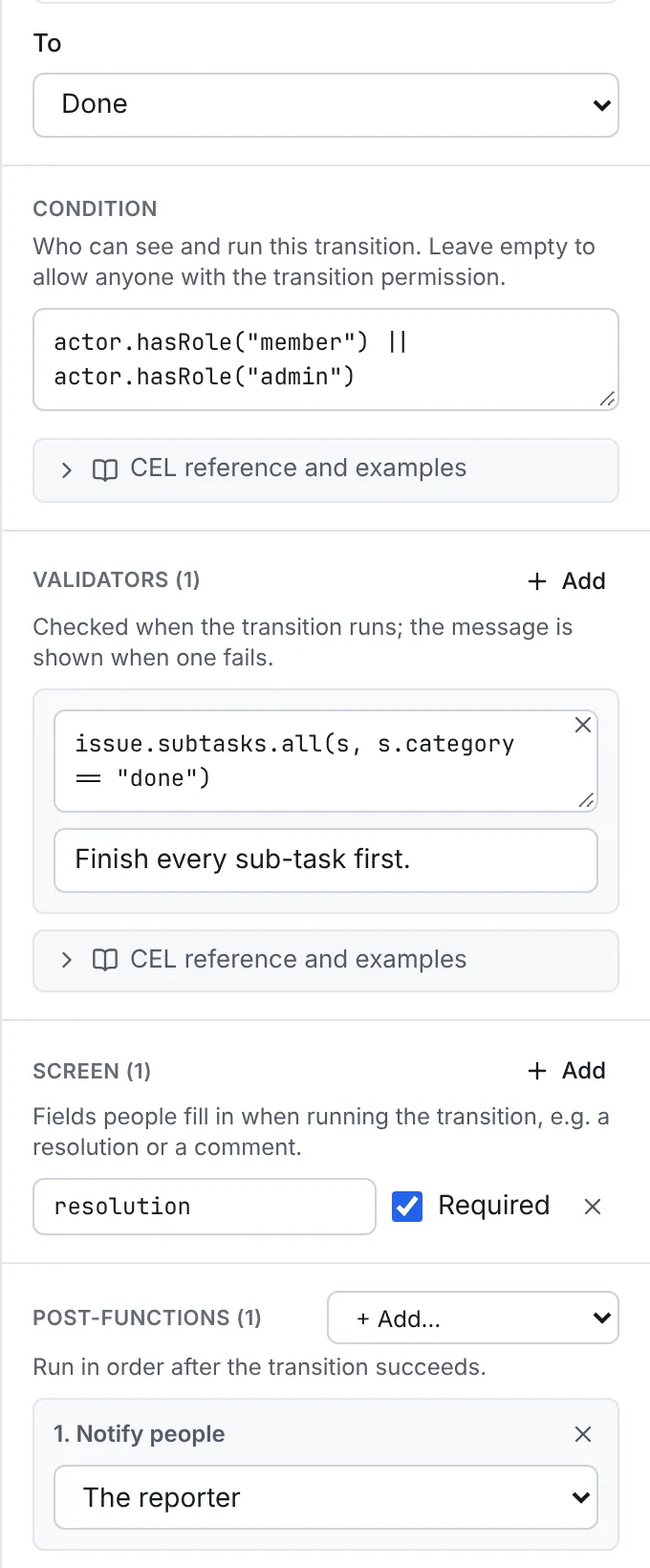
Select the transition, here Done, and scroll the panel down to its rules:
| Section | What it does | Example |
|---|---|---|
| Condition | Who can see and run the transition. Empty means anyone with the transition permission | actor.hasRole("member") \|\| actor.hasRole("admin") |
| Validators | Checked when the transition runs; each has a message shown when it fails | issue.subtasks.all(s, s.category == "done") with Finish every sub-task first. |
| Screen | Fields people fill in first, each optional or Required | resolution, required |
| Post-functions | Run in order after the move: Assign the issue, Set a field, Clear a field, Notify people, Call a webhook | Notify people: the reporter |
The Valid badge at the top of the editor checks the workflow as you edit. If something is wrong, such as an expression that doesn't parse, it reads 1 problem instead: select it to see the problems to fix before publishing, and select a problem to jump to it.
4. Check the YAML and publish
The YAML tab shows the same workflow as a document. Edits in either tab update the other, and Copy and Download take the document out to keep in a repository.
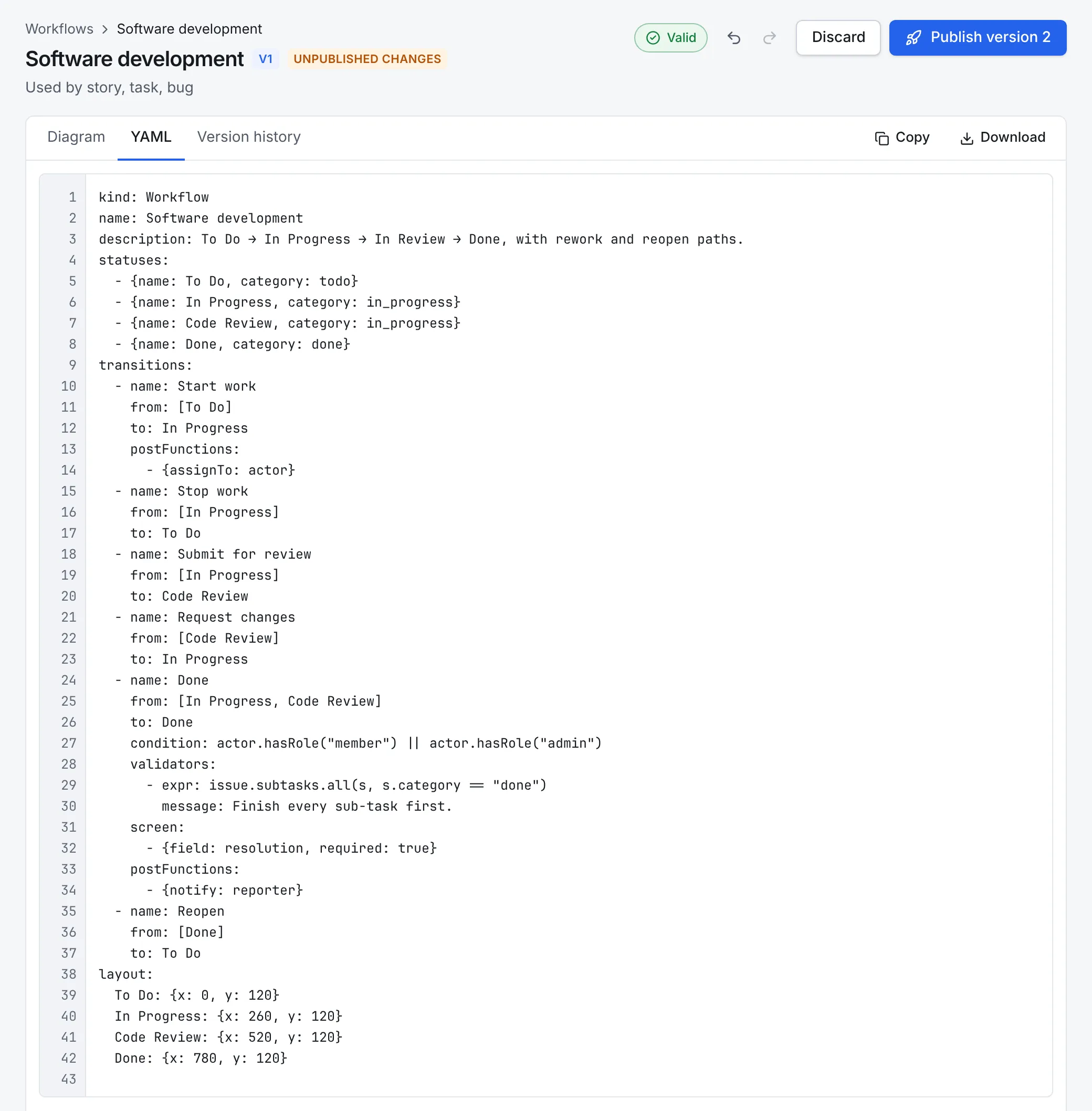
When you're ready:
- Select Publish version 2 (the number is the next version) at the top right.
- The dialog lists what changed since the current version: statuses added and removed, transitions changed.
- If the new version removes a status that issues are still in (a rename counts), choose under Move them to where those issues should go.
- Select Publish and migrate issues, or just Publish if no status was removed.
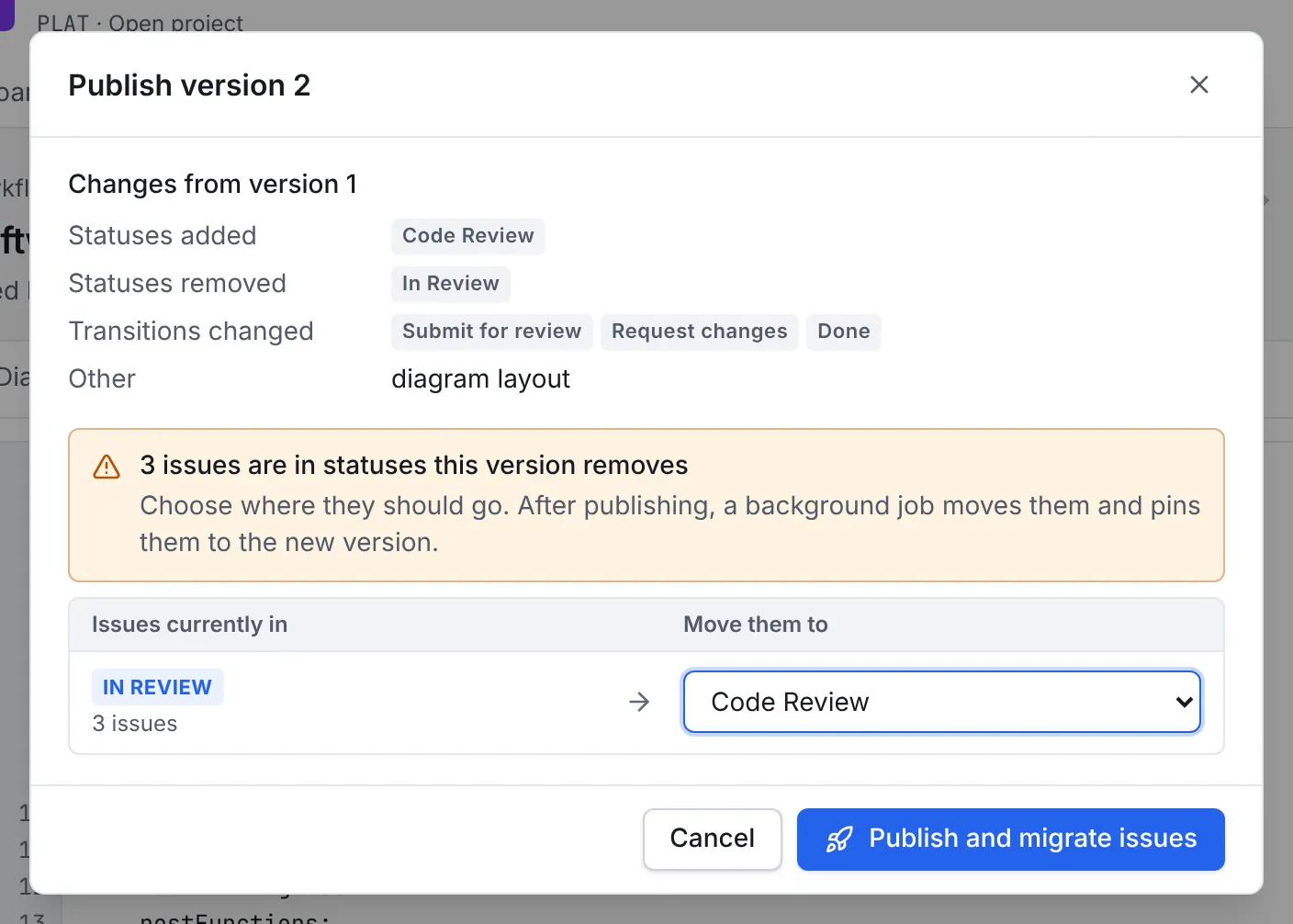
New issues use the new version at once. A background job then moves the existing issues onto it, into the statuses you chose.
5. Map new statuses on the board
Board columns are lists of statuses, so a board doesn't know about a status it hasn't seen. After adding or renaming a status, open the Board. If it says Issues in Code Review aren't shown: that status isn't mapped to a column, select Map status and choose its column, or use Configure board to rearrange the columns.
6. Look back, or roll back
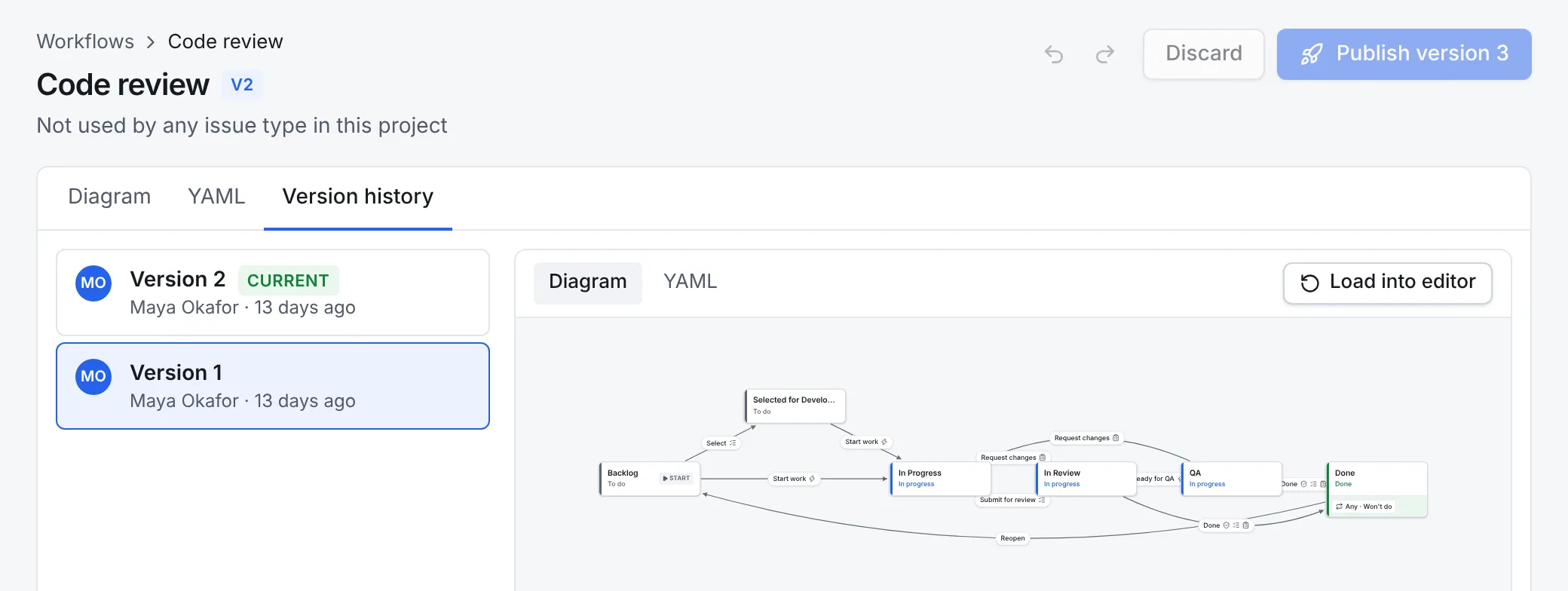
The Version history tab lists every published version, who published it and when. Select one to see its diagram or YAML. To go back to an older version, select Load into editor, then publish it: it becomes the newest version, so the history keeps every step.
Use another workflow for an issue type
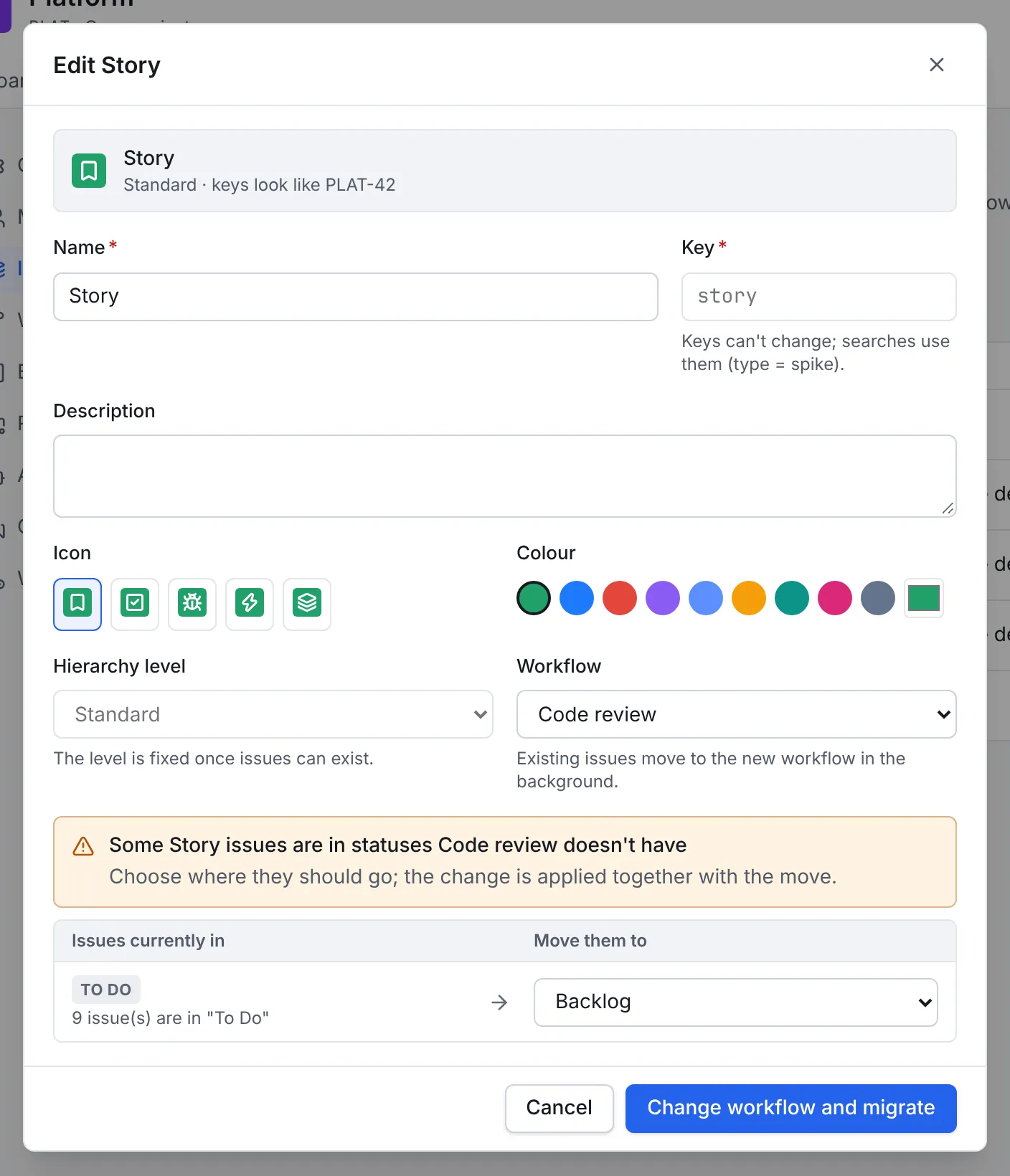
To switch an issue type, such as Story, to a different workflow:
- Open Settings, then Issue types, and select the pencil on the issue type.
- Choose the new Workflow and select Save.
- If some of its issues are in statuses the new workflow doesn't have, the dialog asks where each should go. Choose, then select Change workflow and migrate.
Keep workflows in a repository
The YAML is the same document the wfm CLI applies, so a workflow can live in Git and be
published from CI with a token that has the write scope:
export WFM_SERVER=https://wfm.example.com
export WFM_TOKEN=wfm_pat_…
wfm workflow apply -f workflow.yaml --project PLAT --dry-run
wfm workflow apply -f workflow.yaml --project PLAT --map "In Review=Code Review"
apply publishes a version only when the document changed, so it's safe to run on every push.
Next steps
- Read Workflows as code for every key, post-function and CEL variable.
- Automate moves the workflow doesn't make by itself, such as moving an issue when its pull request opens.
- Use statuses in searches, for example
status = "Code Review" AND updated < -2d.